


Folders of Single Inbox
- September 21, 2025
- 4 mins read
Table of Content
The inbox panel is organized into two main sections — Chats and Tickets — to clearly separate Live Chat and Ticketing workflows. Each section contains multiple subcategories designed to address specific use cases and streamline management.
1. Chats
Your Inbox
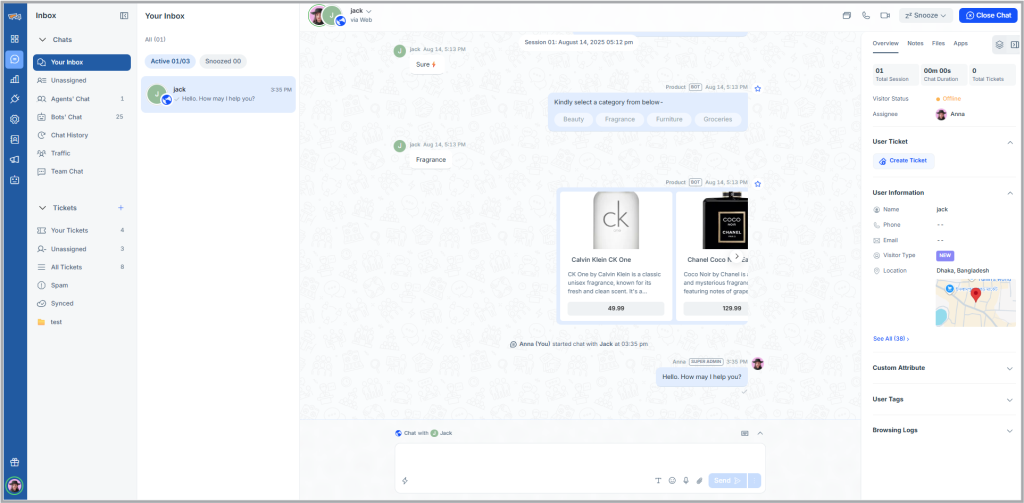
When chat routing is set to “Time Based Routing ” or agents select any message request from the Unassigned panel, The conversation will land in the your inbox panel.
Unassigned
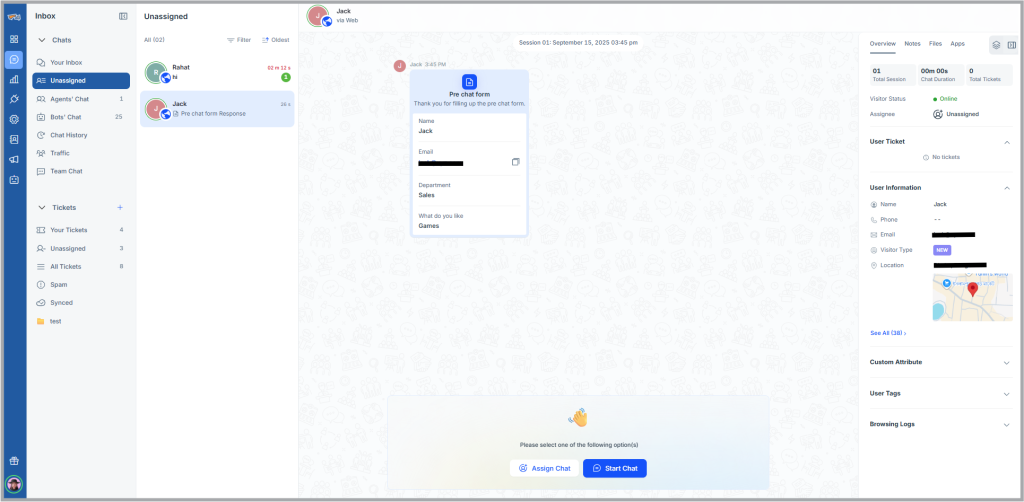
When chat routing is set to “Broadcasting” or when all agents are offline and a visitor messages outside business hour, the chat will land in this folder. From here agents can get a preview of the chat, learning about the customers problem without accepting it. Agents can accept proactively or admins can assign to whom he(admin) thinks can serve the customer best. Now agents can easily sort chat requests according to channels or customers sentiment with the new filter option.
Agent’s Chat
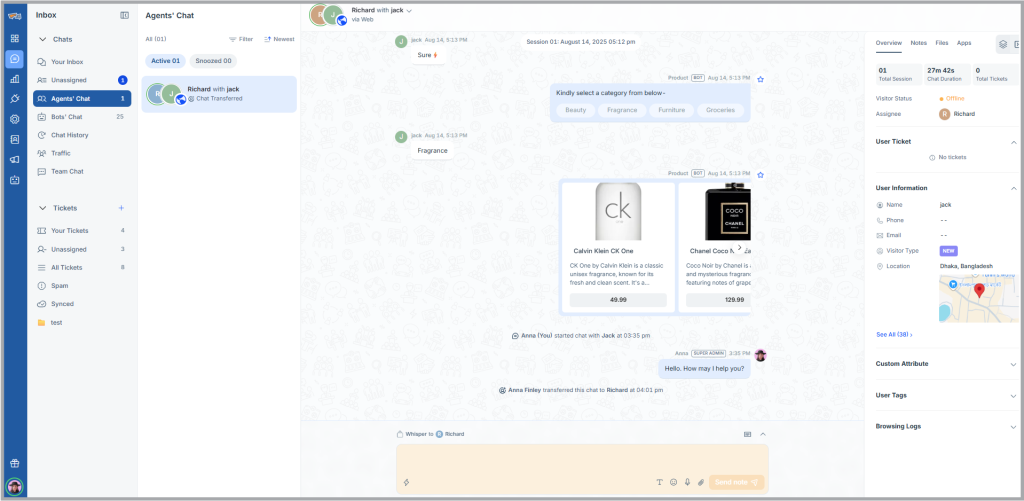
Now, admins can view all their agents chat in the ” Agents Chat” folder. Here the admin can select and monitor any agent’s chat and whisper to the agent to help him better support customers. Admins can easily sort chat requests according to channels, agent’s name or customers sentiment with the new filter option.
Bot’s Chat
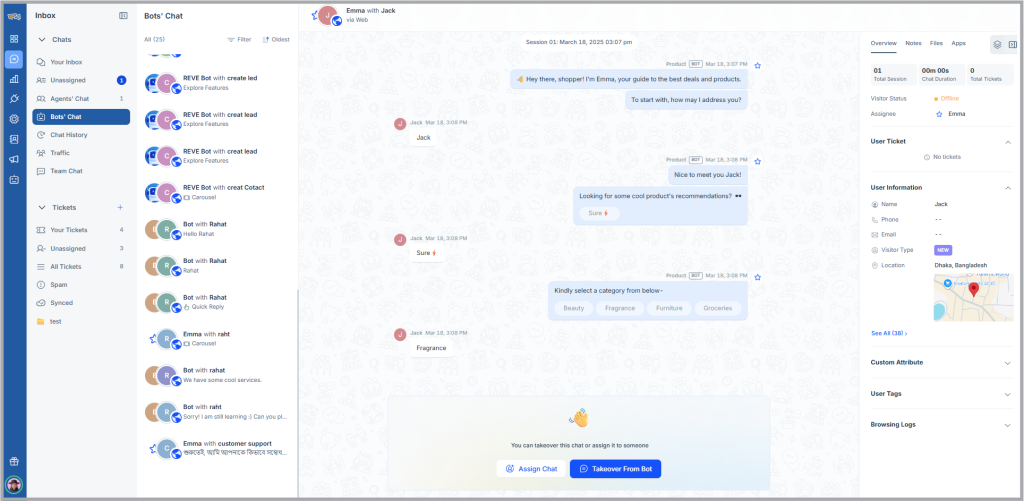
The Bot Chats folder is a dedicated section in the live chat inbox that displays all conversations handled by chatbots. It helps teams review chatbot interactions, monitor performance, and step in when needed for agent takeover or quality checks.
Chat History
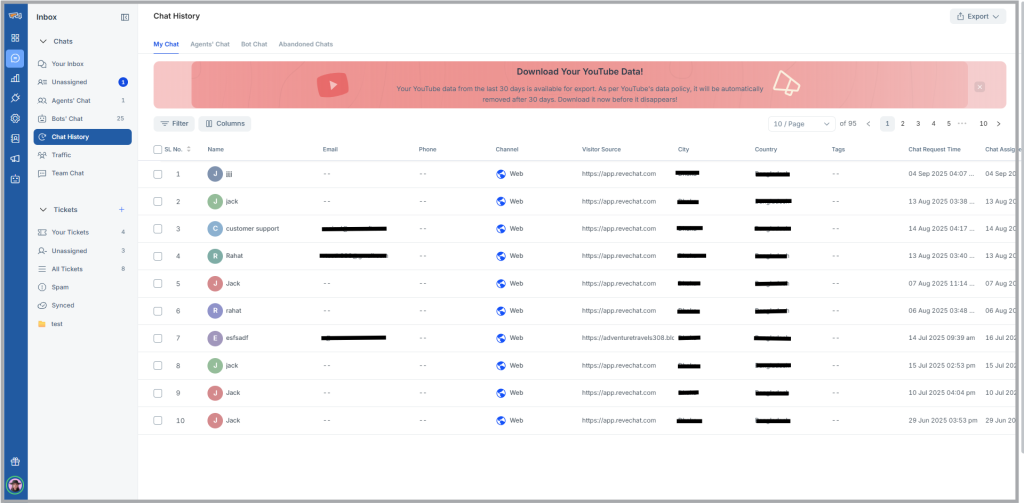
The chat history has been moved from the reports section to the inbox panel. Here both admins and agents can easily find previous conversations of both agents and chatbots. Simply navigate to the chat history folder and all previous chats are sorted based on my chat(users own chat history), agent’s chat, bot chat & abandoned chat. Abandoned chat’s are chat requests that agents have failed to accept.
Traffic:
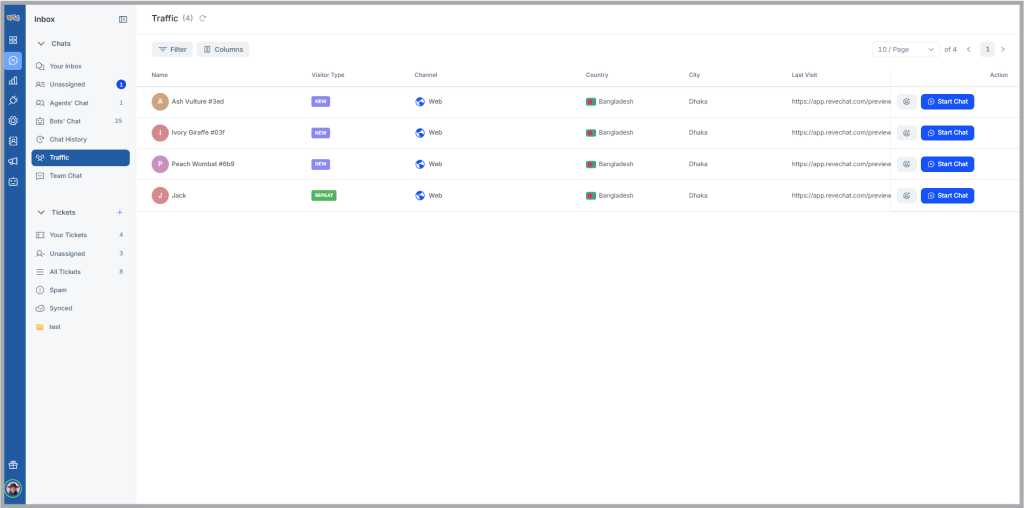
The traffic panel has been revamped totally. Now this panel provides various visitor details, who are currently online. So that agents & admins can approach the visitor knowingly.
Team Chat
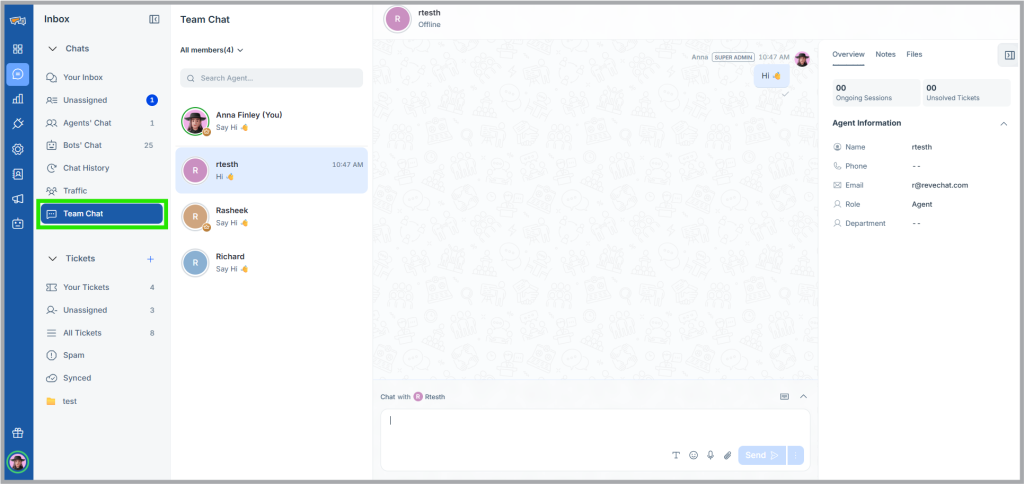
The Team Chat feature allows users to communicate with their teammates in real time within the platform. It helps teams collaborate, share updates, and resolve customer queries faster without switching to external messaging tools.
2. Tickets
The Tickets section in the inbox panel helps businesses manage customer issues in a structured and trackable way. Tickets are categorized into different folders to streamline resolution and ensure accountability.
Your Tickets
This folder contains all the tickets that are directly assigned to you as an agent. To make tracking easier, tickets are segmented by their current stage — Open, In Progress, and Solved. This view ensures you can stay focused on your workload and handle issues in priority order.
Unassigned Tickets
These are tickets that have been created but are not yet assigned to any agent. This view is helpful for supervisors or teams who handle ticket distribution. It ensures no customer request is left unattended and tickets can be picked up quickly by the right person.
All Tickets
This folder provides a comprehensive view of every ticket created in the system. Similar to other views, tickets are organized into Open, In Progress, and Solved categories. This makes it easy for managers and admins to monitor overall ticket volume, track performance, and identify bottlenecks across the entire team.
Spam
Sometimes, not every ticket is valid — for example, irrelevant messages, or fraudulent requests. The Spam folder allows agents to manually mark them as spam. This keeps your main ticket queues clean and focused only on real customer issues.
Custom Folders
Businesses often have unique workflows or need to track specific cases (e.g., VIP customers, billing issues, or region-specific requests). With custom folders, you can set conditions (such as priority, tags, status, or department) to automatically group tickets into dedicated folders. These dynamic folders update in real-time, helping teams work smarter and stay organized.

 Start free trial