



Ticketing Folders
- July 27, 2025
- 2 mins read
Table of Content
How to use Ticketing system more effectively?
To use the ticketing system more efficiently, your agents need to understand how the floders work best for them and utilize the benefit.
Definition of the tables
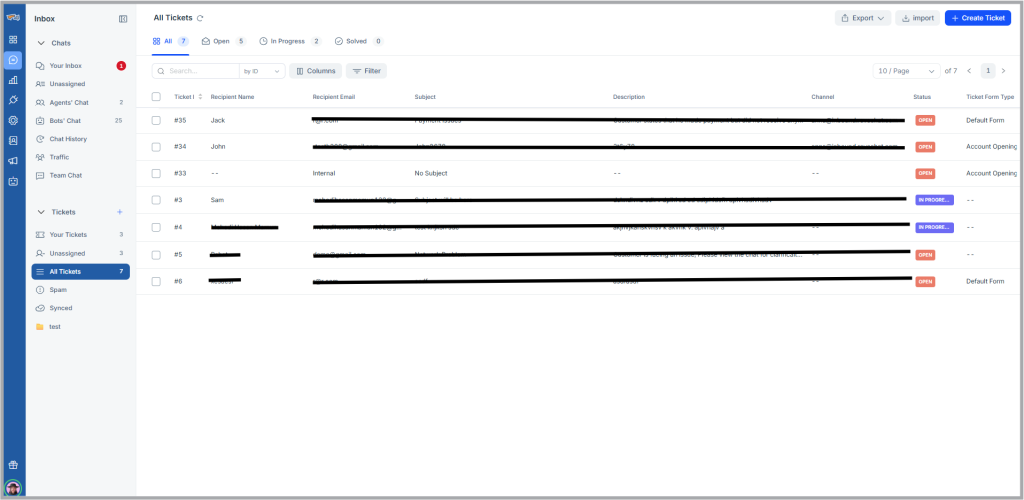
All Tickets
Tickets with any status will be visible here. In this table, you will see all the Assigned / Unassigned tickets with any of the Open / In Progress / Solved status.
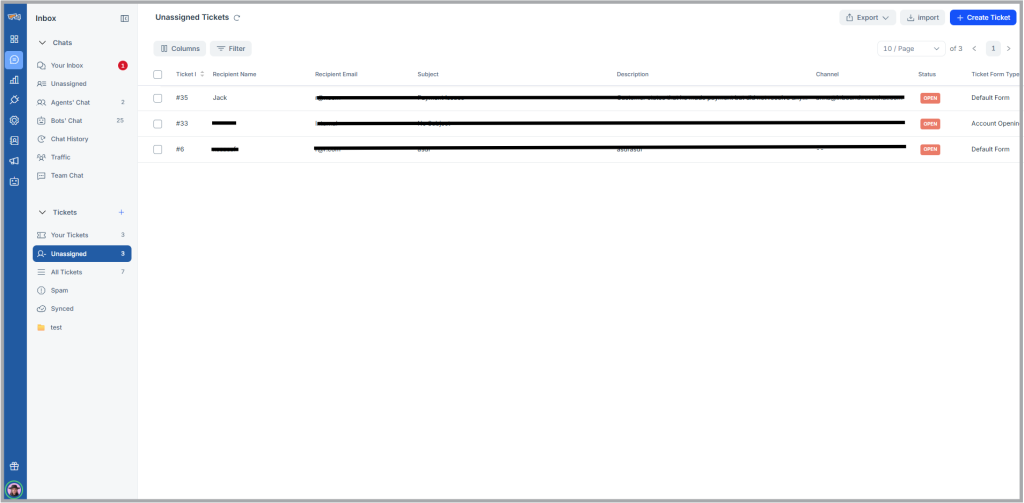
Unassigned Tickets
Tickets that are unassigned to any agents and not moving to next solution are Unassigned ticket. To start working on any tickets your agent/admin needs to add assignee to the ticket.
Your Tickets
Tickets that are assigned to agent will be visible form here. If tickets are not assigned to person, that person will not see tickets in this table. This folder is divided into 3 sections Open, In progress, Solved.
- Open: Tickets that are assigned to agent and status is Open. Here agents can, reply to customer on the solution, change ticket status to In Progress, change assignee and set priorities.
- In Progress: Tickets that are assigned to agent and status is In-Progress will be visible from this tab. Similar to others, agents can, reply to customer on the solution, change ticket status to In Progress, change assignee and set priorities.
- Solved: Here will be a list of tickets that has been solved. Agents can change the status, reopening the ticket if the issue returns
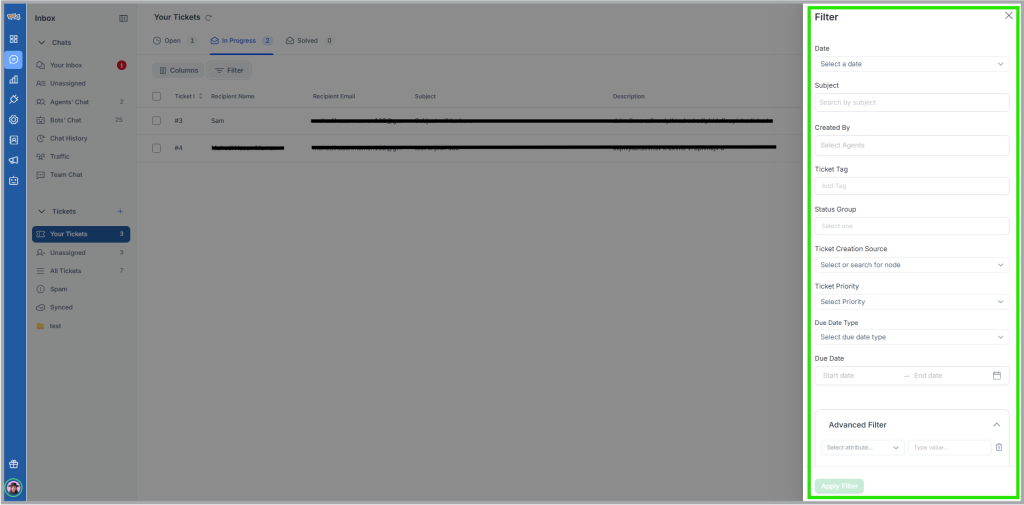
Column Organizaion & Advance Filter
REVE Chat Tickets comes with advance filter, where you can filter tickets based on From-To date, Assignee, and Tags used for ticket. The advance filter allows you to change your search items from the table and show further data, no need to open the filter tab again and again.
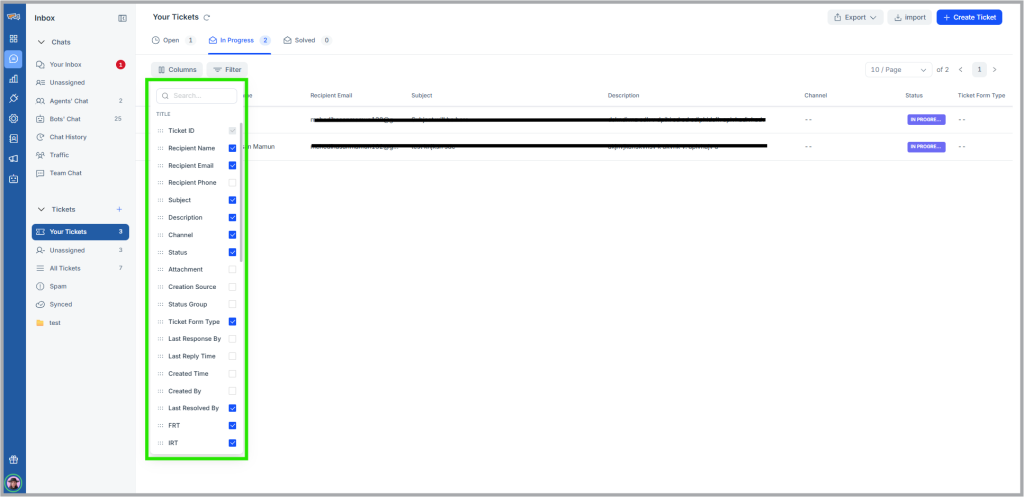
You can even rearrange, disable the table elements by clicking the column button.
Bulk Action
Save your time making bulk actions where possible. If you know about the tickets where Assignee needs to be added/updated, status to be changed, or multiple tickets that needs to be marked as spam, you can do that selecting those tickets from left and make the change.
Export Tickets
You can export the tickets by selecting them manually or by page. To export certain tickets, you have to simply filter the tickets with the advanced filter feature and click export to download the all the tickets in that page.

 Start free trial