



Forward emails to your REVE Chat tickets
- February 18, 2026
- 3 mins read
Table of Content
If you want your customers to connect you in your business email, e.g., [email protected] that will automatically forward your emails to REVE Chat tickets, you can do that in a very simple steps. However, these changes needs to be done for your business email inbox settings.
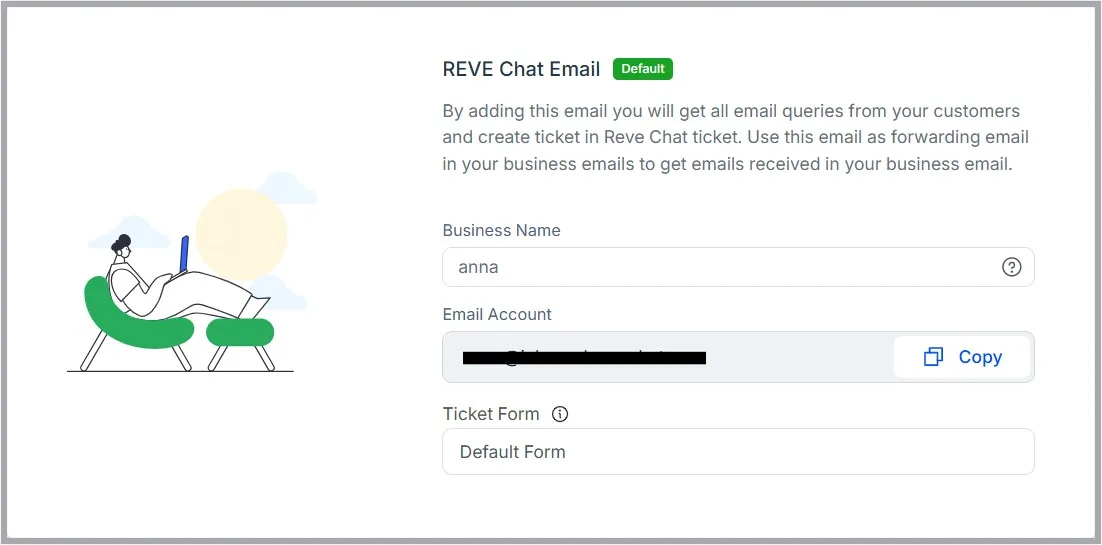
Before setting forwarding emails, you have to set up your ticketing email address.
Gmail
To set up forwarding in your Gmail account, complete the following steps:
- Log in to REVE Chat and go to email integration page
- Copy your ticketing email address you have created for your REVE Chat account.

- Now go to your Gmail forwarding settings and click on ‘Add a forwarding address’ to proceed.
- Enter the copied email and click on ‘Next’.
- You will get a pop out tab, click on ‘Proceed’ button to confirm.
- You will get a confirmation email as a ticket in your REVE Chat ticketing system. Complete the setup by confirm the email.


Now, all emails received in this Gmail account will be forwarded as tickets in your REVE Chat account.
Yahoo! Mail
To set up forwarding in your for your Yahoo email, complete the following steps:
- Log in to REVE Chat and go to email integration page
- Copy your ticketing email address you have created for your REVE Chat account.
- Login to your Yahoo account > go to Settings > choose More Settings.
- Select ‘Mailboxes’ from the Options menu and click on our email.
- Enter your copied REVE Chat ticket email in the forwarding email box and click on verify.
- You will get a confirmation email as a ticket in your REVE Chat ticketing system. Complete the setup by verifying the email.


Now, all emails received in this Yahoo! Mail will be forwarded as tickets in your REVE Chat account.
Outlook
To set up forwarding in your for your Outlook email, complete the following steps:
- Log in to REVE Chat and go to email integration page
- Copy your ticketing email address you have created for your REVE Chat account.
- Open your Outlook application > Files > click on Manage Rules & Alerts
- Click on ‘New Rules’ > Apply rule on messages I receive > don’t select any checkbox and go next
- You will get a confirmation popup > select Yes to proceed
- Choose ‘Redirect to people or public group’ and ‘Stop processing more rules’, the condition will be shown in the below portion of the box.
- From the below portion of the box click on ‘people or public group’, enter your copied REVE Chat ticket email in ‘TO’ and click on ‘Ok’
- Now click on ‘Finish’ to complete the Rule’s definition, and Apply the rule.
As the set up is complete, all emails received in this email will be forwarded as tickets in your REVE Chat account. For further details, follow Microsoft’s automatic email forward instruction.

 Start free trial