



How Visitors Create and Track Tickets
- August 23, 2026
- 2 mins read
Table of Content
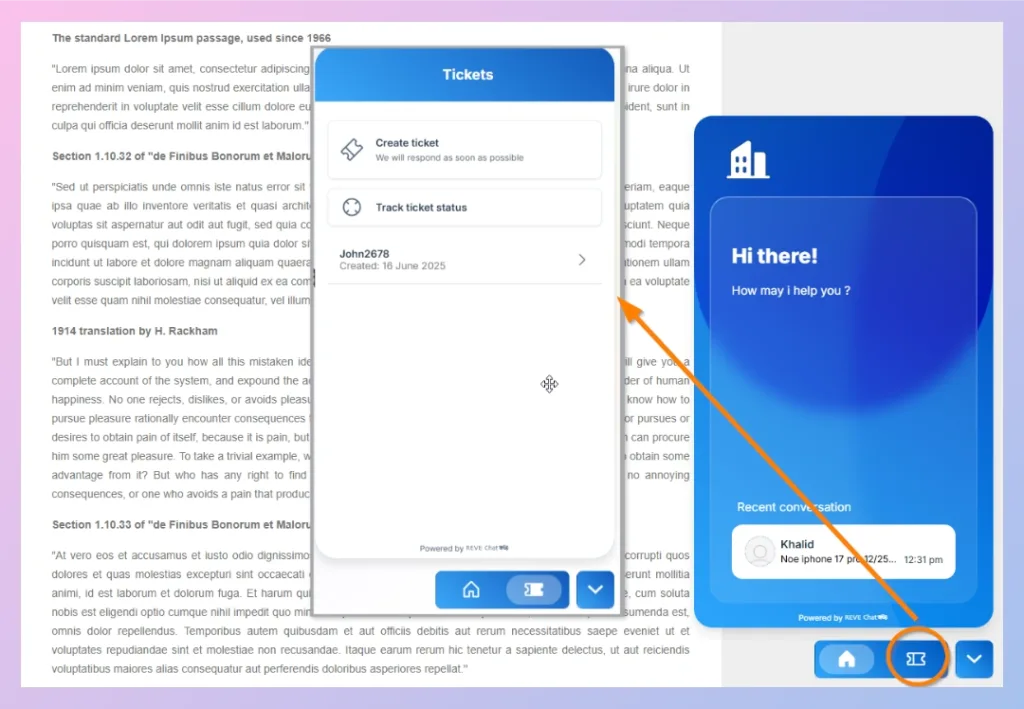
Once Tickets is enabled, visitors can submit support requests and track existing tickets directly from the REVE Chat widget.
Visitors will see a Ticket icon in the navigation area at the bottom of the chat widget. When they select it, the Tickets screen provides two main options:
- Create ticket
- Track ticket status
How a Visitor Creates a Ticket
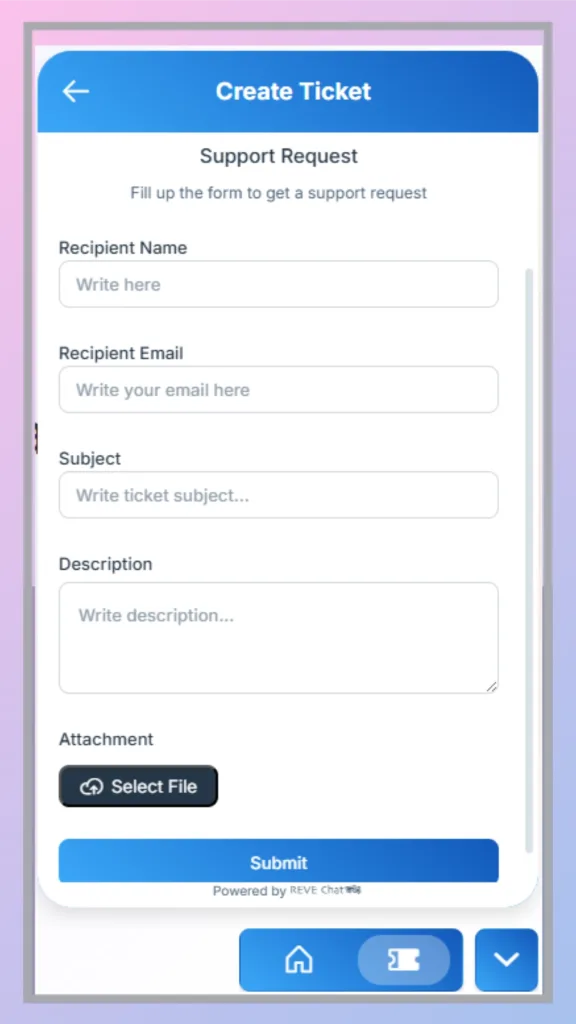
To create a new support request:
- Open the REVE Chat widget on the website.
- Select the Ticket icon from the bottom navigation.
- Click Create ticket.
- Select the appropriate ticket reason or form, if multiple options are available.
- Complete the information requested in the ticket form.
- Submit the ticket.
The fields shown to the visitor depend on the ticket form configured by the administrator.
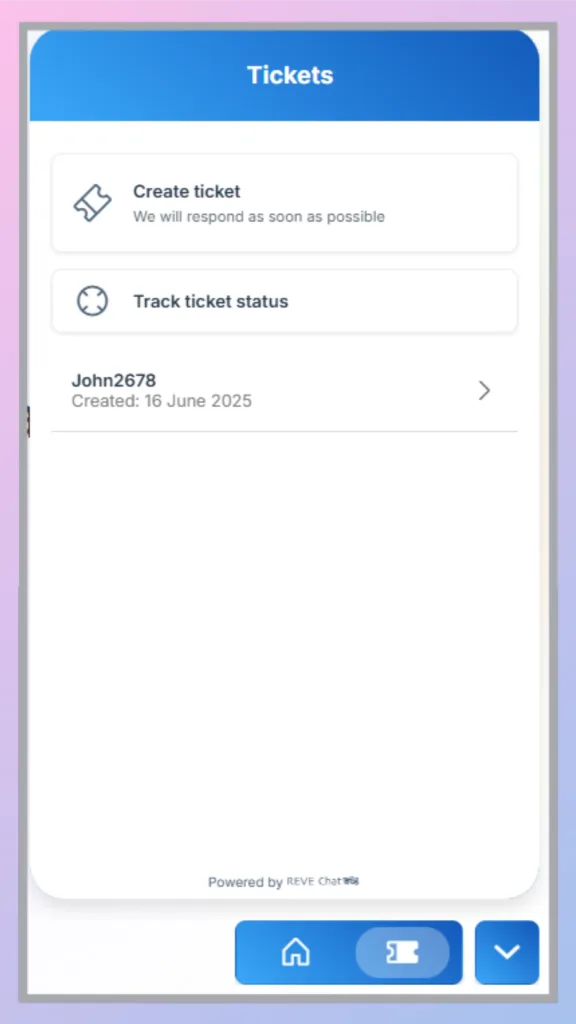
After the ticket is created, it may appear in the visitor’s ticket list with its ticket information and creation date.
View an Existing Ticket
Visitors can open an existing ticket directly from the Tickets screen when it appears in their ticket list.
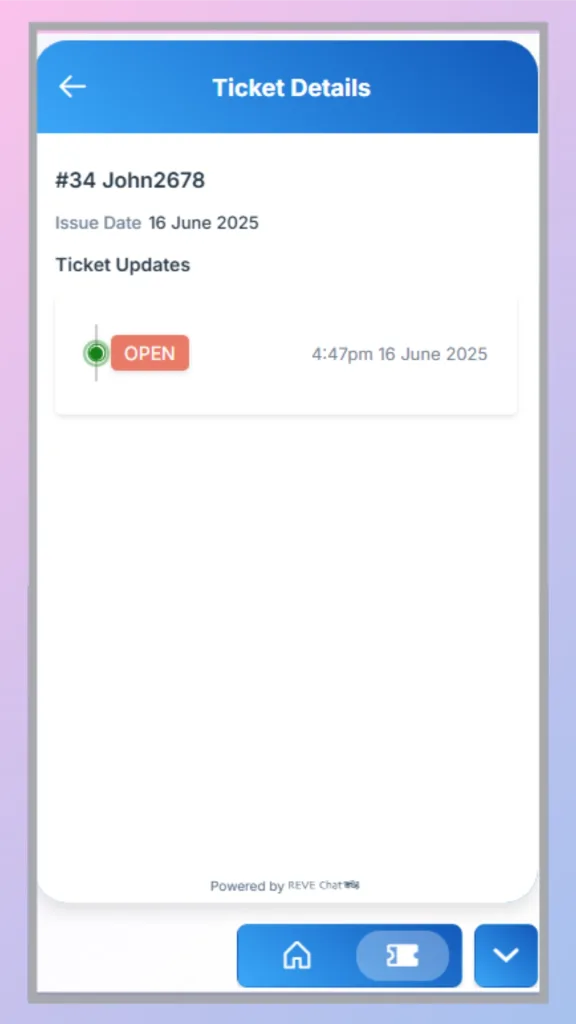
Selecting a ticket opens the Ticket Details page.
Here, the visitor can see information such as:
- Ticket number
- Ticket title
- Issue date
- Current ticket status
- Ticket updates
- Date and time of status changes
For example, a newly submitted support request may display an OPEN status until the support team updates or resolves it.
This allows customers to check their request without starting another conversation with the support team.
How a Visitor Tracks a Ticket
Visitors can also track a ticket manually when they already have the ticket information.
Step 1: Open Track Ticket
From the Tickets screen, click Track ticket status.
Step 2: Enter Ticket Information
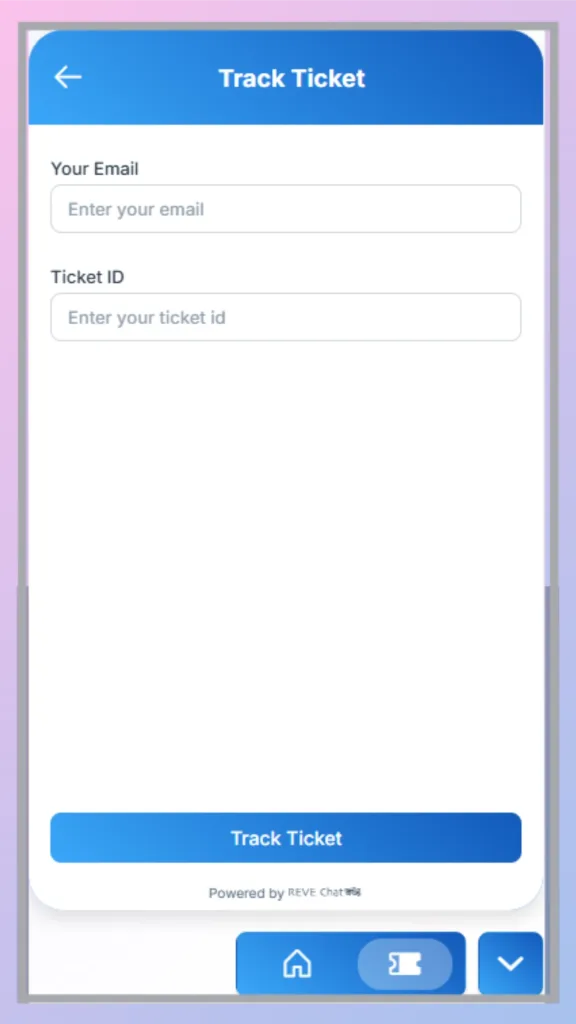
Enter:
Your Email: The email address associated with the ticket.
Ticket ID: The unique ID assigned to the support ticket.
Step 3: Track the Ticket
Click Track Ticket.
If the information matches an existing ticket, the visitor can open its details and check the latest status and updates.
What Visitors Can Do from the Tickets Section
The Tickets section gives website visitors one convenient place to:
- Submit a new support issue.
- View existing tickets.
- Check the current status of a ticket.
- Review ticket updates.
- Track a ticket using their email address and Ticket ID.
This provides customers with a simple self-service way to follow their support requests while allowing your support team to manage those requests through REVE Chat’s ticketing system.

 Start free trial