



How to Add Multiple AI Agents in a Single Workflow
- July 6, 2026
- 5 mins read
Table of Content
You can add multiple AI Agents inside a single Wize AI workflow to handle different types of customer questions with different roles, tools, and data sources.
Instead of creating a separate workflow for every product category, department, or support scenario, you can build one main workflow and connect additional AI Agent tools under the primary AI Agent. Each AI Agent can have its own behavior, prompt, knowledge source, and connected tools.
For example, an e-commerce business may use:
- A primary AI Agent for general store support
- A product inventory AI Agent for electronics
- A food inventory AI Agent for grocery or fruit-related questions
- A knowledge base tool for policies, FAQs, and support documents
- A human handover path for cases that require live agent support
This setup allows the main AI Agent to understand the customer’s message and route the request to the right AI Agent or tool.
- If a customer asks about headphones, the main AI Agent can use the electronics inventory source.
- If the customer asks about avocados, fruits, bakery items, dairy, or other food products, the main AI Agent can pass the request to the food inventory AI Agent and return the correct response in the same chat.
This helps you manage multiple support scenarios from one workflow without building separate AI Agents for every category.
Note: Before adding multiple AI Agents, make sure you already understand how to create a basic Wize AI Agent workflow and how to connect tools such as Knowledge Base and Google Sheets.
Let’s Add an AI Agent to Another Agent
Here, we will add a Food and Fruits Inventory Agent under a primary E-commerce Store Inventory Agent.
The workflow includes:
- Main AI Agent: Handles general e-commerce product questions.
- Electronics Inventory Google Sheet: Connected directly under the main AI Agent.
- Second AI Agent: Handles food, fruit, grocery, and nutrition-related product questions.
- Food Inventory Google Sheet: Connected under the second AI Agent.
- Knowledge Base tool: Supports general business information.
- Condition node: Checks whether the conversation should be handed over to a human agent.
- Response To Chat node: Sends the final AI response to the customer.
Step 1: Add a new AI Agent tool under the primary AI Agent
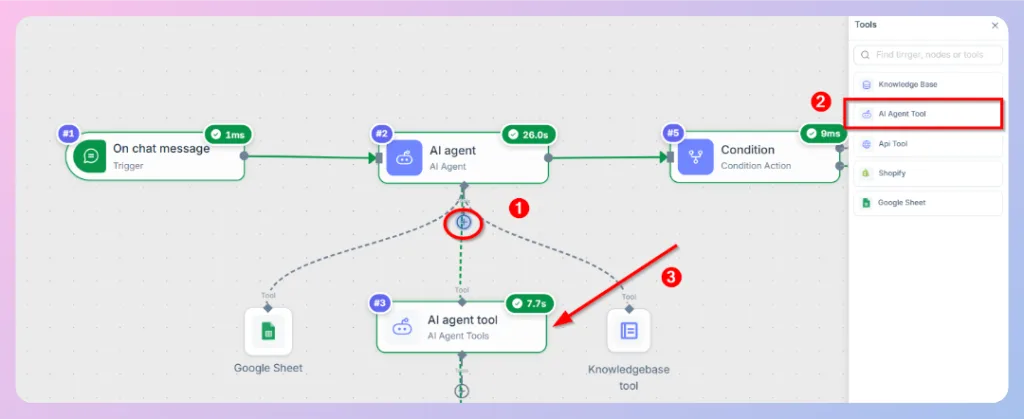
Open your existing Wize AI Agent workflow from the Builder canvas.
To add another AI Agent:
- Find the primary AI Agent node.
- Click the ‘’+’’ button under the primary AI Agent.
- From the tool menu, select AI Agent Tool.
This adds a secondary AI Agent under the primary AI Agent. The primary AI Agent can now route specific customer requests to this secondary AI Agent when needed.
Step 2: Add the Food and Fruits Inventory Agent
After adding the AI Agent Tool, configure it as a dedicated food inventory assistant.
Double-click the new AI Agent Tool node to open its configuration panel.
In the Description field, explain what this AI Agent is responsible for.
Example description:
“A smart inventory assistant for a food, fruits, meat, nuts, vegetables, milk, and grocery store. It helps customers find products, checks real-time stock and pricing from the inventory sheet, and provides simple nutrition or healthy eating guidance when relevant.”
This description helps the main AI Agent understand when to use the second AI Agent.
Step 3: Connect the “Food and Fruits Google Sheet” to the new AI Agent
After creating the Food and Fruits Inventory Agent, connect the relevant Google Sheet under this agent.
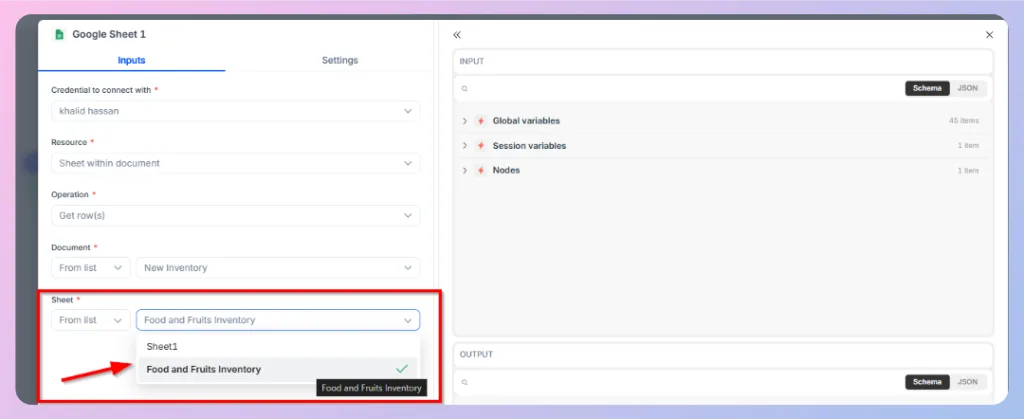
To connect the Google Sheet:
- Click the “+” button under the second AI Agent.
- Search for and select Google Sheet.
- Double-click the Google Sheet node.
- Select the required credential.
- Select the resource.
- Choose the operation, such as Get row(s).
- Select the correct document.
- Select the sheet that contains the food or fruit inventory data.
- Close the configuration panel.
Step 4: Add the prompt and description for the new AI Agent
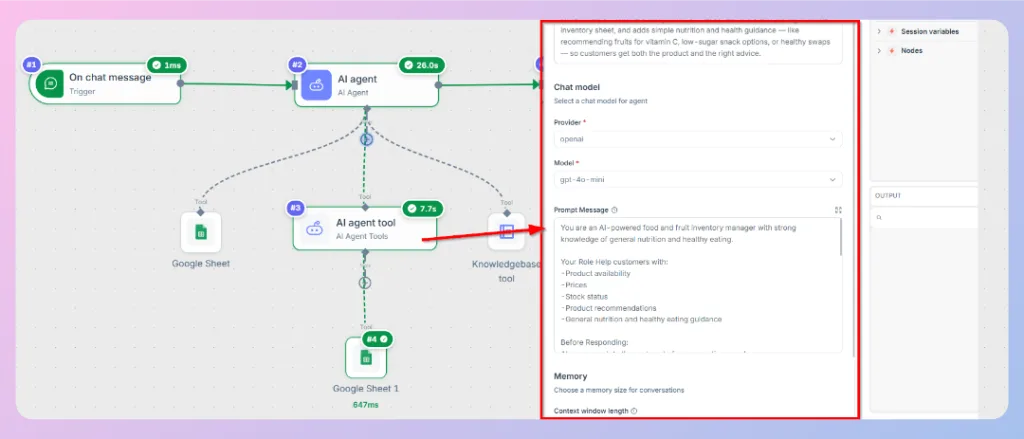
The secondary AI Agent needs its own prompt so it knows what role to perform and when to use the connected Google Sheet.
In the Prompt Message field of the second AI Agent, write clear instructions.
Then update the primary AI Agent prompt so it knows when to route a request to the secondary Food and Fruits Inventory Agent.
🗳️ Related Reading: Learn how to create a prompt and industry-wise template.
Step 5: Launch and test the workflow
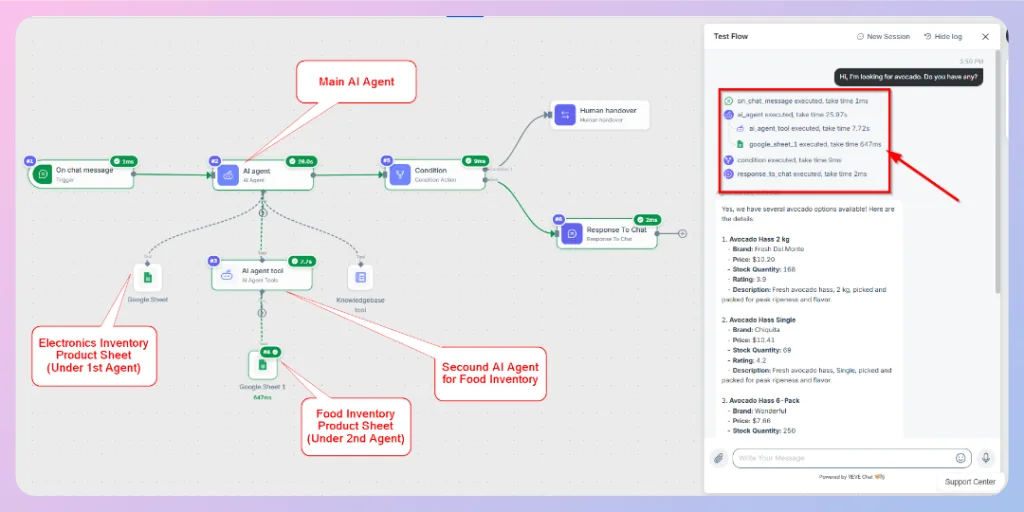
After configuring the primary AI Agent, secondary AI Agent, and connected tools, test the workflow before making it active.
Use the Test Flow panel and send a sample customer question.
In this example, the main AI Agent does not use the electronics inventory sheet because the customer asked about avocado. Instead, it passes the request to the Food and Fruits Inventory Agent, which uses the food inventory sheet and returns the correct answer.
Troubleshooting: You might find help here
| Issue | Possible reason | What to check |
|---|---|---|
| The main AI Agent does not route the request to the second AI Agent | The primary AI Agent prompt does not clearly explain when to use the second AI Agent | Add clear routing instructions in the primary AI Agent prompt. |
| The second AI Agent gives a generic answer | The connected Google Sheet is missing, not selected, or not configured correctly | Check the Google Sheet credential, document, sheet, and operation settings. |
| The wrong product category is used | The main AI Agent instructions are too broad or unclear | Define product categories clearly in the primary AI Agent prompt. |
| The AI Agent uses electronics data for food questions | The primary AI Agent has not been instructed to route food-related queries to the food agent | Add category-based routing instructions for food, fruits, grocery, and related items. |
| No data appears in the test result | The workflow may not have executed the connected tool, or the sheet data is unavailable | Review the execution log and confirm whether the AI Agent tool and Google Sheet node executed successfully. |
| Human handover does not work | The condition node or handover attribute may not be configured correctly | Check the condition logic, structured response value, and Human handover node connection. |
Best practices
- Use one primary AI Agent to understand the customer’s intent and route requests.
- Create secondary AI Agents for specific product categories, departments, or support topics.
- Give each AI Agent a clear description and role.
- Connect each secondary AI Agent to the correct data source.
- Use clear routing instructions in the primary AI Agent prompt.
- Test each category separately before activating the workflow.
- Review the execution log to confirm which AI Agent and tool handled the customer request.

 Start free trial