



What are Tickets?
- August 23, 2026
- 2 mins read
Table of Content
The ‘’Tickets’’ section is available directly inside the Live Chat Inbox so agents can move between real-time conversations and longer-running customer issues without leaving the workspace.
The current Inbox contains:
- Your Tickets
- Unassigned
- All Tickets
- Spam
- Synced
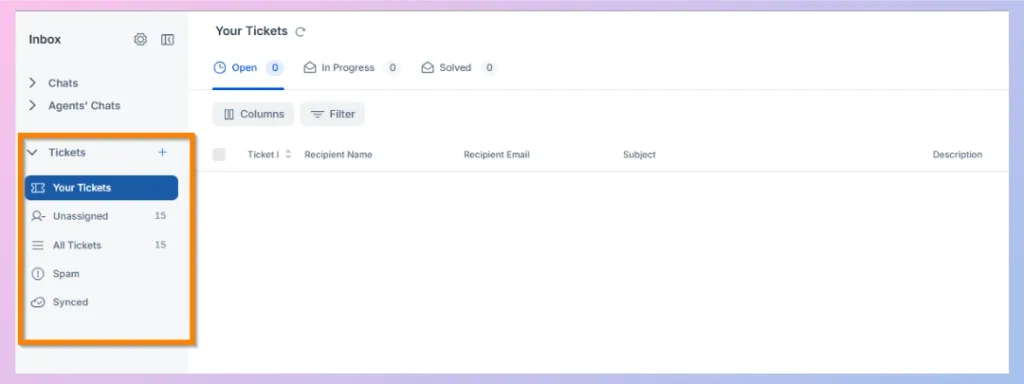
Your Tickets
‘’Your Tickets’’ section contains tickets assigned to the login person(human agents).
REVE Chat’s ticketing is organized by statuses such as Open, In Progress, and Solved, helping agents understand which issues need attention and which have already been completed.
Unassigned
The Unassigned folder contains tickets that do not currently have an agent assigned to them.
An agent or administrator needs to assign the ticket before ownership of the customer issue is established.
The current Unassigned Tickets screen provides a detailed table where information can include: Ticket ID, Recipient Name, Recipient Email, Channel, Status and many more.
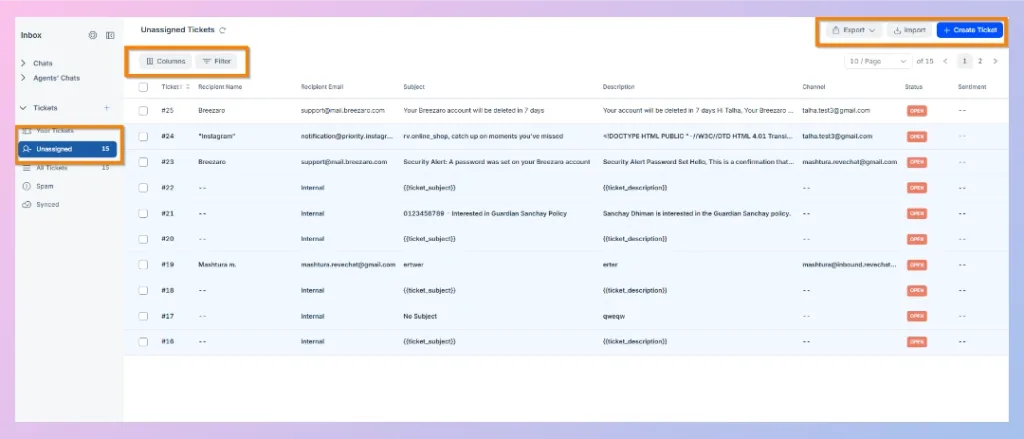
You can also use Columns to control the information displayed and Filter to narrow the ticket list.
The current interface also provides controls for Export, Import, and Create, allowing authorized users to manage ticket data or create a new ticket directly from this area.
All Tickets
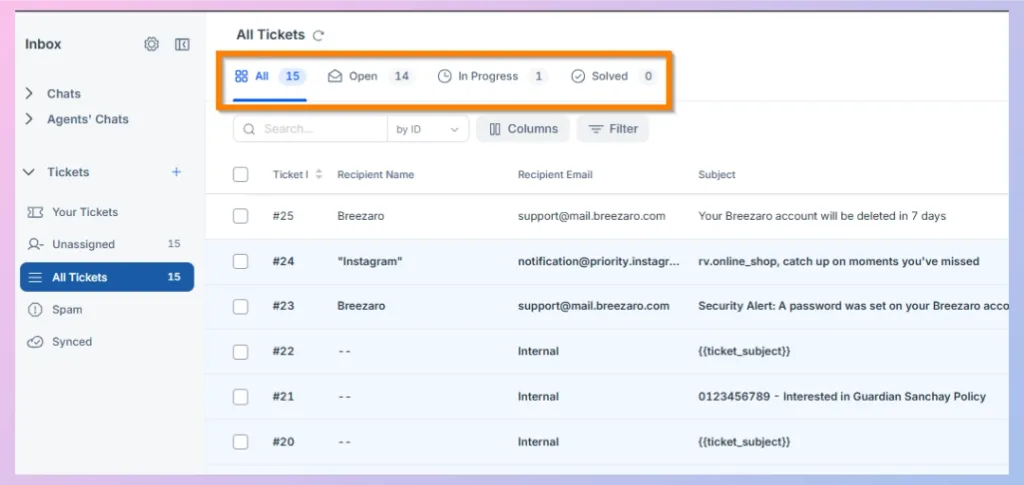
All Tickets provides a complete view of the tickets available to you according to your account permissions.
Unlike Your Tickets, this area is not limited only to tickets assigned to the currently logged-in agent.
REVE Chat documents All Tickets as containing assigned and unassigned tickets across available ticket statuses.
Use this area when you need a broader view of the team’s ticket workload.
Spam
The Spam folder keeps unwanted or irrelevant tickets separate from legitimate customer support requests.
Tickets can be marked as spam so they no longer clutter the team’s normal working queues.
Synced
The Synced section works with your connected email account and helps you bring existing email contacts into REVE Chat. Once synced, you can view and manage those contacts directly from the Inbox without switching back to your email platform.
Managing Tickets from the Inbox
Ticket lists provide several tools for managing larger workloads.
You can use filters and columns to focus on relevant tickets, select multiple tickets when bulk operations are available, and export filtered ticket records.
This is especially useful for supervisors managing a large queue.

 Start free trial