



How to Add a Knowledge Base in AI Agent
- July 5, 2026
- 2 mins read
Table of Content
You can connect a trained knowledge base to the Wize AI Agent so it can use your business-specific content while generating responses.
Before adding the Knowledge Base tool, make sure you have already created and trained a knowledge base in Wize AI.
To add a Knowledge Base tool:
- Open your Wize AI Agent workflow.
- Go to the Builder canvas.
- Find the AI Agent node.
- Click the ‘’+’’ button from the AI Agent node.
- From the node or tool menu, select Knowledge Base.
- Double-click the Knowledge Base tool node to open its configuration panel.
In the Description field, explain how the AI Agent should use this knowledge base.
Example: Find relevant support information from the selected knowledge base and use the same style when preparing the customer response.
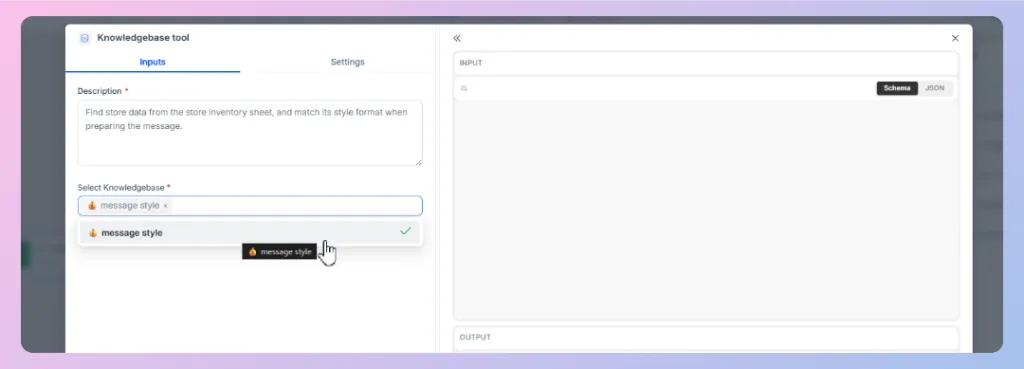
- In the Select Knowledge Base field, choose the knowledge base you created earlier.
- Close the configuration panel.
Once connected, the AI Agent can use the selected knowledge base as a source when answering customer questions.
Next Step
You have now connected your trained knowledge base with the Wize AI Agent. Next, we will show you how to connect Google Sheets so your AI Agent can retrieve structured data, such as product lists, order details, pricing, availability, or customer records, directly inside the workflow.
👉 Continue to: How to Connect Google Sheets in AI Agent
This fits under the Wize AI Agent setup flow, where the documentation includes connecting the AI Agent to a knowledge base and configuring agent workflows.

 Start free trial