



How to Create a Knowledge Base Data Source
- July 6, 2026
- 3 mins read
Table of Content
The Wize AI ‘’Knowledge Base’’ is where you add and train your business data. This trained data becomes the source of information that Wize AI uses to generate accurate responses.
For example, you can train the knowledge base with:
- Product details
- Pricing information
- Return and refund policies
- Shipping information
- FAQs
- Help center articles
- Internal support documents
- Website content
- Service descriptions
After training, the knowledge base can be connected with chatbots, Copilot features, and Wize AI Agents.
To create and train a knowledge base, follow these steps: From the REVE Chat dashboard, go to Automation> Select Wize AI > Data Source > Click Add Data Source.
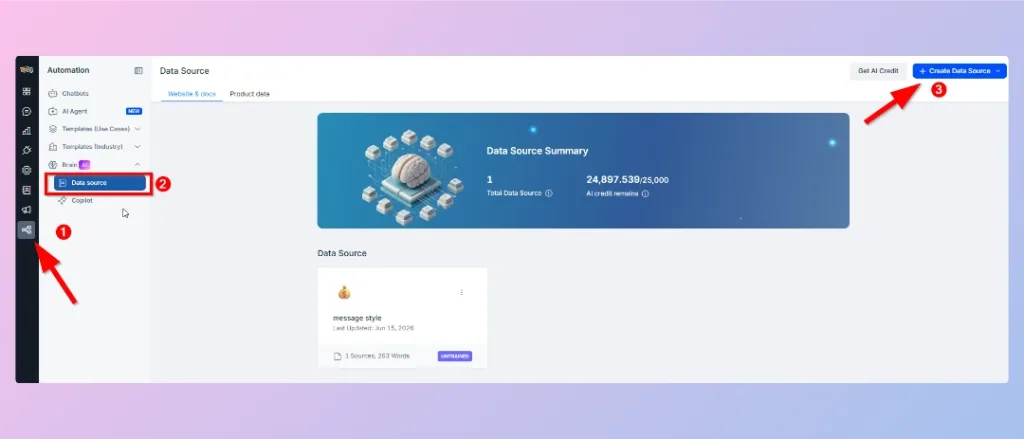
The Add Data Source window opens.
From here, you can choose how you want to add your training data.
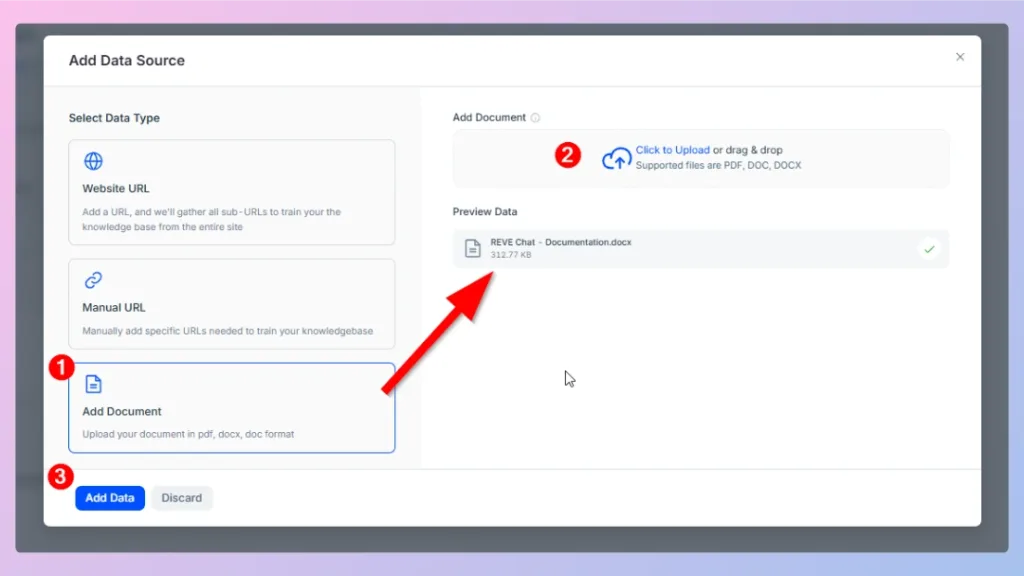
Available data source types
Wize AI supports three data source methods:
| Data Source Type | Description |
|---|---|
| Website URL | Add a website URL, and Wize AI will collect sub-URLs from the website to train the knowledge base. |
| Manual URL | Manually add specific URLs that you want to use for training. |
| Add Document | Upload a document file to train the knowledge base. Supported formats include PDF, DOC, and DOCX. |
Add data using a website URL
Use the Website URL option when you want Wize AI to collect information from an entire website or a group of related website pages.
Wize AI will collect the website content and prepare it for training.
Add data using a manual URL
Use the Manual URL option when you want to train Wize AI with selected pages only.
This is useful when you do not want to crawl an entire website and only want to use specific pages, such as the FAQ page, Pricing page, Product page, Return policy page, etc.
Add data using a document
Use the Add Document option when you want to train Wize AI using a file such as a PDF, DOC, or DOCX document.
To upload a document:
- Click Add Data Source.
- Select Add Document.
- Click to upload, or drag and drop the file into the upload area.
- Review the uploaded file under Preview Data.
- Click Add Data.
After the document is added, it appears in the data source list.
Train the data source
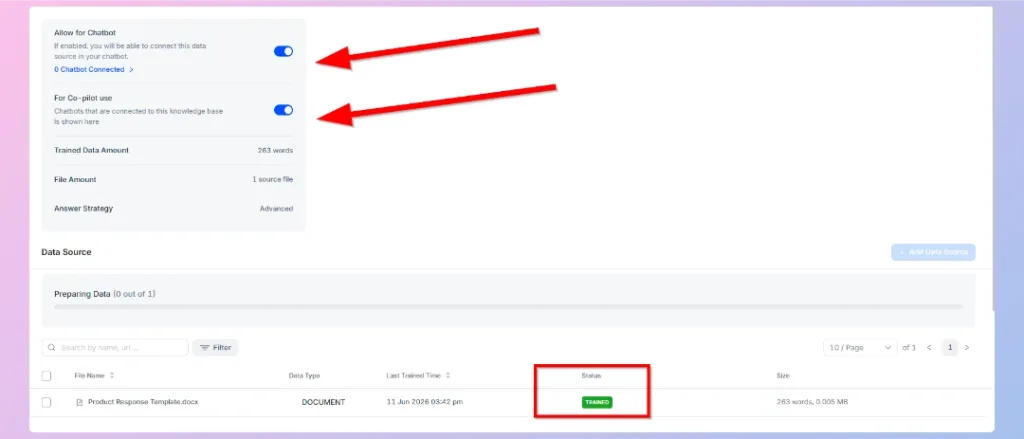
After adding a data source, Wize AI prepares the data for training. Initially, the status may appear as ‘’Untrained’’. You need to train the data before it can be used by chatbots, Copilot, or AI Agents.
To train a data source(skip it if you’re on the data source page):
- Go to the Data Source list.
- Find the newly added data source.
- Check its status.
- Click the available training option.
- Wait until the training is completed.
Once training is complete, the status changes to ‘’Trained’’.
After the data is trained, it can be used with:
- Chatbots
- Wize AI Copilot
- Wize AI Agents
Enable knowledge base access
After training your data, you can choose where the knowledge base should be used.
Available access options include:
| Option | Description |
|---|---|
| Allow for Chatbot | Enables the knowledge base so it can be connected to your chatbot. |
| For Copilot use | Enables the knowledge base for Copilot features used by live agents. |
You can enable or disable these options depending on how you want Wize AI to use the trained data.
Retrain and update your knowledge base
You can retrain your knowledge base whenever your business data changes.
Retraining is useful when you update:
- Website content
- Product information
- Pricing
- Policies
- FAQs
- Support documentation
- Internal documents
To keep Wize AI responses accurate, retrain the knowledge base whenever important information is added, removed, or changed.
📌Note: Training uses tokens. As an estimate, 1 token can train approximately 10,115 words. Actual usage may vary depending on the content structure and training configuration.

 Start free trial