



What is Chatbot in REVE Chat?
- July 17, 2025
- 11 mins read
Table of Content
Chatbot is a customer conversation automation solution that helps businesses automate support, lead generation, customer engagement, and other repetitive interactions.
REVE Chat characterizes its chatbot as a rule-based chatbot with conversational capabilities, where predefined flows can be combined with trained conversational responses.
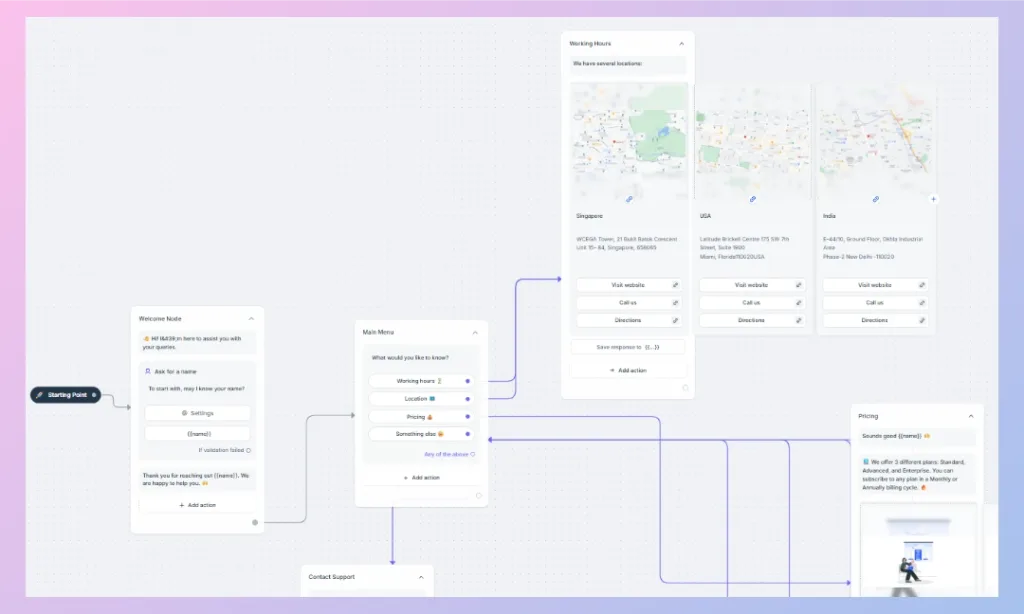
It uses a visual flow builder, where you can design conversations by adding and connecting different actions without writing code. A chatbot workflow can send messages, collect customer information, display rich media, apply conditions, connect with external systems, transfer conversations to human agents, and perform other automated actions.
The chatbot can be used across the website and supported messaging channels, including WhatsApp, Facebook Messenger, Instagram Messages, and Viber.
How Chatbot Works
REVE Chats’ chatbot works through a node-based conversation workflow.
Every chatbot starts from a Starting Point. From there, you add nodes containing different actions and connect them to define what should happen next in the conversation.
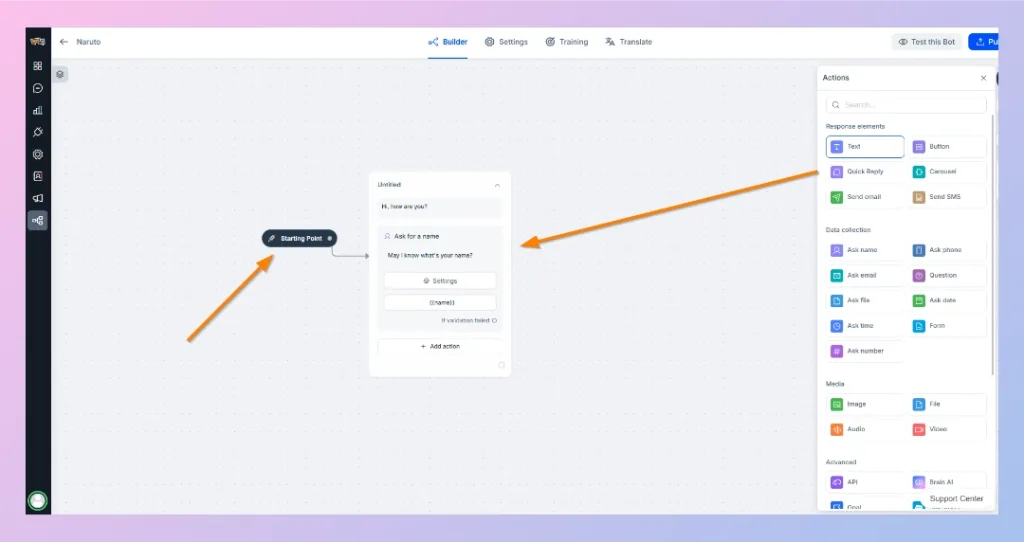
For example, a chatbot workflow may:
Start conversation → Ask the customer’s name → Display options → Collect a selection → Show relevant information → Ask another question → Transfer to an agent or complete the conversation.
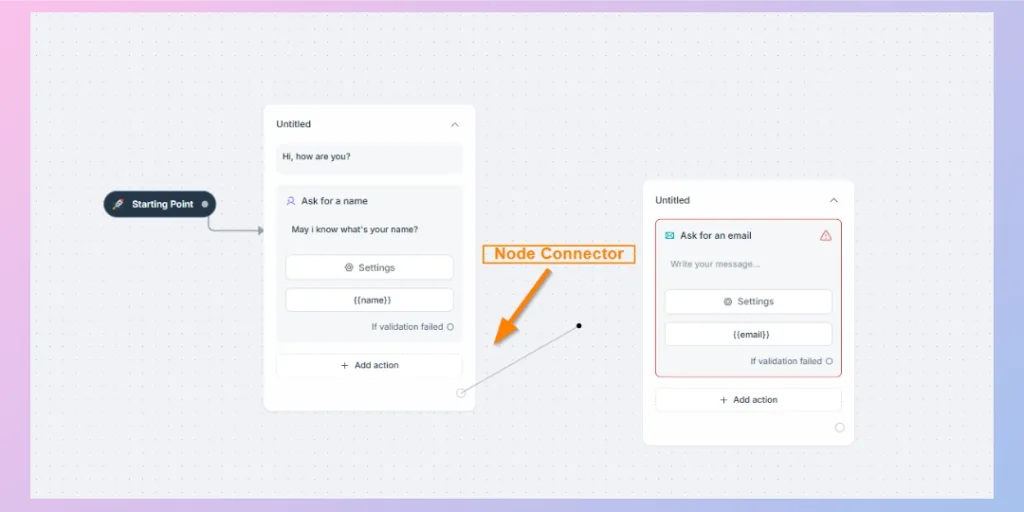
The visual builder lets you connect different nodes using node connectors, creating simple or complex conversation paths. A single chatbot can contain multiple branches depending on what the customer chooses or the conditions you configure.
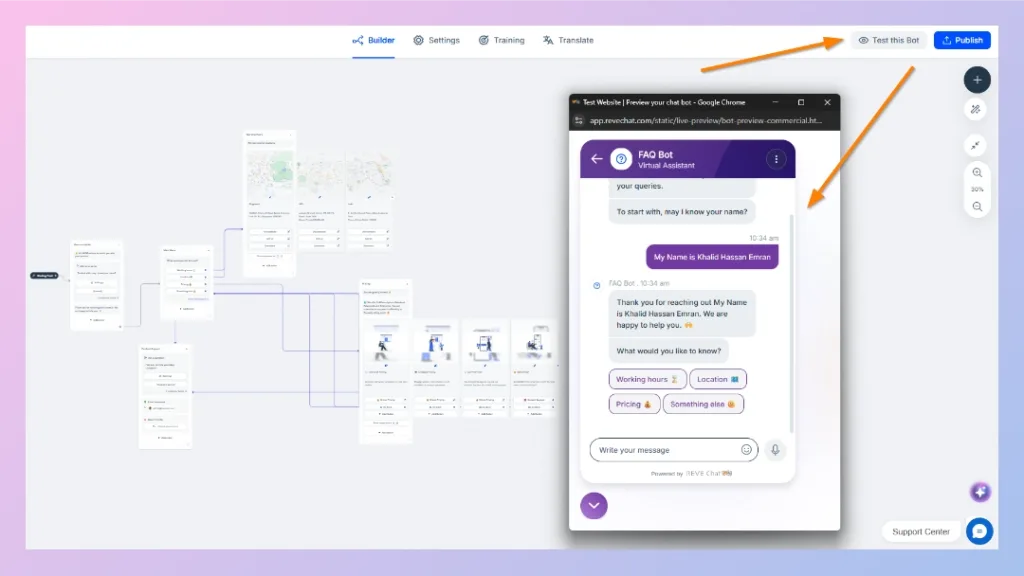
Before publishing the chatbot, you can also use Test this Bot to preview the customer experience and check whether the conversation follows the intended workflow.
REVE Chat provides five main groups of actions for building these workflows:
- Response Elements
- Data Collection
- Media
- Advanced
- Workflow Actions
The supplied node reference also shows these action groups directly inside the chatbot builder, including the available response, data-collection, media, and advanced actions.
1. Response Elements
Response Elements control what the chatbot communicates to the customer. They are commonly used to present information, provide selectable options, or send information through another communication method.
Text
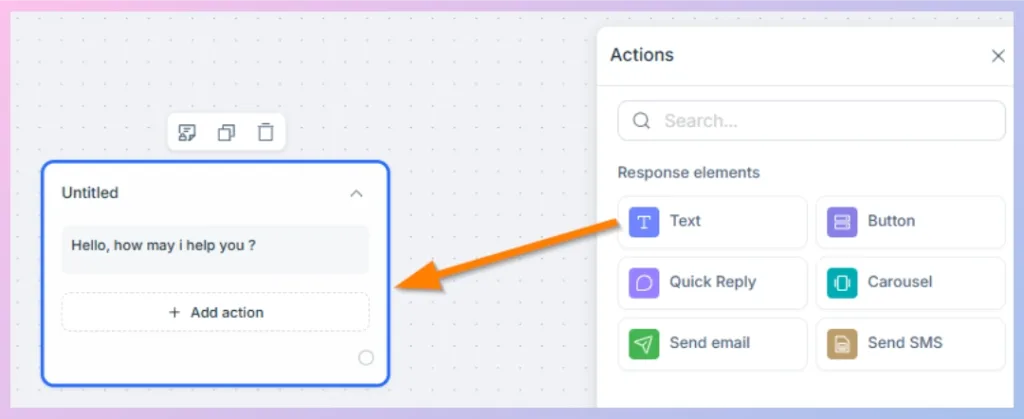
The Text action sends a standard text message to the customer.
You can use it for greetings, instructions, answers, confirmations, explanations, or any other text-based chatbot response.
Example: “Welcome! How can we help you today?”
Button
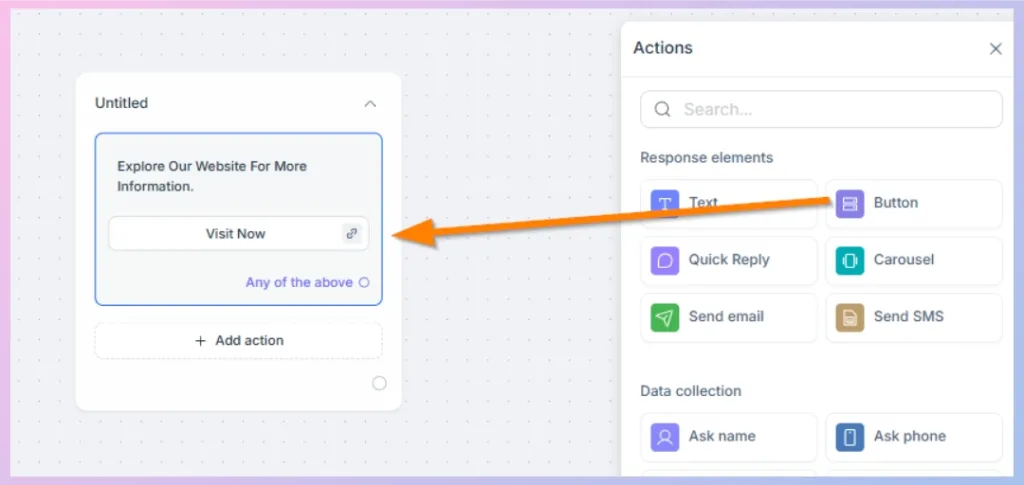
The Button action displays one or more clickable choices together with a message.
Buttons help guide customers through predefined conversation paths instead of requiring them to type a response manually. Depending on their configuration, buttons can continue the chatbot workflow or perform another supported action.
Example:
- Track Order
- Check Pricing
- Contact Support
Quick Reply
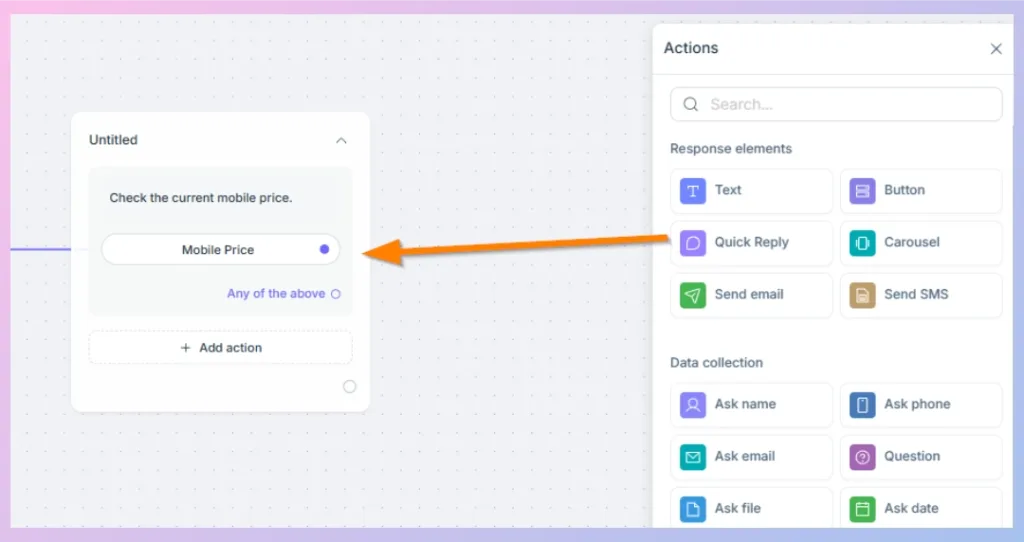
The Quick Reply action presents selectable response options that help customers quickly tell the chatbot what they want.
Each response can connect to a different path in the workflow.
For example:
What would you like to know?
- Working Hours
- Location
- Pricing
- Something Else
This is especially useful for menus, FAQs, service selections, and branching conversations.
Carousel
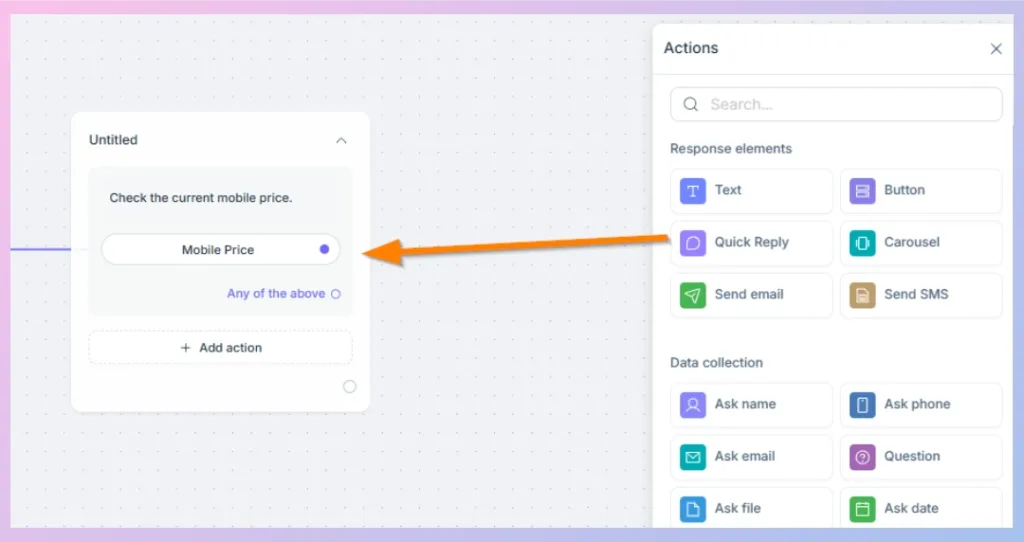
The Carousel action presents information through multiple cards that customers can browse.
Each card can contain information such as an image, title, description, and buttons. It is useful when several related options need to be shown within the same conversation.
For example, a business could display:
- Store locations
- Products
- Service packages
- Properties
- Courses
REVE Chat currently documents carousel support across website, Facebook Messenger, Instagram Messages, WhatsApp, and Viber.
Send Email
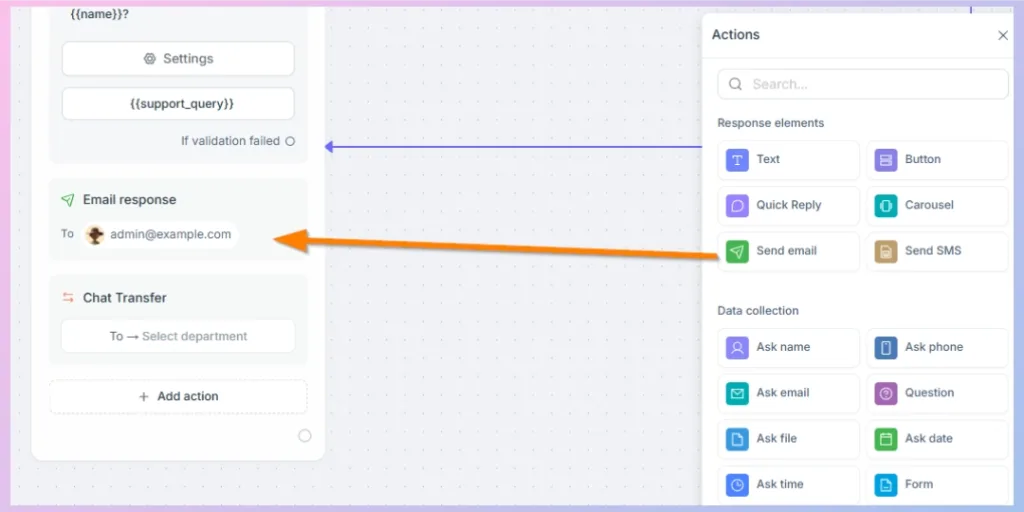
The Send Email action allows the chatbot workflow to trigger an email.
Information collected earlier in the conversation can be included in the email, making this action useful for sending customer inquiries, lead information, support requests, or other chatbot-collected data to a relevant recipient.
Send SMS
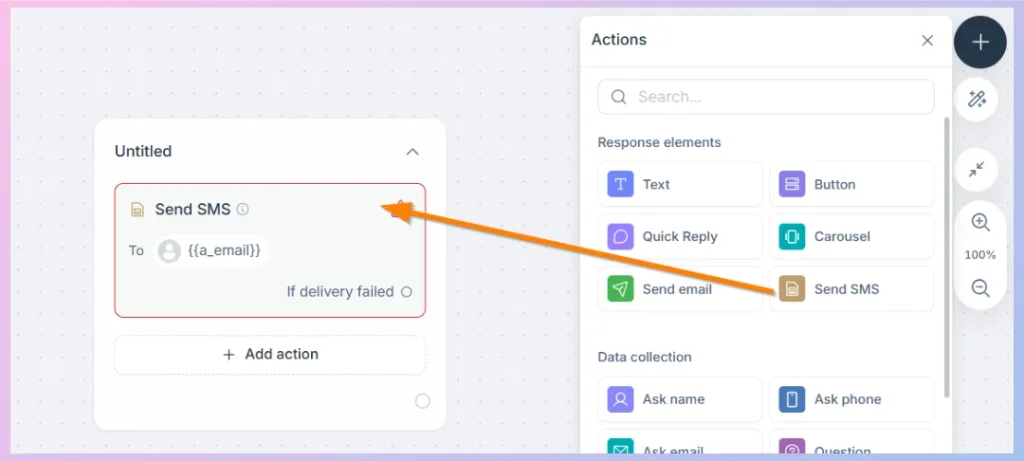
The Send SMS action enables an SMS to be triggered from the chatbot workflow when the required recipient information and configuration are available.
It can be useful for notifications, follow-ups, confirmations, or other SMS-based communication.
2. Data Collection
Data Collection actions allow the chatbot to ask customers for information and store their responses so that the information can be used later in the workflow.
Collected information can help personalize conversations, qualify leads, complete forms, pass data to other systems, or provide context during a human-agent handoff. User input and variable storage are also part of the documented chatbot flow-building structure.
Ask Name
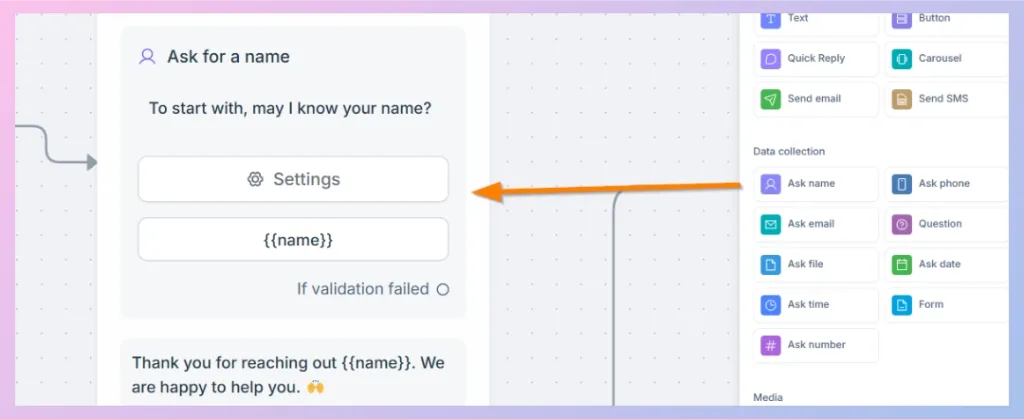
The Ask Name action requests the customer’s name.
The collected name can be stored and reused later in the conversation to create a more personalized experience.
For example: “Thanks, {{name}}. How can we help you today?”
Ask Phone
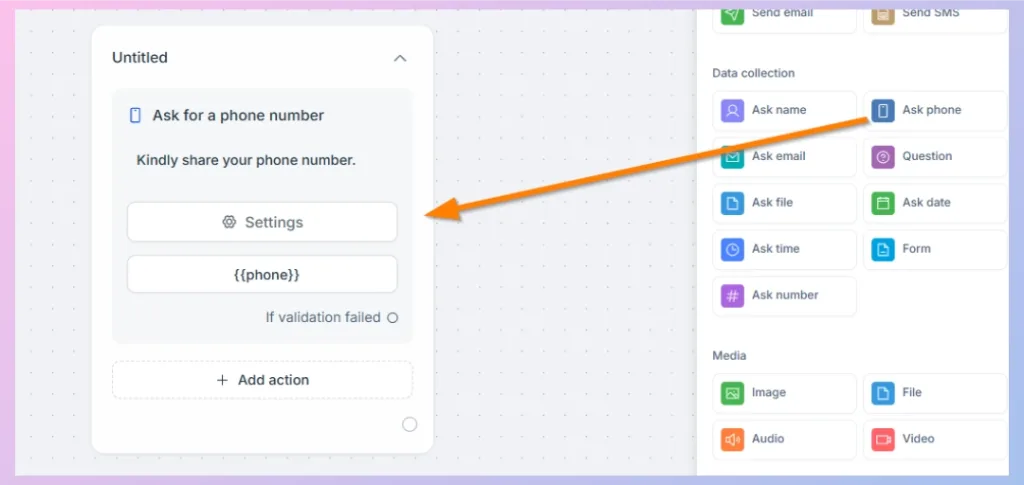
The Ask Phone action collects the customer’s phone number.
This is useful when a business needs contact information for:
- Sales follow-up
- Customer verification
- Support callbacks
- Appointment communication
- Lead collection
Ask Email
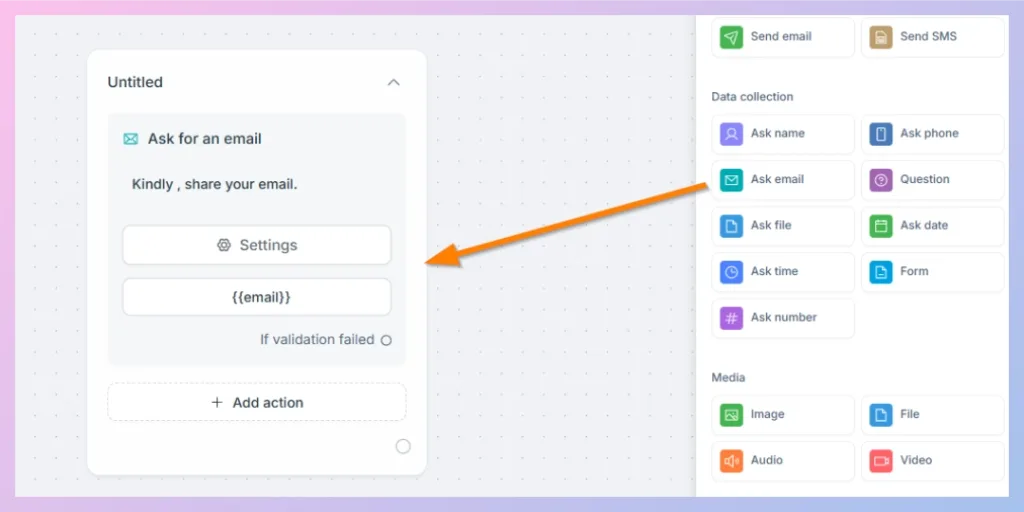
The Ask Email action asks the customer to enter an email address.
The collected email can then be saved and used later in the chatbot workflow or connected business process.
Question
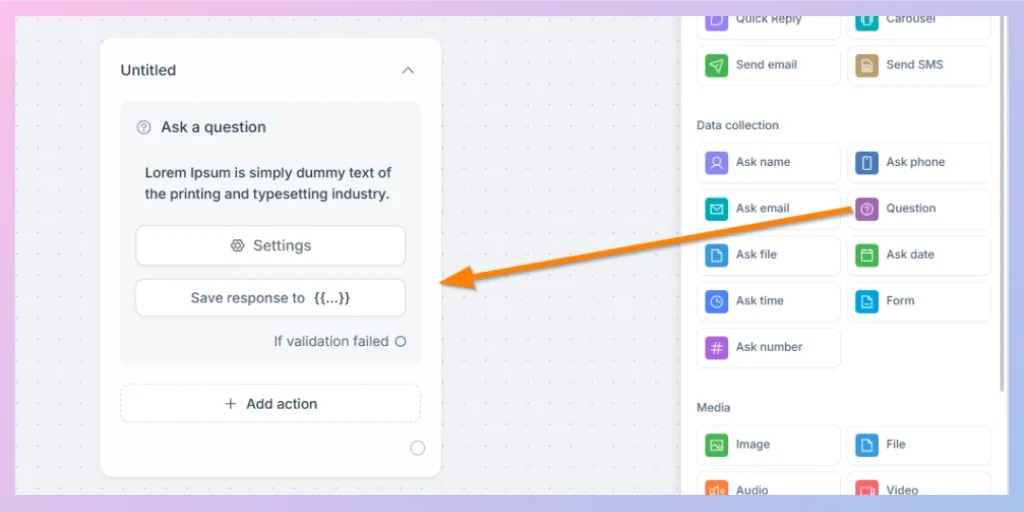
The Question action lets you create a custom question and store the customer’s answer.
Unlike predefined fields such as name, phone, or email, Question is useful when you need to collect business-specific information.
For example:
“What issue are you experiencing?”
or
“Which product are you interested in?”
Ask File
The Ask File action allows customers to provide a file during the chatbot conversation.
It can be useful when customers need to submit documents, screenshots, supporting information, or other files as part of a workflow.
Ask Date
The Ask Date action collects a date from the customer.
It can be used for workflows involving information such as:
- Preferred appointment date
- Travel date
- Delivery date
- Booking date
- Event date
Ask Time
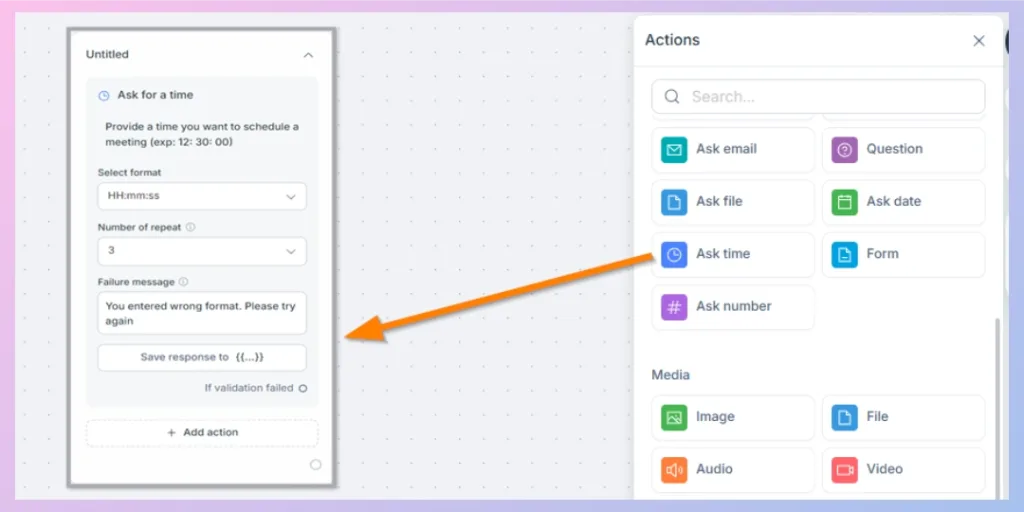
The Ask Time action collects a time value from the customer.
The node can be configured with the required time format and validation behavior so that the chatbot receives the expected type of response.
Form
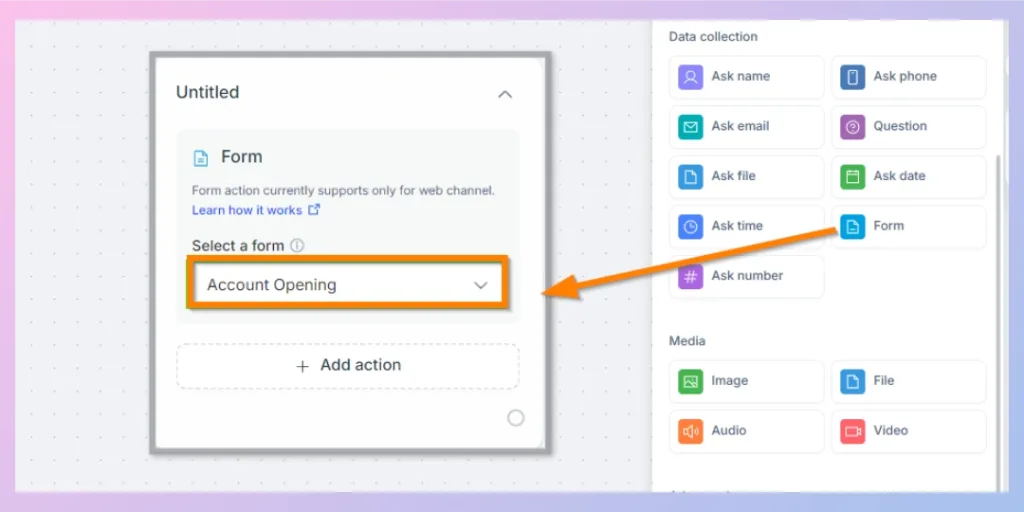
The Form action allows an existing form to be presented as part of the chatbot workflow.
Instead of collecting information one question at a time, a form can gather multiple required pieces of information together.
This is useful for processes such as:
- Account applications
- Lead forms
- Registration
- Service requests
- Customer information collection
The supplied builder reference notes that the Form action currently supports the web channel.
Ask Number
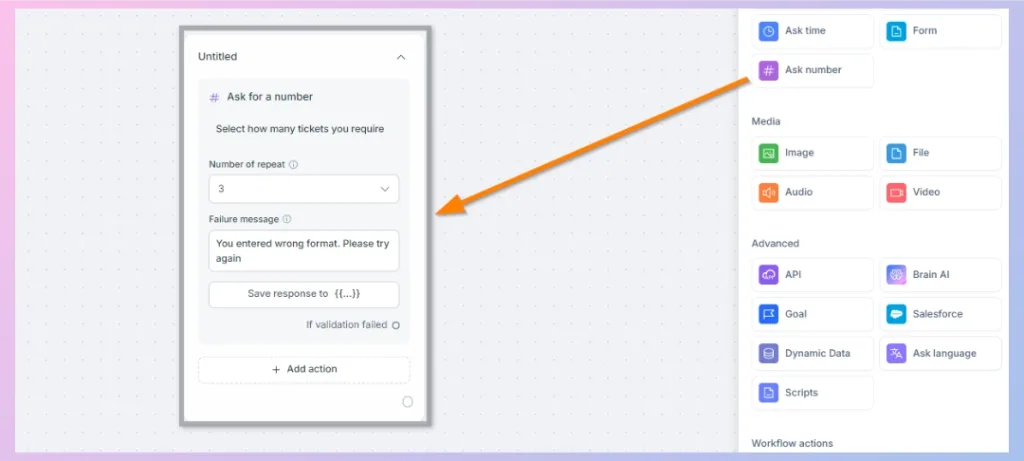
The Ask Number action collects a numerical value.
It is useful when the customer’s response needs to contain numbers, for example:
- Quantity
- Number of users
- Number of products
- Age
- Reference numbers where numeric input is required
Validation can help prevent unsupported input from continuing through the normal path.
3. Media
Media actions make chatbot conversations more visual and informative by allowing businesses to share content beyond plain text.
The current builder includes Image, Audio, File, and Video media actions.
Image
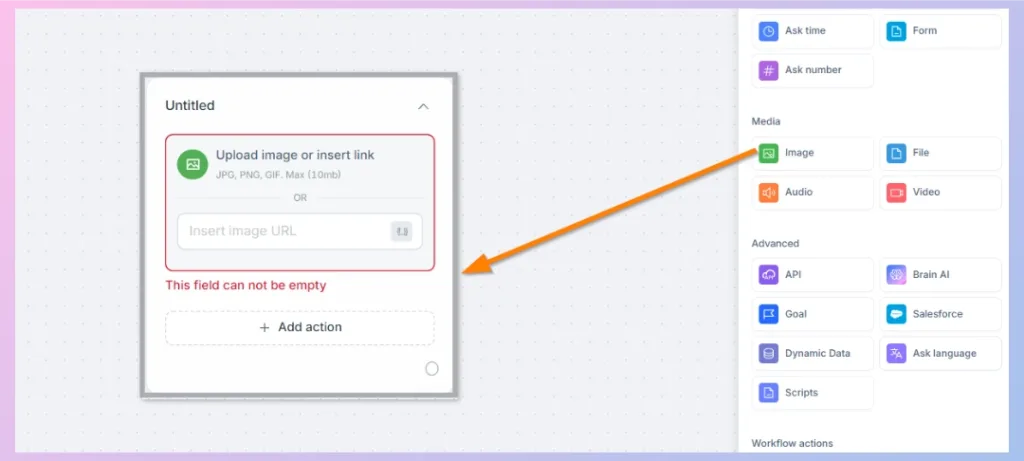
The Image action displays an image in the chatbot conversation.
Images can be useful for:
- Product visuals
- Instructions
- Promotional content
- Maps
- Infographics
Depending on the action configuration, an image can be provided through upload or a supported image link.
Audio
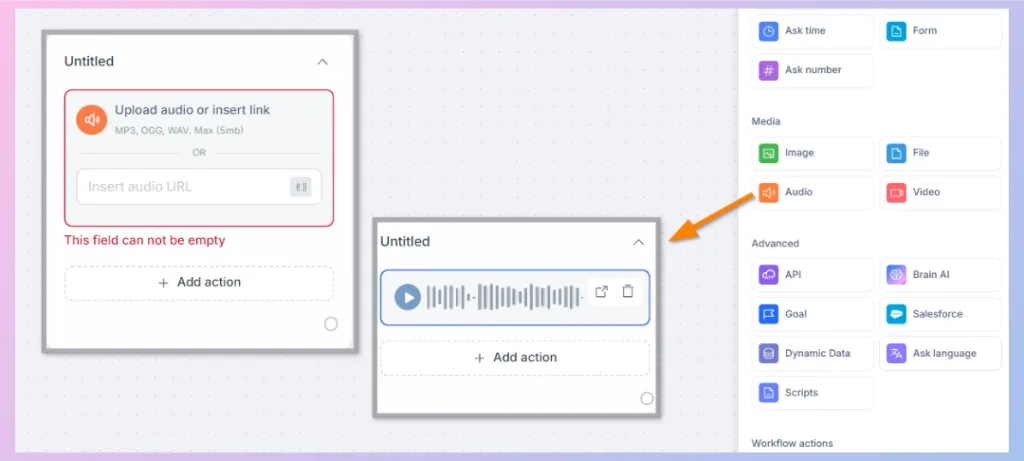
The Audio action allows audio content to be shared through the chatbot.
It can be useful for recorded instructions, audio explanations, announcements, or other voice-based content.
File
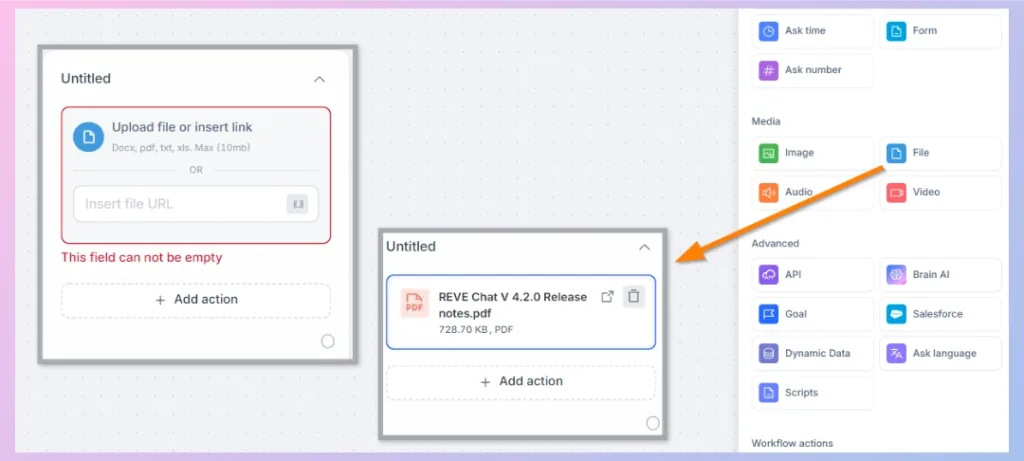
The File action lets the chatbot provide a downloadable file to the customer.
Examples include:
- PDF guides
- Brochures
- Product documents
- Forms
- Policies
- Supporting documents
Video
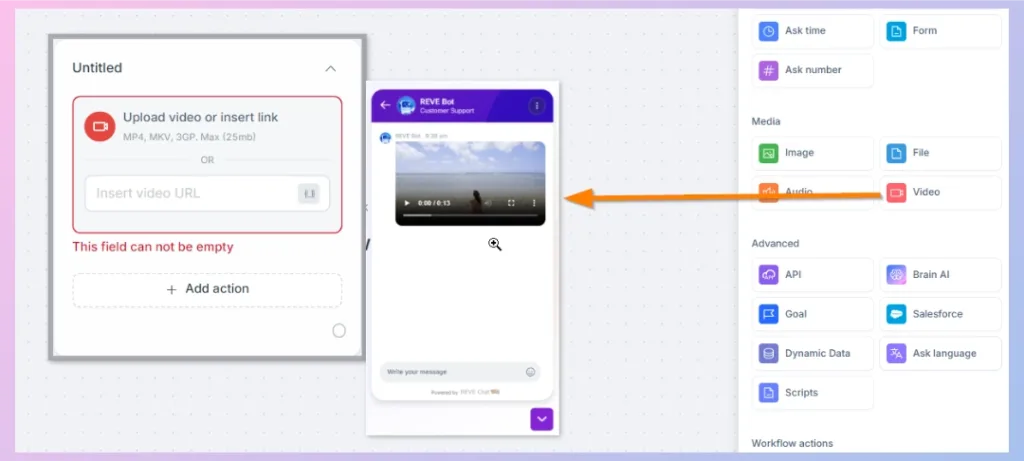
The Video action lets the chatbot send video content during a conversation.
It can be useful for:
- Tutorials
- Product demonstrations
- Onboarding videos
- Troubleshooting instructions
- Promotional content
4. Advanced
Advanced actions extend the chatbot beyond basic messages and predefined conversation paths. They help connect workflows with external systems, business data, AI capabilities, scripts, and other business processes.
API
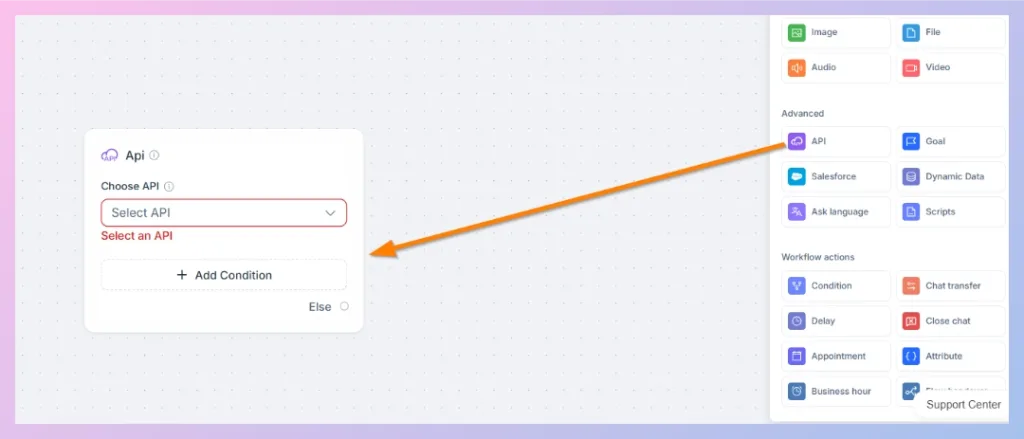
The API action allows the chatbot to communicate with an external system.
This makes it possible to send or retrieve information during a conversation.
For example, an API-connected chatbot could potentially retrieve information such as an order status, account information, or another value available through the connected business API.
REVE Chat’s documentation specifically includes API/Webhook connectivity for fetching external data within chatbot flows.
Goal
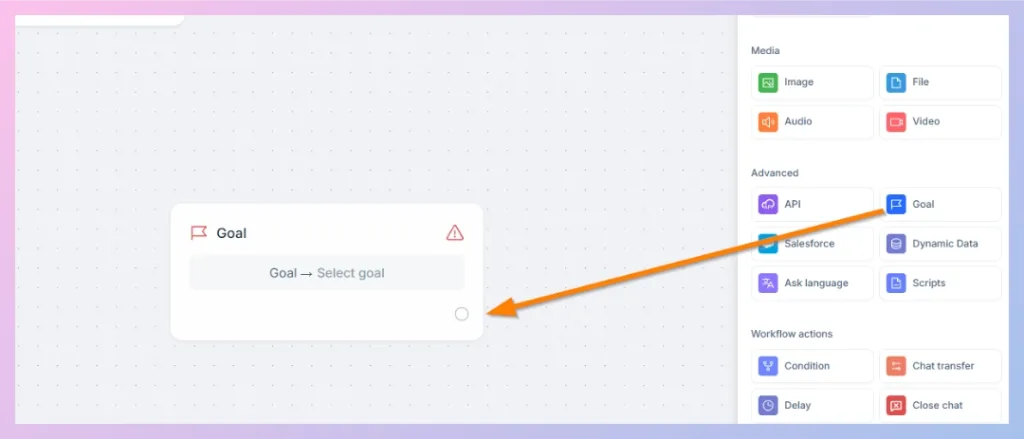
The Goal action is used to identify and track an important outcome within the chatbot journey.
For example, a goal might represent:
- Lead generated
- Product inquiry completed
- Booking request submitted
- Support flow completed
This helps businesses understand whether chatbot conversations are reaching their intended outcomes.
Dynamic Data
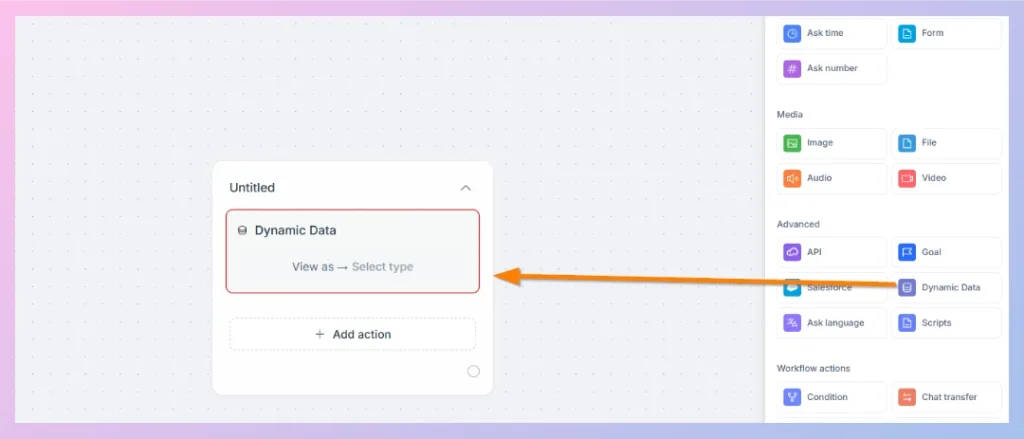
The Dynamic Data action allows chatbot content to use information dynamically rather than relying entirely on fixed text.
It is useful when the response needs to change depending on available customer, conversation, or connected data.
Scripts
The Scripts action is designed for workflows that require additional scripted logic or processing beyond standard chatbot actions.
It can be useful in more advanced implementations where data needs to be processed before the workflow continues.
Brain AI
Brain AI adds AI-powered conversational capability to chatbot workflows.
Instead of limiting every interaction to button-based or strictly predefined responses, Brain AI can help the chatbot respond to trained conversational queries while remaining connected to the wider chatbot workflow.
REVE Chat identifies Brain AI as one of its core chatbot capabilities and provides separate configuration and action documentation for it.
Salesforce
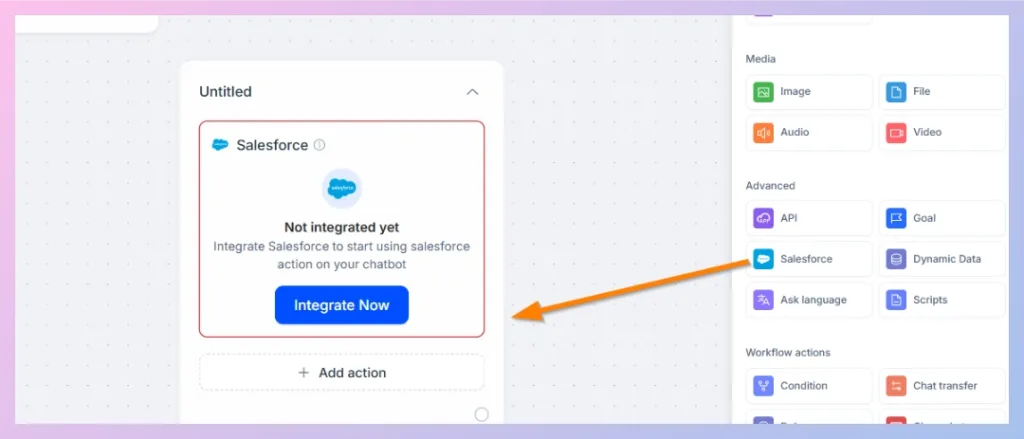
The Salesforce action connects chatbot workflows with Salesforce-related processes when the integration is configured.
This enables chatbot information to participate in CRM workflows, helping businesses connect customer conversations with their Salesforce environment. Salesforce is listed as a supported CRM integration in the REVE Chat documentation.
Ask Language
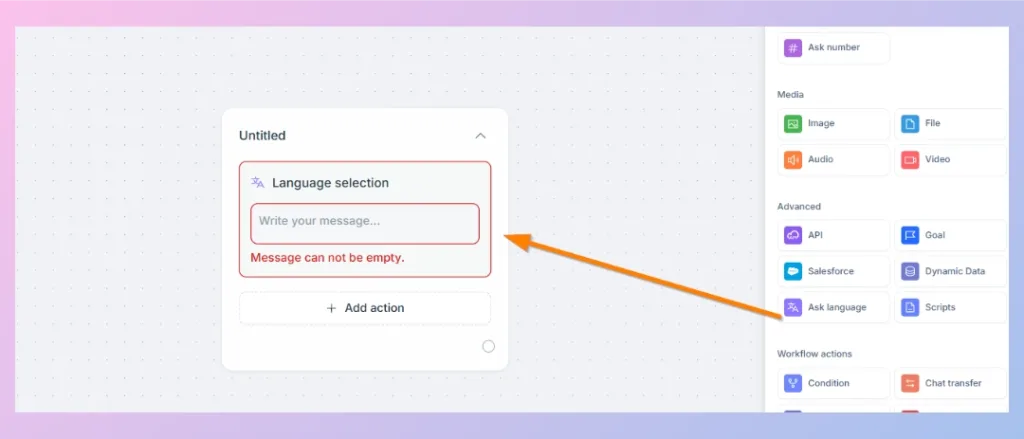
The Ask Language action allows the chatbot workflow to identify or collect the customer’s preferred language and use it as part of the conversation flow.
It is particularly useful for multilingual chatbot experiences where different customers need to follow different language paths.
REVE Chat’s chatbot documentation includes multilingual chatbot creation as part of its flow-building capabilities.
5. Workflow Actions
Workflow Actions control how the chatbot conversation moves and what happens behind the conversation.
While Response Elements determine what customers see, Workflow Actions determine routing, timing, decisions, transfers, and other workflow behavior.
Condition
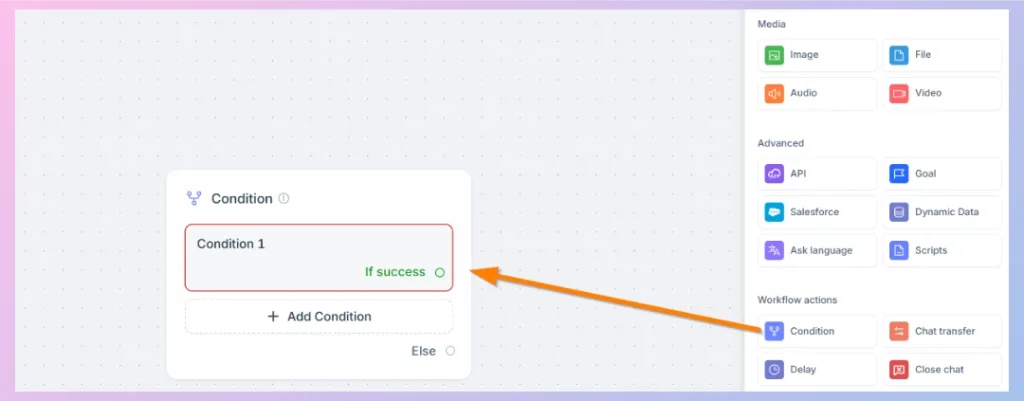
The Condition action creates different chatbot paths based on predefined rules.
It follows an if/then-style logic.
For example:
If the customer selects “Existing Customer” → continue to the support flow.
If the customer selects “New Customer” → continue to the sales flow.
Conditions are one of the main ways to build branching and personalized chatbot journeys.
Delay
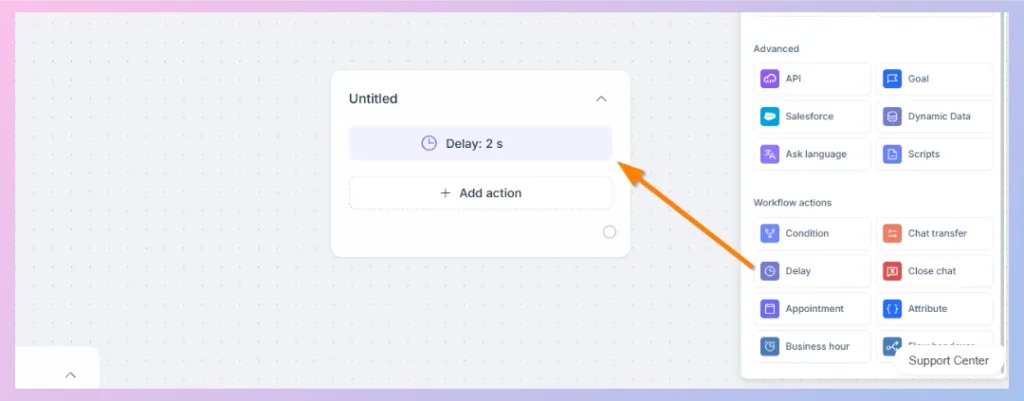
The Delay action pauses the workflow for a configured amount of time before the next action takes place.
This can help control the timing of automated responses or actions when they should not happen immediately.
Appointment
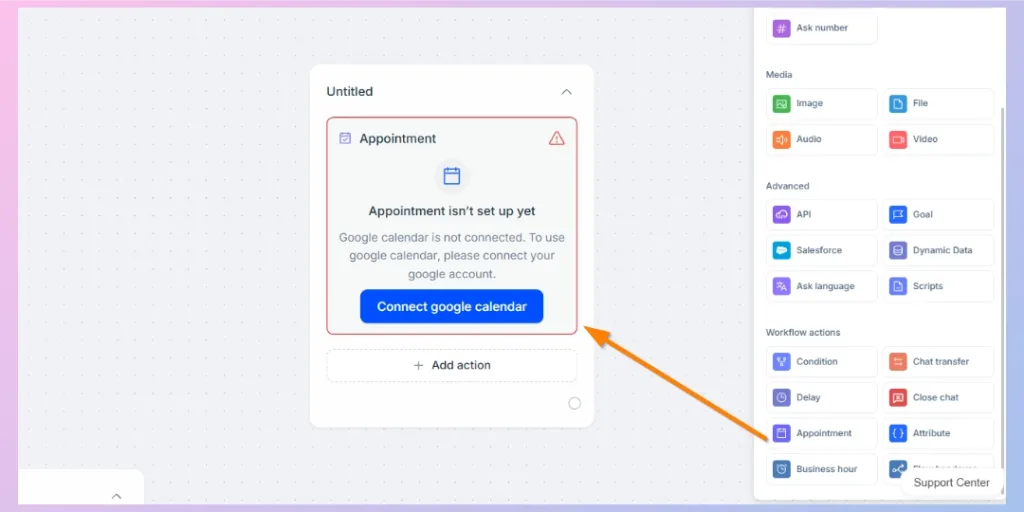
The Appointment action is used to include appointment-related steps in a chatbot workflow.
It can support workflows where customers need to schedule or request an appointment as part of the conversation.
Business Hour
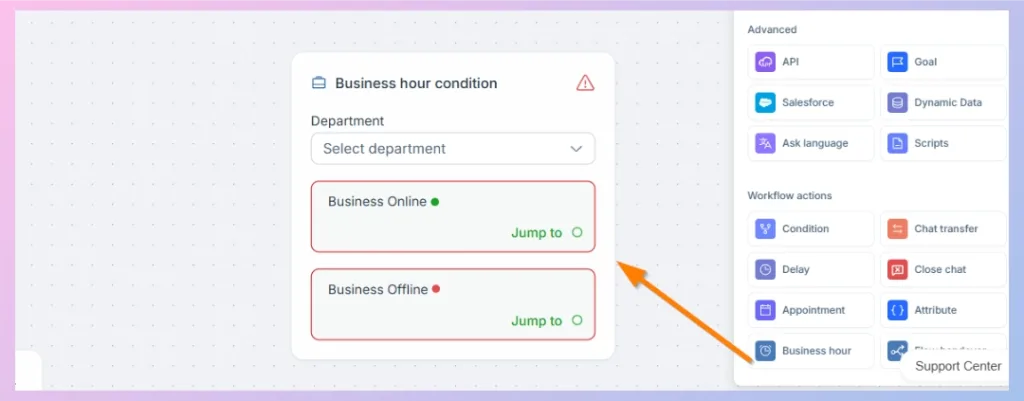
The Business Hour action allows the chatbot to make workflow decisions based on configured business availability.
For example:
During business hours: transfer the conversation to a support agent.
Outside business hours: collect the customer’s details and provide an offline response.
Chat Transfer
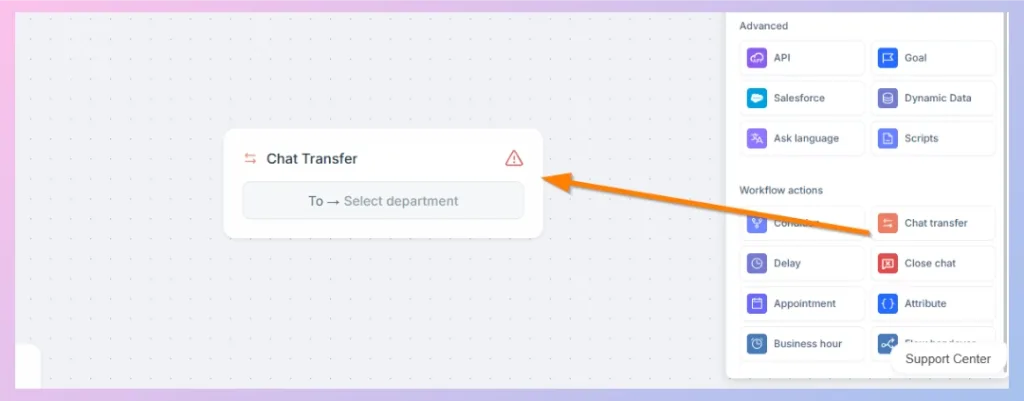
The Chat Transfer action hands the chatbot conversation over to a human agent or relevant department.
This is important when:
- A customer requests an agent
- The issue requires human assistance
- A specific workflow reaches an escalation point
- The chatbot has completed the information-collection stage
Bot-to-agent handoff is part of the REVE Chat chatbot workflow model, including transferring conversation context and applying assignment rules.
Close Chat
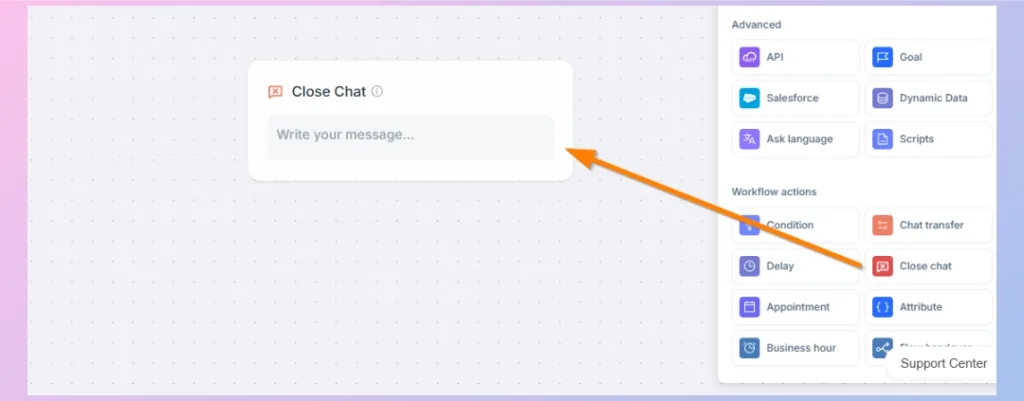
The Close Chat action ends the active chatbot conversation when the required workflow has been completed.
For example, after confirming that a request has been submitted, the bot can complete the workflow and close the conversation.
Attribute
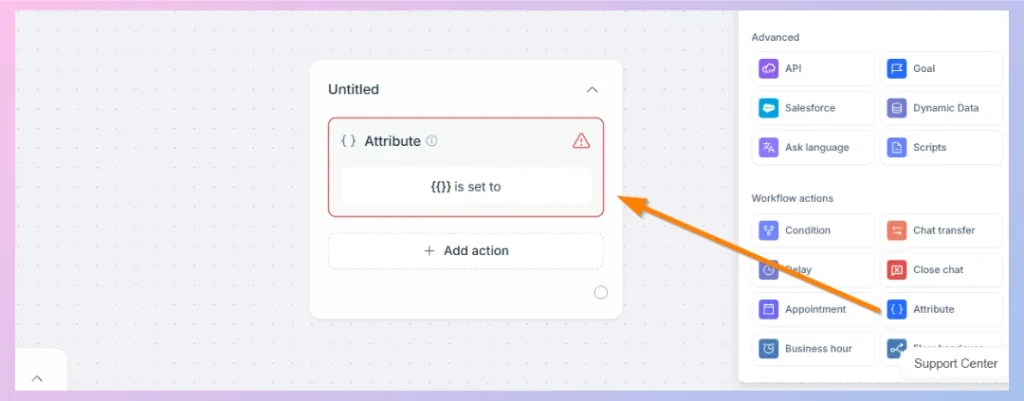
The Attribute action allows information to be assigned or updated as part of the chatbot workflow.
Attributes can help store useful values that can later influence conditions, personalization, routing, or other workflow actions.
How These Actions Work Together
The real value of the chatbot builder comes from combining different actions rather than using each one separately.
For example, a support workflow could work like this:
Starting Point
↓
Text: Welcome the customer
↓
Ask Name: Collect the customer’s name
↓
Quick Reply: Ask what they need help with
↓
Condition: Determine which support path should be followed
↓
API: Retrieve relevant business information
↓
Text / Carousel / Media: Show the result
↓
Chat Transfer: Send the conversation to a human agent if further assistance is required
Using node connectors, these individual actions become a complete customer journey.
The visual builder is designed to support drag-and-drop creation, a rich action library, and multiple smaller flow branches so that larger chatbot experiences remain manageable.

 Start free trial