



Install REVE Chat on Any Website Using JavaScript Snippet
- July 12, 2026
- 3 mins read
Table of Content
You can install REVE Chat on any website by adding the REVE Chat JavaScript snippet to your website code. This method works for custom-built websites, HTML websites, or any website where you can edit the source code.
The JavaScript snippet connects your website with your REVE Chat account. Once the script is added and published, the REVE Chat widget will appear on your website and visitors can start conversations with your team.
When to Use This Method
Use the JavaScript snippet method if:
- Your website is custom-built
- You have access to your website source code
- Your developer can add scripts to the website
- You want to manually control where the widget appears
- You are not using Google Tag Manager or a CMS plugin
Steps to Install the REVE Chat Widget
To install REVE Chat using the JavaScript snippet:
- Log in to your REVE Chat dashboard.
- From the left sidebar, go to Settings.
- Select Chat Widgets.
- Open the widget that you want to install on your website.
- Go to the Code Snippet tab.
- In the Website Widget Script section, click Copy Code.
- Open your website source code or theme file.
- Paste the copied script before the closing
</body>tag. - Add the script to every page where you want the REVE Chat widget to appear.
- Save and publish your website changes.
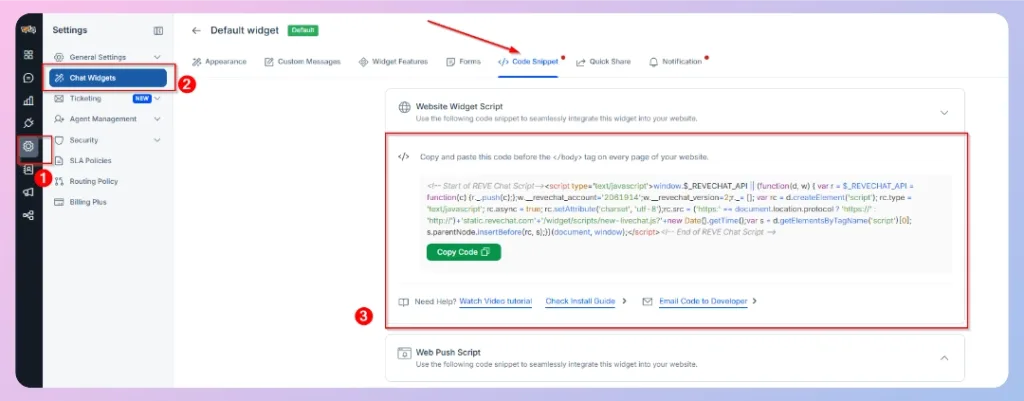
After publishing the changes, open your website in a browser and check whether the REVE Chat widget appears on the page.
Important Note
Place the script before the closing </body> tag. This helps your website load its main content first and then load the chat widget properly.
If you are not comfortable editing website code, you can copy the script and send it to your developer.
Verify the Widget
After adding the script, open your website and check whether the widget is visible. You can also send a test message from the widget and confirm that the message appears inside your REVE Chat dashboard.
Troubleshooting
If the widget does not appear, check the following:
- Make sure the full script was copied correctly.
- Confirm that the script was placed before the closing
</body>tag. - Make sure the changes were saved and published.
- Clear your website cache and browser cache.
- Check whether any security or optimization tool is blocking third-party scripts.
- Make sure you are checking the live website, not only a draft or preview page.
Next Step
After installing the widget, verify your installation and then customize the chat widget from your REVE Chat dashboard. You can update the widget appearance, welcome message, language, business hours, forms, and routing rules.

 Start free trial