


How to Use AI Agent Reports in REVE Chat
- October 27, 2026
- 2 mins read
Table of Content
The AI Agent Report in REVE Chat helps you monitor how your AI Agents interact with customers, achieve business goals, transfer conversations to human agents, and contribute to your overall customer support performance.
Whether you’re using Wize AI Agent for customer support, sales assistance, or voice interactions, these reports give you a clear view of what’s working and where improvements may be needed.
You can use AI Agent Reports to:
- Monitor AI-powered customer conversations across different channels.
- Track business goals and measure their completion.
- Compare the performance of individual AI Agents.
- Analyze voice interactions and call quality.
- Understand when conversations are transferred to human agents.
- Review billable AI conversations and associated costs.
1. How to Access AI Agent Reports
To open your AI Agent Reports:
- Log in to your REVE Chat Dashboard.
- Navigate to Reports from the dashboard.
- Expand AI Agent Report in the left sidebar.
- Select the report you want to view.
The AI Agent Report contains five sections:
| Report | What you can monitor |
|---|---|
| AI Agent overview | Total AI sessions, goal performance, human transfers, and channel activity |
| Agent performance | Individual AI Agent performance, goal completion, and comparative results |
| Voice analytics | Voice sessions, call duration, language usage, and interaction quality |
| Handover & escalation | Human transfers, transfer destinations, and waiting times |
| Billed AI Conversations | Billable conversations, costs, billing windows, and conversation records |
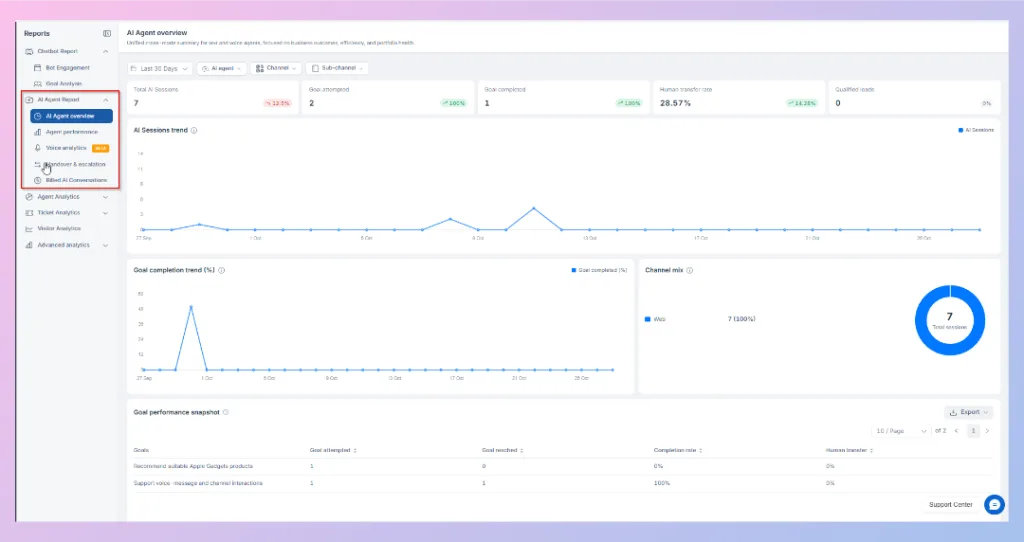
2. Using Filters in AI Agent Reports
Before reviewing your reports, you can use the filters at the top of the dashboard to focus on the information you need.
Most AI Agent Reports provide four main filters.
| Filter | Description |
|---|---|
| Date range | Select the reporting period. The screenshots show Last 30 Days as the selected period. |
| AI agent | Focus on a particular AI Agent instead of reviewing all agents together. |
| Channel | View AI Agent activity from a specific communication channel. |
| Sub-channel | Narrow your results to a particular source within a channel, such as an individual connected website. |
For example, if you operate multiple websites with different AI Agents, you can select a particular agent and website to review its customer interactions and performance.
The Billed AI Conversations report uses a different filter set. It includes a Status filter but does not show an AI Agent filter in the provided dashboard.
Note: Always check the selected date range and filters before comparing reports. Different selections may produce different results.

 Start free trial