



How to Connect and Manage WhatsApp Business
- July 31, 2025
- 14 mins read
Table of Content
The WhatsApp Business integration allows you to connect your WhatsApp Business account with REVE Chat and manage your customer conversations from the REVE Chat omnichannel inbox.
Once connected, your team can receive and reply to WhatsApp messages, create approved WhatsApp message templates, send WhatsApp broadcast campaigns, and use automation workflows to improve response speed and customer engagement.
REVE Chat supports WhatsApp setup from Integrations > Social Media Channels > WhatsApp, where users can add a WhatsApp account and continue the connection through Meta’s business setup flow. After the account is connected, new WhatsApp customer queries can be replied to from the REVE Chat omnichannel platform.
Benefits: What businesses get from here
By connecting WhatsApp Business with REVE Chat, businesses can:
- Manage WhatsApp conversations from one inbox: Agents do not need to switch between WhatsApp, Meta tools, and REVE Chat. WhatsApp messages can be handled inside the REVE Chat dashboard along with other support channels.
- Send personalized customer messages: Businesses can use customer attributes such as name, order details, or offer information inside approved message templates.
- Run WhatsApp broadcast campaigns: REVE Chat’s WhatsApp campaign workflow uses three major steps: creating templates, creating audience segments, and sending broadcasts.
- Use rich message formats: WhatsApp templates can include body text, optional headers, optional footers, and buttons. Headers can include text, images, videos, files, or location, while buttons can include website links, phone numbers, offer codes, marketing opt-outs, or chatbot-triggering custom buttons.
- Track campaign performance: Campaign details can show delivery time, message status, failure reasons, and customer responses. Reports can also be downloaded from the campaign details panel.
- Support marketing, notifications, customer care, and verification use cases: WhatsApp Business Platform supports use cases such as order confirmations, shipment updates, appointment reminders, promotions, cart abandonment re-engagement, automated customer care, routing to live agents, and account verification.
Prerequisites
Before connecting WhatsApp Business with REVE Chat, make sure you have:
- An active REVE Chat account with admin or integration permission.
- Access to the Meta(Facebook) account that manages your business portfolio.
- A valid business name, website, or business profile page.
- A phone number that can receive an SMS or phone call verification code.
- A business website that uses HTTPS and complies with Meta business policies.
- Customer opt-in or permission before sending promotional WhatsApp messages.
Note: Your accounts may be banned if the business account uses a false or dummy website/profile link, if the website does not support HTTPS, or if the website content does not comply with WhatsApp policy.
Let’s start…
We have created a tutorial video to help you connect and manage your WhatsApp Business account. Also, prepared a detailed guide for this setup. You can follow either the video or the guide to complete your setup.
Step 1: Open the WhatsApp integration page
- Log in to your REVE Chat dashboard.
- From the left navigation bar, go to Integrations.
- Select Social Media Channels.
- Scroll to the WhatsApp section.
- Open the WhatsApp tab.
In the interface, the WhatsApp card appears with connection options. Depending on the current account status, you may see a button such as Connect Facebook, Add WhatsApp Account, or a similar connection button.
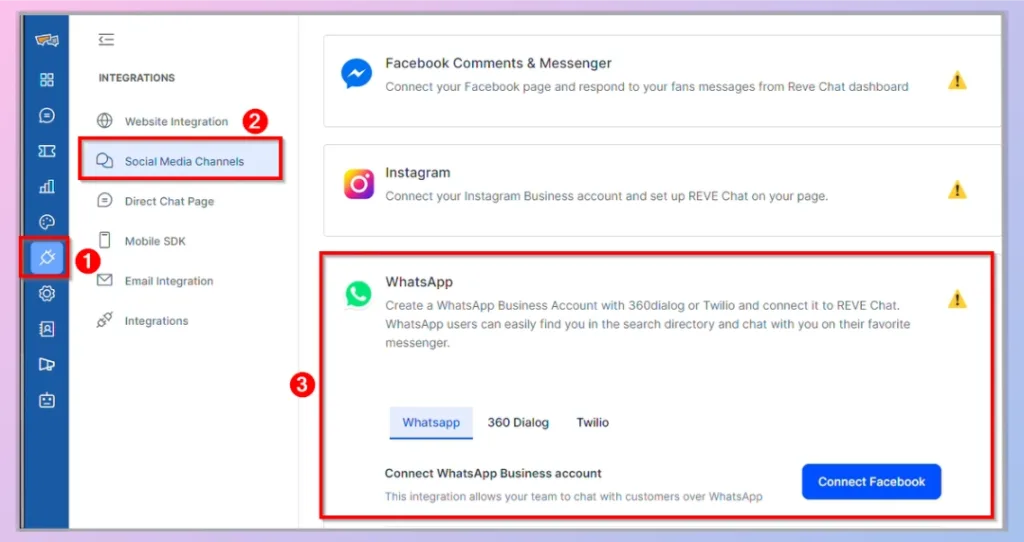
Step 2: Start adding a WhatsApp account
- Click Add WhatsApp Account or the available connection button.
- A pop-up window appears asking you to select the account type.
- Choose the option that matches your setup.
- Click Continue or Confirm.
After you continue, REVE Chat redirects you to Meta’s business connection flow, where you connect your WhatsApp Business account through your Facebook/Meta account.
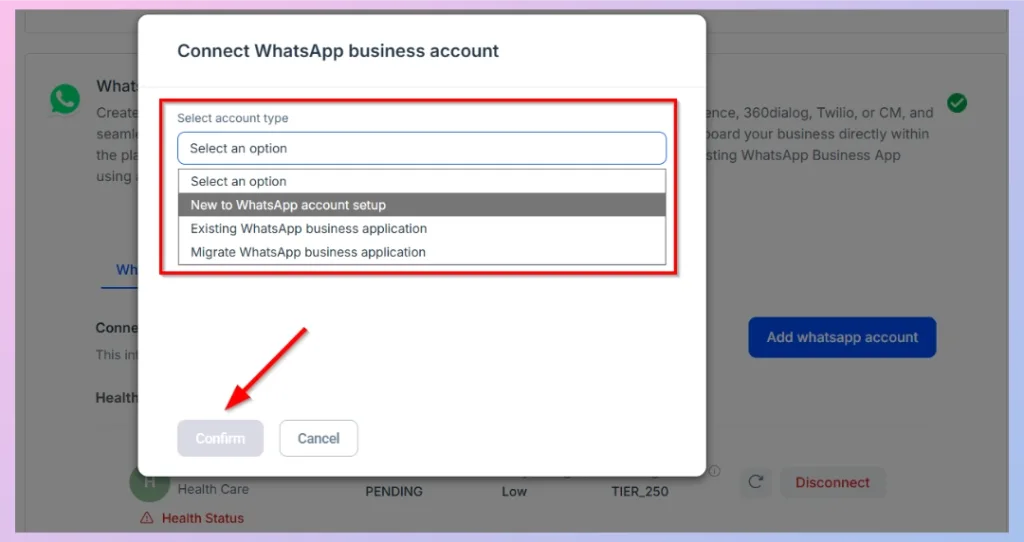
Step 3: Continue with Facebook/Meta login
- In the Meta login window, select the Facebook account you want to use.
- Click Continue as [Your Name].
- Review the permission screen.
- Click Get Started to allow REVE Chat to connect with your WhatsApp Business account.
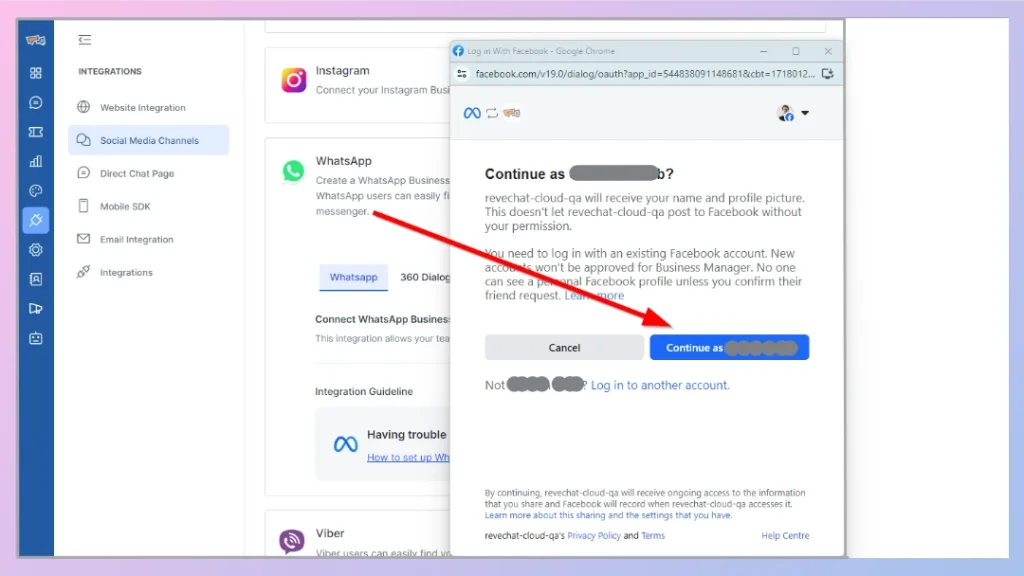
The permission screen allows REVE Chat to manage the connected WhatsApp Business account, including access required for messaging and account setup.
Step 4: Fill in business information
In the Meta setup flow, complete the business information form.
- Select or create a Business portfolio.
- Confirm or enter the Business name.
- Add your Business website or profile page.
- Select the Country.
- Add the business address if required or optional.
- Click Next.
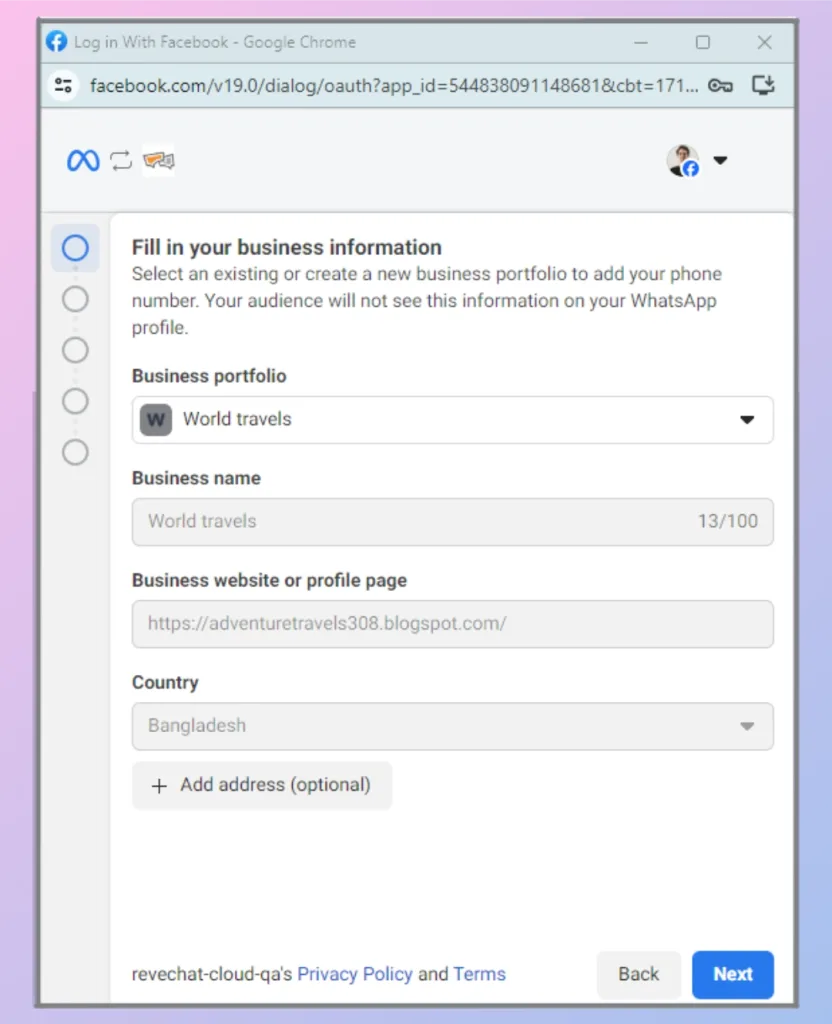
Use accurate business details. The business information should match your real company identity and website.
Step 5: Create or select a WhatsApp Business profile
Next, create or select the WhatsApp Business profile that customers will see when they interact with your business on WhatsApp.
- Enter the WhatsApp Business account name.
- Confirm the WhatsApp Business display name.
- Select the business Category.
- Review the display name guidelines shown in the setup flow.
- Click Next.
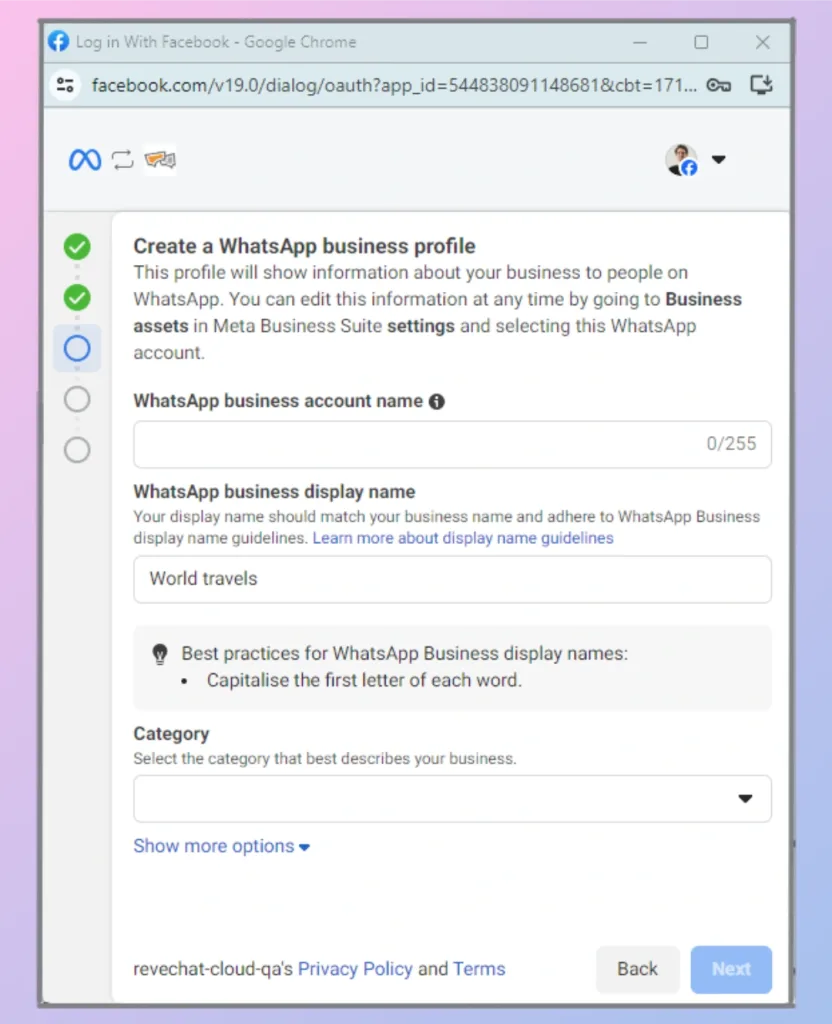
Use a display name that clearly represents your business. Avoid temporary, misleading, or unrelated names because Meta may review and restrict business accounts that do not follow its standards.
Step 6: Add and verify your phone number
Now enter the phone number you want to use for WhatsApp Business.
Select how you want to verify the number: Text message or Phone call
- Click Next.
- Enter the verification code received on the phone number.
- Complete the verification process.
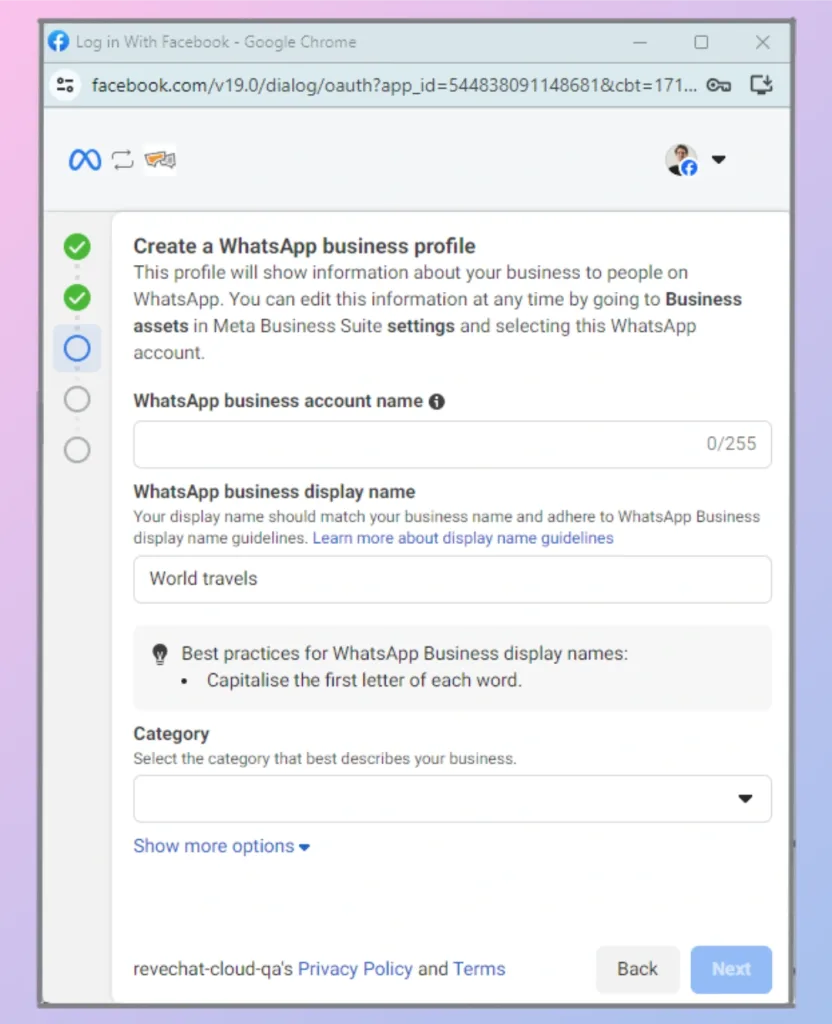
After the phone number is verified, Meta completes the WhatsApp Business connection and redirects the setup back to REVE Chat.
Step 7: Confirm the connection in REVE Chat
Return to the REVE Chat dashboard and check the WhatsApp section.
A successfully connected account may show:
- A green connected status indicator.
- The connected WhatsApp phone number.
- Business/account name.
- Quality rating.
- Message limit.
- A Disconnect option.
- An Add WhatsApp Account button for connecting another number.
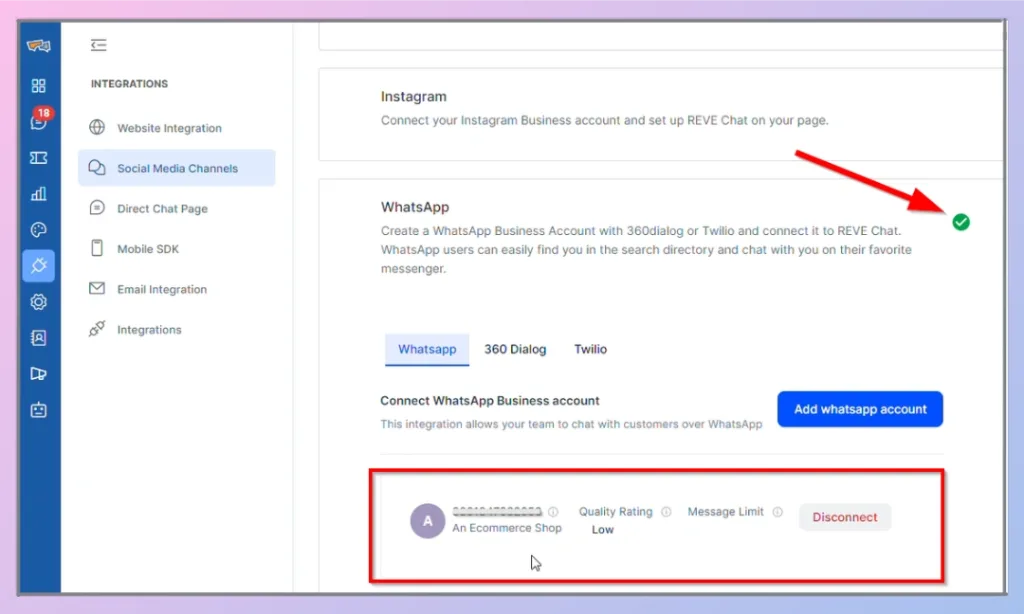
At this stage, WhatsApp Business is connected to REVE Chat. New WhatsApp customer messages can now be managed from the omnichannel inbox.
Alternative method: Connect using QR code
Use this method when you are connecting a WhatsApp Business App number through Meta’s QR-based flow.
- Go to Integrations > Social Media Channels > WhatsApp.
- Click Add WhatsApp Account.
- Select the relevant account type.
- Click Continue.
- In the Meta flow, select the Facebook Business Portfolio.
- Select Connect WhatsApp Business App.
- Enter the phone number you want to integrate.
- Meta displays a QR code.
- Open the message received from Meta in your WhatsApp app.
- Tap Connect.
- Scan the QR code.
- Approve the permission request for REVE Chat.
- Click Finish after the confirmation message appears.
REVE Chat’s help article lists this QR-code connection flow as an alternative WhatsApp integration method.
Managing WhatsApp conversations in the omnichannel inbox
After WhatsApp is connected, incoming WhatsApp messages appear in the REVE Chat inbox. Agents can manage these conversations from one central workspace.
Agents can:
- View incoming WhatsApp messages.
- Reply to customers from the REVE Chat dashboard.
- Assign conversations to agents or departments.
- Add internal notes.
- Use saved replies or canned responses where available.
- Escalate the conversation to another team member.
- Resolve or close the conversation when the issue is handled.
Important WhatsApp reply rule
WhatsApp has messaging restrictions for third-party platforms. REVE Chat’s WhatsApp FAQ notes that Meta does not provide third-party API support to answer a message request after 24 hours. If the 24-hour customer service window has passed, use an approved WhatsApp template message to re-engage the customer.
Troubleshooting WhatsApp Business Connection and Messaging Issues
1. Why Was My WhatsApp Business Account Disabled?
If your WhatsApp Business Account stops working or Meta disables it, the restriction is usually shown in Meta Business Suite / WhatsApp Manager. The exact reason can vary, so the first step is to check the account alert and review the details provided by Meta.
When an account is disabled, you may be unable to receive messages, reply to customers, start new conversations, or add phone numbers to the affected WhatsApp Business Account.
Follow these steps to check the reason:
- Log in to Meta Business Suite: Sign in to
<em>business.facebook.com</em>using the Facebook/Meta account that manages the WhatsApp Business Account.
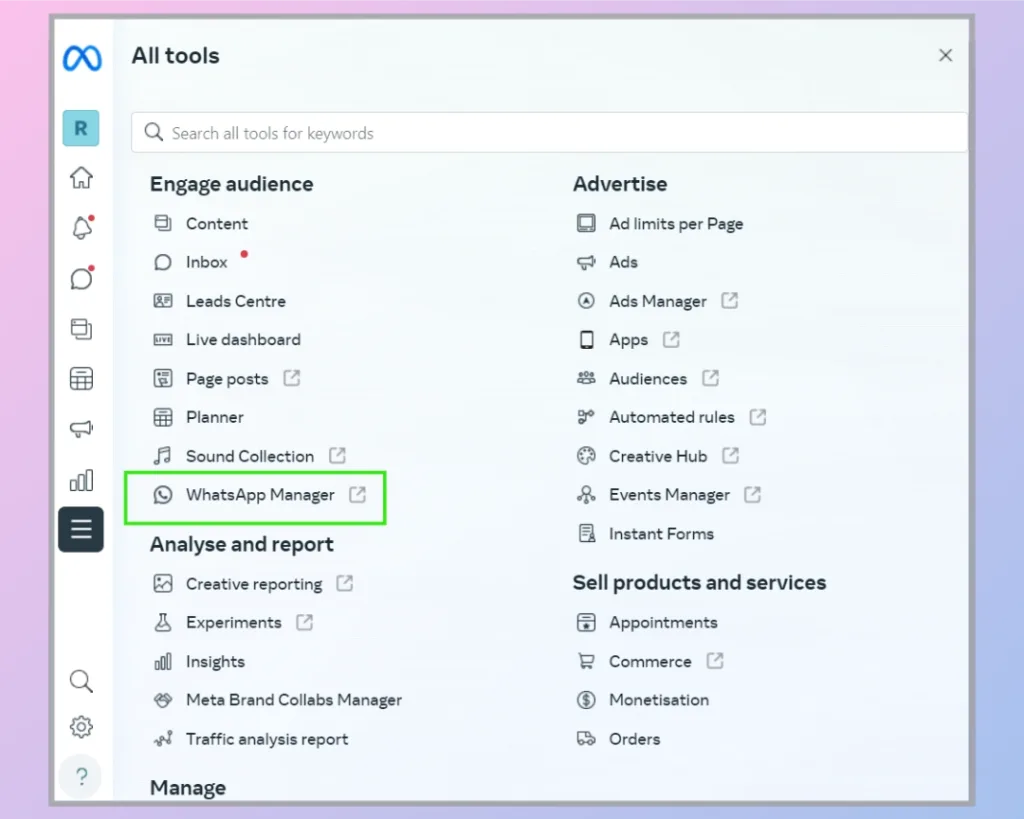
- Open All tools: From the left navigation menu, click All tools.
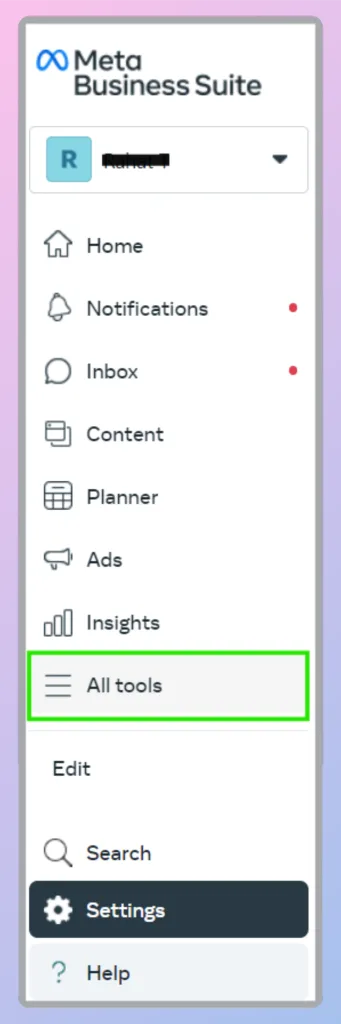
- Open WhatsApp Manager: Under the available Meta business tools, find and select WhatsApp Manager.
- Check the Alerts section: On the WhatsApp Manager overview page, you can see the WhatsApp Business Accounts associated with your business. If Meta has detected a problem, an alert appears at the top of the page. For example, you may see: “Your business has been disabled.” The alert may also include a short explanation of why Meta restricted the account.
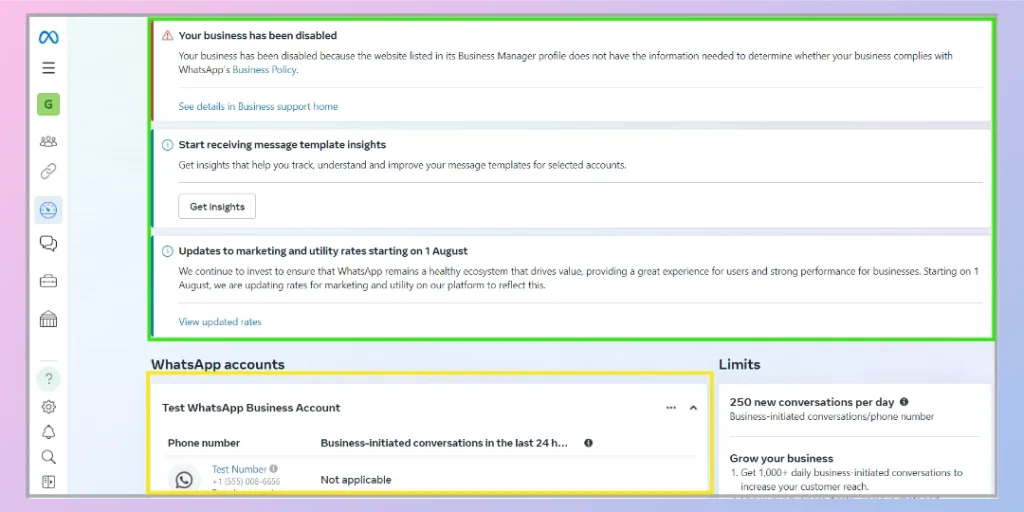
- Open the restriction details: Click See details in Business support home from the alert.

- Review the reason and required action: Meta Business Support Home displays more information about the restriction, including what caused it and, where available, what you can do next.
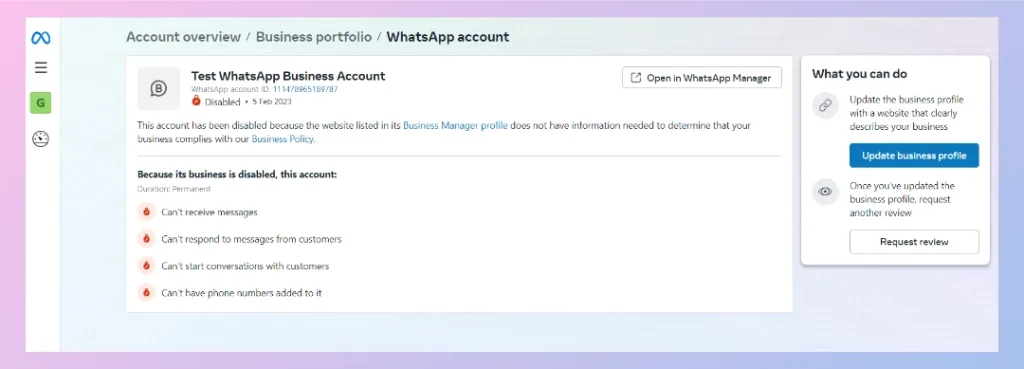
What to Do After Finding the Reason
Follow the instructions displayed by Meta for your account. The required action depends on the reason for the restriction.
For example, if Meta identifies a problem with your business website:
- Click Update business profile.
- Add a valid business website that clearly explains your company, products, or services.
- Make sure the website information matches your actual business.
- Save the updated business information.
- Return to the restriction page.
- Click Request review if Meta provides this option.
Meta will then review the updated information and determine whether the account can be restored.
Important
Do not assume that every disabled WhatsApp account has the same problem. The screenshots above show one specific example involving insufficient business website information. Always open Business Support Home and follow the reason and corrective action shown for your own account.
Also, avoid repeatedly disconnecting and reconnecting the WhatsApp number in REVE Chat while the Meta account itself is restricted. Resolve the restriction from Meta first, and then check the WhatsApp connection in REVE Chat again.
2. I completed the Meta setup, but WhatsApp does not appear as connected in REVE Chat
First, return to: Integrations > Social Media Channels > WhatsApp ,and refresh the page.
Check whether the phone number, business name, or connected status appears.
Meta’s Embedded Signup normally returns information about the connected WhatsApp Business Account and business phone number after successful completion of the setup flow.
If the account still does not appear:
- Make sure you completed the Meta flow instead of closing it before the final confirmation.
- Try refreshing and logging back into REVE Chat.
- Avoid connecting the same number repeatedly while the previous connection is still processing.
If the issue continues, contact REVE Chat Support with the connected phone number and a screenshot of the issue.
3. I connected the wrong WhatsApp number
Go to: Integrations > Social Media Channels > WhatsApp
Find the connected account and use the available Disconnect option.
After disconnecting it, start the Add WhatsApp Account process again and select the correct Business Portfolio, WhatsApp Business Account, and phone number.
Be careful when disconnecting an account that is already being actively used for customer conversations or campaigns.
4. How to Apply for the WhatsApp Official Business Account Badge
The verification badge helps customers recognize that a WhatsApp account represents an authentic and notable business.
Getting access to WhatsApp through REVE Chat does not automatically qualify your business for the badge. REVE Chat enables you to connect and use the WhatsApp Business Platform, while the Official Business Account status is reviewed and approved by Meta.
Prerequisites: Before you can submit a request, make sure the following requirements are completed:
- Business verification is complete: Your Meta Business Portfolio must be verified. Meta business verification confirms the identity and details of the organization.
- WhatsApp display name is approved: The display name associated with the phone number must have been approved by Meta. Meta tracks the approval status of WhatsApp business display names separately from other account settings.
- Two-step verification is enabled: Two-step verification must be turned on for the WhatsApp business phone number.
- Your business uses the WhatsApp Business Platform: The phone number must be associated with a WhatsApp Business Account that can be managed through WhatsApp Manager.
- Your brand should be notable: As shown in Meta’s application window, the request should demonstrate that the brand represented by the account is notable. Meta makes the final decision based on the information and evidence available about the business.
- Use a valid business website: Provide a website that clearly represents your company and is consistent with your business name and brand information.
Important: Having a verified Meta business does not guarantee that Meta will approve the Official Business Account badge. Meta reviews the badge request separately.
Step 1: Open your WhatsApp account in Meta Business Suite
Log in to Meta Business Suite using the account that manages your WhatsApp Business Account.
Go to: Settings > Accounts > WhatsApp accounts
Meta also documents this path as the standard way to access a WhatsApp Business Account from Business Suite.
Select the WhatsApp account for which you want to request the badge.
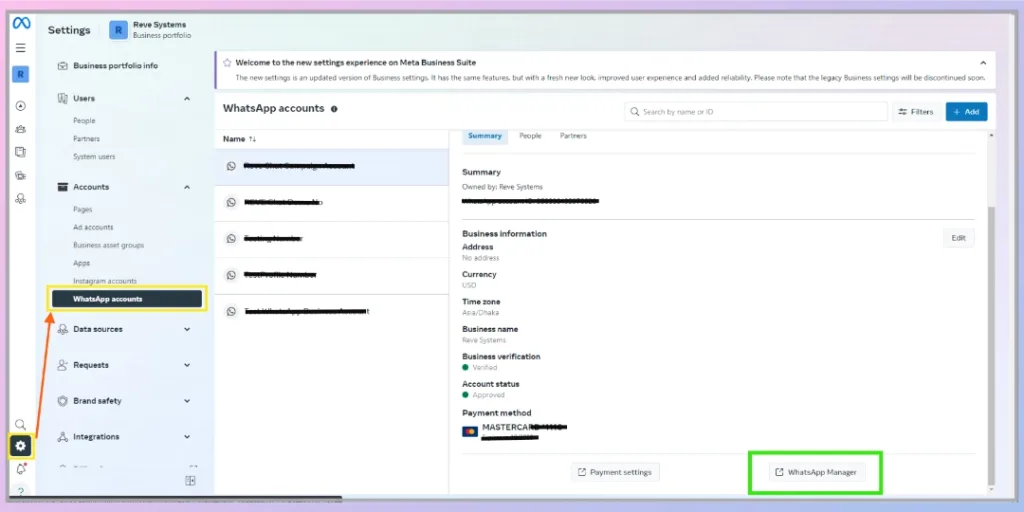
Step 2: Open WhatsApp Manager
After selecting the WhatsApp account, open the Summary tab.
Click WhatsApp Manager at the bottom of the account details panel.
This opens the WhatsApp Manager for the selected account.
Step 3: Open the phone number settings
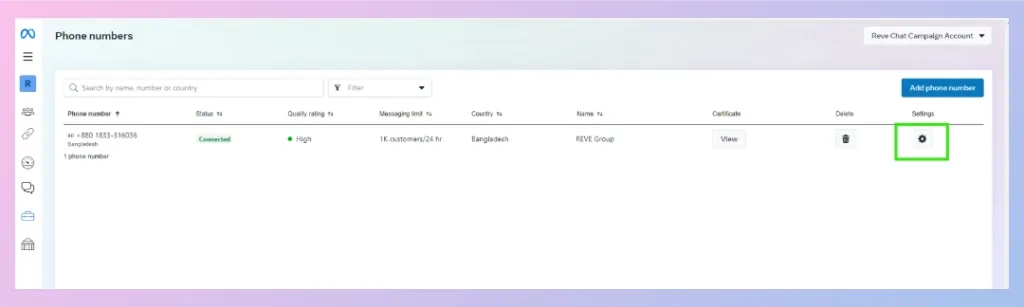
In WhatsApp Manager, go to Phone numbers.
Find the business phone number you want to verify and click the Settings icon beside that number.
Before continuing, you can also review information such as:
- Connection status
- Quality rating
- Messaging limit
- Business display name
Step 4: Open the Official Business Account section
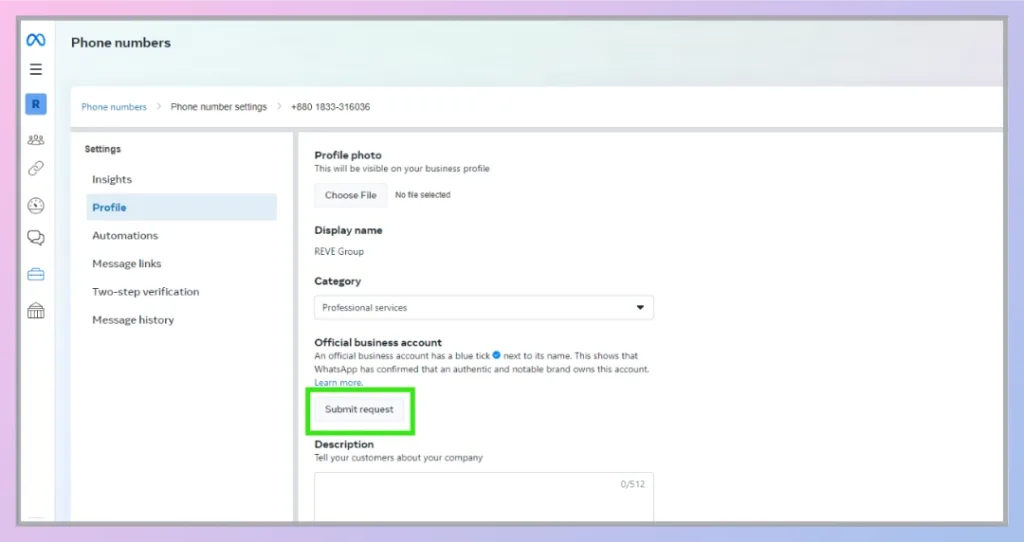
From the phone number settings page, select Profile.
Scroll to the Official business account section.
If your account is eligible to apply, you will see a Submit request button.
Click Submit request.
Step 5: Check the prerequisites
Meta displays the prerequisites before allowing you to continue.
As shown in the application screen, Meta checks whether:
- Business verification is complete
- Profile display name is approved
- Two-step verification is turned on
All required conditions should show as completed before you submit the request.
If one of these requirements is incomplete, complete it from your Meta Business or WhatsApp settings first.
Step 6: Complete the request
Fill in the information requested by Meta.
Depending on your account, Meta may ask for information such as:
- Business website
- Country of operation
- Additional information that helps establish the business or brand
Use accurate and publicly verifiable information. Your website, company name, WhatsApp display name, and other business information should consistently represent the same organization.
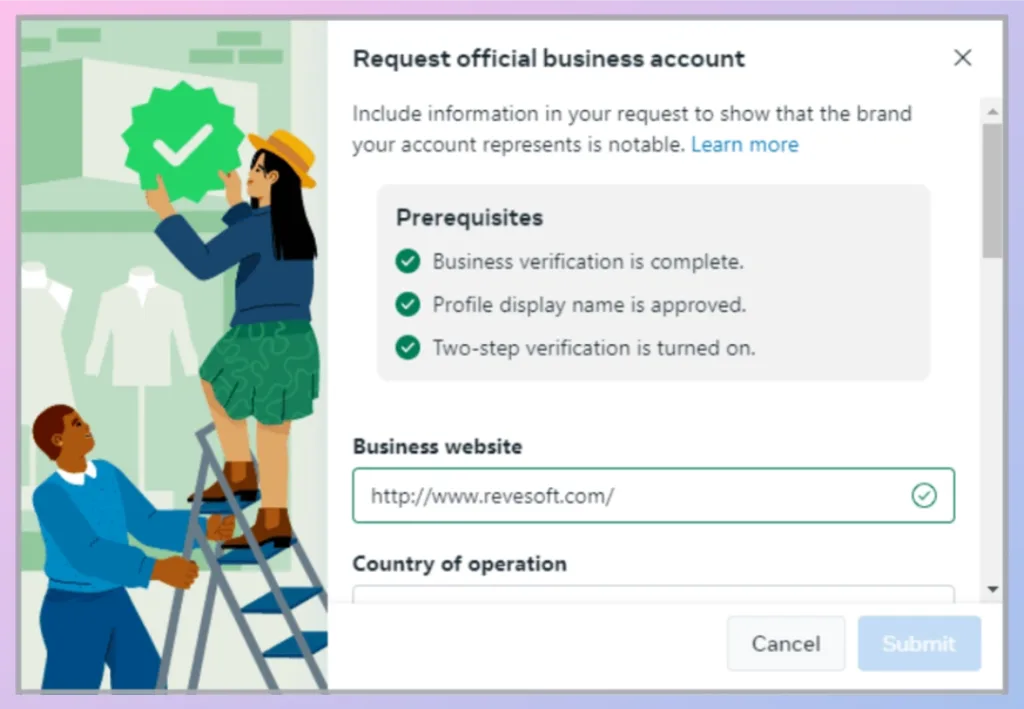
After completing the required information, click Submit.
What Happens After You Submit the Request?
Meta reviews the application and determines whether the business qualifies for Official Business Account status.
Submitting the request does not guarantee approval. If Meta needs additional information or does not approve the request, check the status and instructions available in WhatsApp Manager or Meta Business Support.
There is also no need to repeatedly submit the request while an existing application is being reviewed.
Frequently Asked Question
Can I connect more than one WhatsApp number to REVE Chat?
-Yes, you can add multiple WhatsApp account or number in REVE Chat. Each number should be connected through the appropriate Meta business setup process.
Do I need a Facebook account to connect WhatsApp Business?
-Yes. A Facebook/Meta Business account is required to connect WhatsApp Business with REVE Chat.
Can I create a new WhatsApp Business Account during setup?
-Yes. Meta’s Embedded Signup can allow businesses to select an existing WhatsApp Business Account or create a new one as part of the onboarding process.
When a WhatsApp account gets banned
-Reasons for WhatsApp account ban:
- If Facebook business account is opened using false/ dummy website / Facebook profile link
- If the provided business website does not have SSL certificate or doesn’t support HTTPS
- If the contents of the provided website does not comply WhatsApp’s standard policy
Why can’t I reply to a message after 24 hour using REVE chat
-Meta has specific restriction that it doesn’t provide the API support for any third party to answer to any message request after 24 hours. But from meta it is possible to get back to the customer after 24 hours.
When tried to integrate WhatsApp, it’s showing account creation failed.
-After following each step correctly and providing the OTP verification, WhatsApp account creation through REVE chat may fail for 3 main reasons-
- If 2 step verification is enable for the meta business account
- If customer tried to integrate a used number (previously with a WhatsApp account) which is not verified
- The number used to integrate with REVE chat is integrated with an another service provider account

 Start free trial