



How to Connect and Manage Instagram Business
- August 11, 2025
- 6 mins read
Table of Content
The Instagram integration allows you to connect your Instagram Business account with REVE Chat so you can manage Instagram Direct Messages (DMs), Story Replies, Story Mentions, and supported Instagram comments from a single omnichannel inbox.
Rather than switching between Instagram and multiple communication channels, your team can respond to customers directly from REVE Chat, assign conversations, automate replies using Wize AI Agent, and collaborate with teammates from one platform.
Benefits of Using AI Agent in Instagram Business
When Instagram is connected with REVE Chat, businesses can use an AI Agent to manage common customer questions automatically.
An AI Agent is like a smart helper for the support team. It can answer simple questions, collect information, and hand over the conversation to a live agent when a human is needed.
Reply to Instagram customers faster
Customers often expect quick replies on Instagram. An AI Agent can answer common questions instantly.
Reduce repeated work for agents
Many Instagram customers ask the same questions every day. The AI Agent can answer these questions automatically so agents can focus on more important conversations.
Support customers outside business hours
If a customer sends a message at night, the AI Agent can still reply. This helps customers feel that the business is active and responsive.
Collect customer information before handoff
The AI Agent can ask for important details before sending the conversation to a live agent. (It can collect: Customer name, Phone number, Email address, etc). This helps the live agent understand the customer’s issue faster.
Send customers to the right team
The AI Agent can understand the type of question and route the conversation to the correct team. Example: Product question → Sales team, Delivery question → Operations team
Manage high Instagram message volume
Businesses that receive many Instagram messages can use AI Agent to handle the first response. This reduces pressure on human agents and keeps the inbox cleaner.
Keep replies consistent
AI Agent can use approved business information to answer customers. This helps the business keep the same tone and message across all Instagram replies.
Improve customer experience
Fast replies, helpful answers, and smooth handoff to agents help customers trust the business more. This is important because many customers use Instagram before deciding to buy.
Prerequisites
Before connecting Instagram with REVE Chat, make sure the following items are ready.
- REVE Chat account access
- Instagram Business account
- Facebook Page connected with Instagram
- Admin or full-control access
- Message access enabled in Instagram
- Browser pop-up permission
- AI Agent setup, if automation is needed
To use AI Agent with Instagram, create and configure the AI Agent in REVE Chat. Add the correct knowledge base and handoff rules before using it for customer conversations.
Connect Instagram Business Account to REVE Chat
Step 1: Open Social Media Channels
- Log in to the REVE Chat dashboard.
- From the left-side menu, go to Integrations.
- Select Social Media Channels.
- Find the Instagram section.
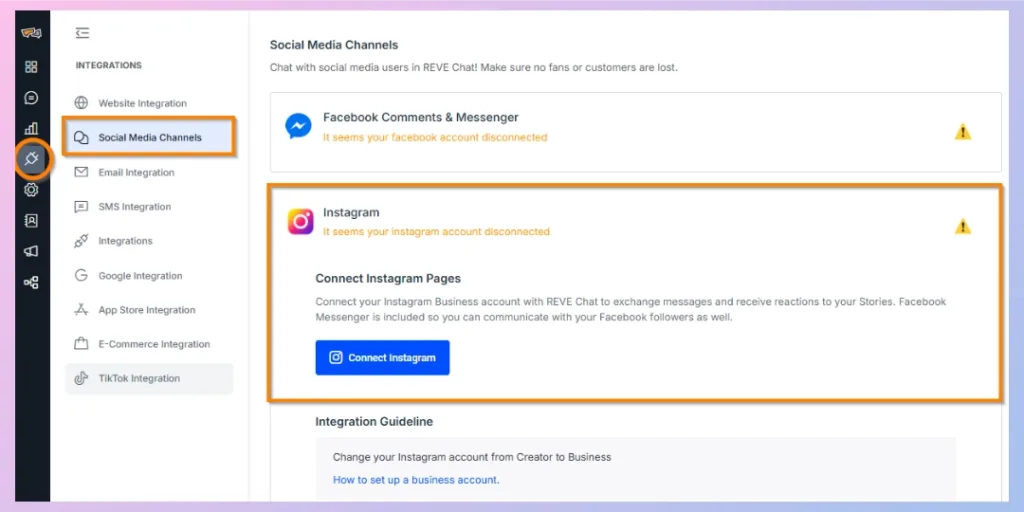
The Instagram section shows the connection option for Instagram Business communication.
Step 2: Click Connect Instagram
In the Instagram section, click Connect Instagram.
A Facebook(Meta) login or authorization window opens. This window is controlled by Meta. It is used to confirm the account and collect the required permissions.
Step 3: Confirm the Facebook account
Meta may ask for the Facebook password again. This is a normal security step.
- Check that the correct Facebook account is selected.
- Enter the Facebook password if asked.
- Click Continue.
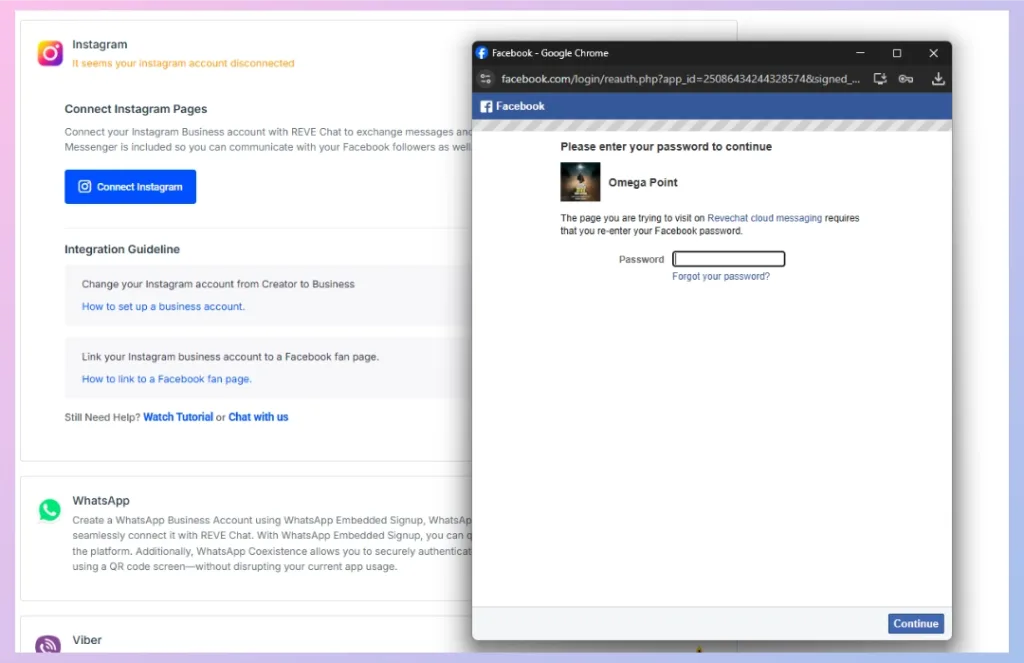
Use the Facebook account that has permission to manage the Instagram Business account, Facebook Page, and Meta Business portfolio.
Step 4: Choose the Business REVE Chat can access
Meta may ask which Business portfolio REVE Chat can access (If you have multiple).
- Select the correct business.
- Make sure the checkbox beside the business is selected.
- Click Continue.
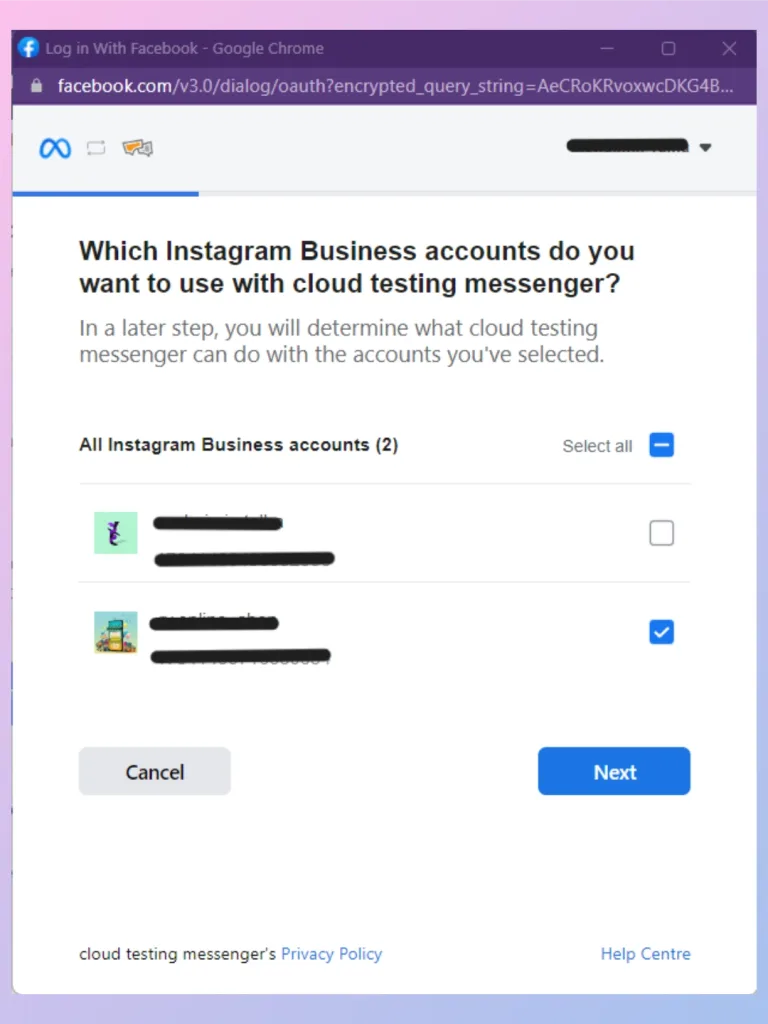
Choose the business that owns or manages the Instagram account.
Step 5: Choose the Instagram account and Facebook Page
Meta may ask which Instagram account and Facebook Page REVE Chat can access.
- Select the Instagram Business account that should be connected.
- Select the Facebook Page connected to that Instagram account.
- Click Continue.
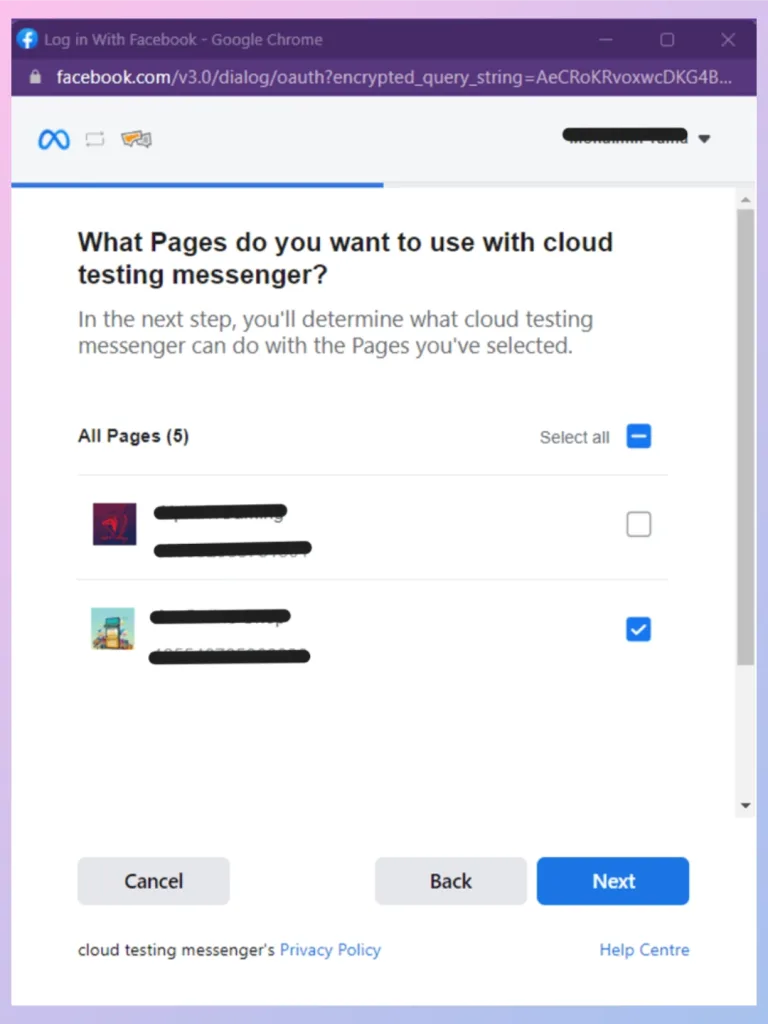
Meta screens may appear in a different order depending on the account setup. The important point is to select the correct Business, Instagram account, and Facebook Page.
Step 6: Review and allow required permissions
Meta may show a permission screen before completing the connection.
Keep the required permissions enabled so REVE Chat can receive and manage Instagram communication.
Now click Done button.
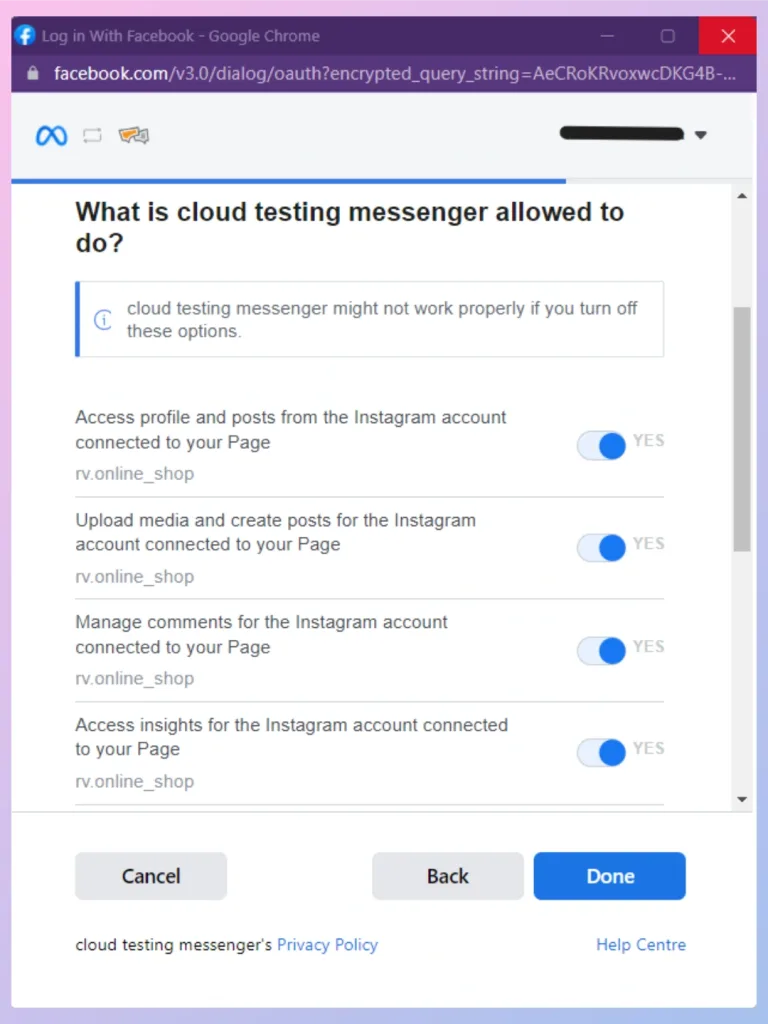
Do not remove required permissions. If required permissions are removed, Instagram messages may not appear in REVE Chat.
Step 7: Complete the connection
After permissions are approved, the setup returns to REVE Chat.
Go back to: Integrations > Social Media Channels > Instagram
Check that the Instagram account is connected.
If the account still shows a disconnected status, refresh the dashboard and check again.
Step 8: Enable Instagram communication types
After Instagram is connected, select the types of Instagram communication that should appear in REVE Chat. Available options may include:
- Comments
- Direct Messages
- Story Replies
- Story Mentions
Enable the options that your team wants to manage from REVE Chat.
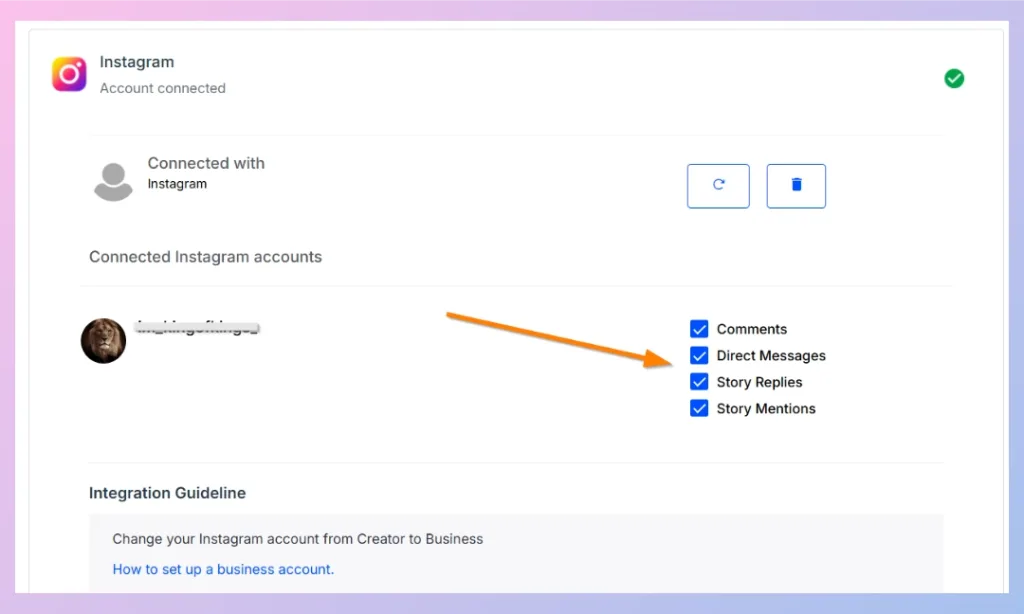
REVE Chat’s previous Instagram guide lists these communication types as available options after Instagram is integrated.
Step 9: Test the Instagram connection
After connecting Instagram, test the setup before using it with customers.
- Open Instagram from another account.
- Send a direct message to the connected Instagram Business account.
- Open the REVE Chat inbox.
- Check whether the Instagram message appears.
- Reply from REVE Chat.
- Confirm that the reply appears in Instagram.
- Add a test comment on an Instagram post if comment management is enabled.
- Reply to a story if Story Replies are enabled.
- Mention the Instagram Business account in a story if Story Mentions are enabled.
Testing helps confirm that messages are reaching REVE Chat correctly.
Managing Instagram conversations in the omnichannel inbox
After the Instagram Business account is connected, Instagram customer conversations can be handled from the REVE Chat omnichannel inbox.
The omnichannel inbox is one shared place where the support team can manage messages from different channels. Instead of checking Instagram separately, agents can reply from REVE Chat and manage Instagram conversations along with website chat, WhatsApp, Facebook, email, and other channels.
This helps the team stay organized and respond faster.
Agents can:
- View Instagram Direct Messages
- Reply to Instagram customers
- Manage supported Instagram comments
- Manage Story Replies and Story Mentions
- Assign conversations
- Add internal notes
- Use saved replies
- Transfer conversations
- Use AI Agent support
- Track conversation history
- Resolve conversations
- Important Instagram reply rule
Instagram Messaging Limitations to Remember
Instagram messaging through connected tools may have some platform limitations.
1. Personal Instagram accounts are not supported
Use an Instagram Business account or supported Professional account. Personal consumer accounts are not supported for Instagram API-based business messaging.
2. The customer must start the conversation
The message recipient must have sent a message to the Instagram professional account before the business can reply through the API.
3. Group messaging is not supported
Instagram professional accounts can only converse with one customer per conversation through the API. Group messaging is not supported.
4. Some message request conversations may not appear after a long time
Messages in the Instagram Requests folder that have not been active for 30 days may not be returned in API calls.

 Start free trial