



Chats
- August 17, 2026
- 5 mins read
Table of Content
The Chats section organizes customer conversations according to their current owner, source, and status. The available folders include:
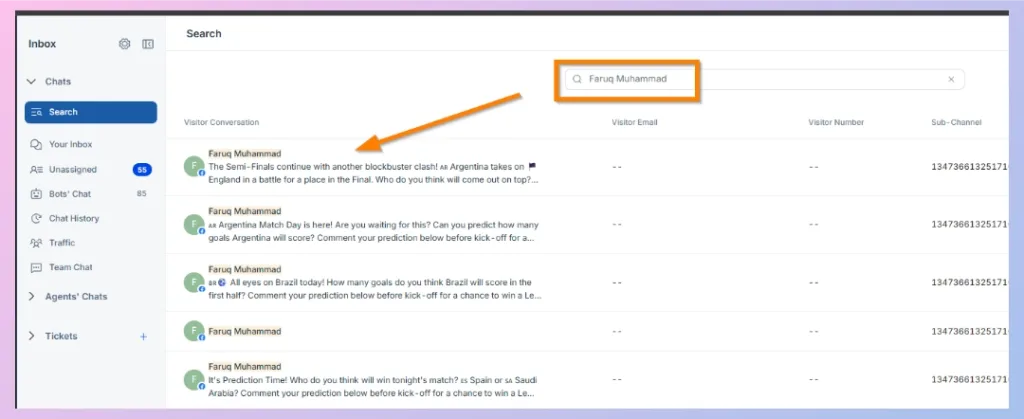
Search
Use Search when you need to locate a conversation without manually checking different Inbox folders.
This is particularly useful when you already know information related to the customer or conversation and want to quickly find the relevant chat.
Your Inbox
‘’Your Inbox’’ is the main working area for conversations assigned to agents.
When a conversation is routed directly to an agent or an agent accepts a conversation from the Unassigned queue, it can appear in that agent’s Inbox.
At the top of Your Inbox, you can see options such as:
- Open — shows your currently open conversations.
- Filter — helps narrow the conversations displayed.
- Oldest/Newest sorting — changes the order in which conversations are displayed.
- Active — displays conversations you are actively handling.
- Snoozed — displays conversations that have temporarily been snoozed.
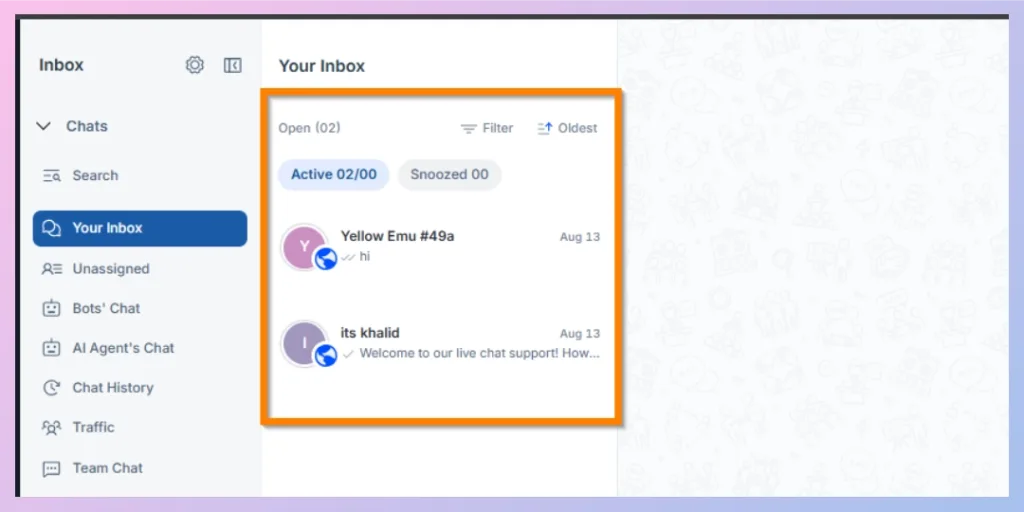
Select any conversation from the list to open the complete chat workspace.
Working with an Open Conversation
Once a chat is open, you can read previous messages, respond to the customer, review customer information, and access other conversation tools.
Depending on the features enabled for your widget, the conversation header can provide access to features such as:
- Voice call
- Video call
- Co-browsing
- Snooze
- Close Chat
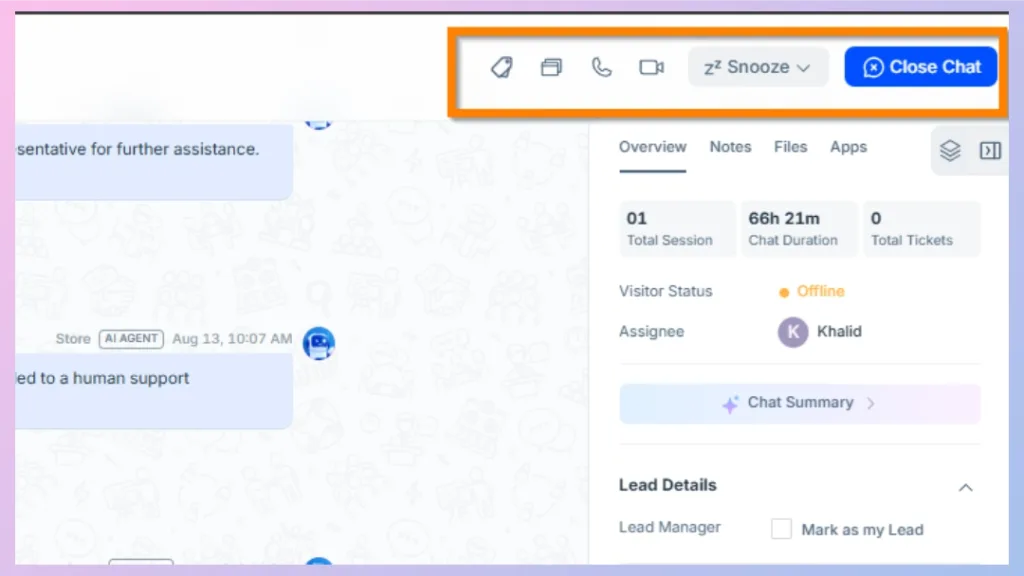
You can also review additional customer information from the Overview, Notes, Files, and Apps areas available on the right side of the conversation.
Voice, Video, and Co-Browsing Availability
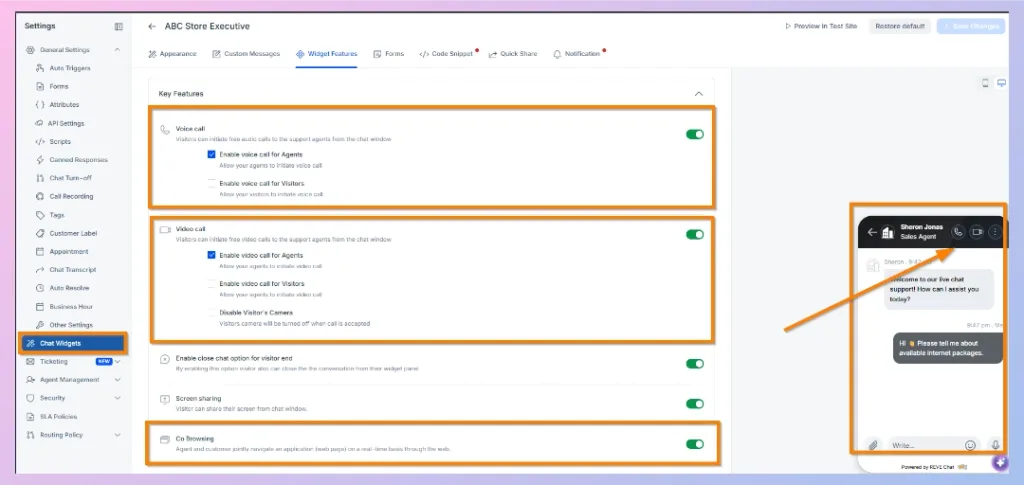
These features need to be enabled for the relevant chat widget before agents can use them.
Go to: Settings → Chat Widgets → Setup Widget Features
From the Widget Features section, you can configure available Voice Call, Video Call, Screen Sharing, and Co-Browsing options.
For co-browsing specifically, REVE Chat requires the feature to be enabled for the selected widget. Once an agent starts a co-browsing session and the visitor accepts it, both sides can collaborate on the website in real time.
Unassigned
The Unassigned folder contains conversations that have not yet been assigned to a specific human agent.
For example, depending on your routing configuration, a conversation may appear here when a new request is broadcast to available agents or when a conversation is waiting for an agent to accept it.
From Unassigned, agents can review the incoming request before accepting it, while administrators can assign the conversation to an appropriate agent. REVE Chat also supports filtering unassigned conversations using information such as channel and customer sentiment.
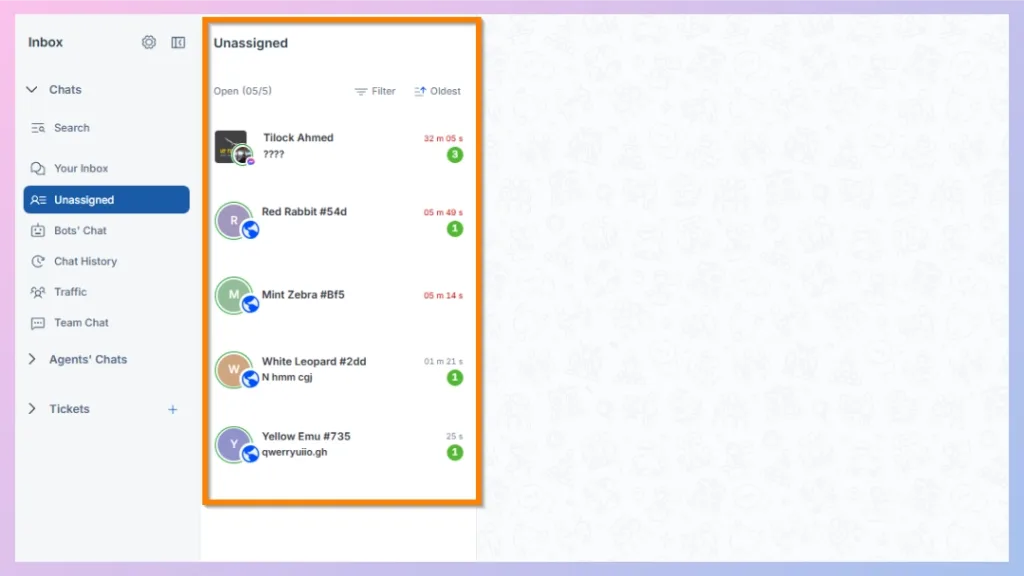
This folder helps ensure that incoming conversations remain visible until someone takes responsibility for them.
Tip: Teams should regularly monitor Unassigned conversations so that customer requests do not remain waiting unnecessarily.
Bots’ Chat
Bots’ Chat contains conversations currently being handled by REVE Chat chatbots.
Keeping chatbot conversations in a separate folder helps agents and administrators:
- Review ongoing bot conversations
- Understand how customers are interacting with the bot
- Monitor the quality of automated responses
- Identify conversations that may require human assistance
- Take over a bot conversation when necessary
AI Agent’s Chat
AI Agent’s Chat separates conversations being handled by a Wize AI Agent from traditional chatbot conversations and human-agent conversations.
This makes it easier for teams to identify which customer interactions are currently being managed through AI Agent automation.
Agents and supervisors can use this folder to review AI Agent conversations and understand the context of AI-managed customer interactions.
Note: AI Agent’s Chat is shown as a separate folder in the current REVE Chat Inbox interface, while some older Inbox documentation may not yet include this folder.
Chat History
Chat History gives agents and administrators access to previous conversations directly from the Inbox.
Instead of moving to a separate reporting area, you can open Chat History and search or review completed conversations from different sources. REVE Chat supports filtering historical conversations and customizing the columns displayed in these views.
The current Chat History interface contains four tabs.
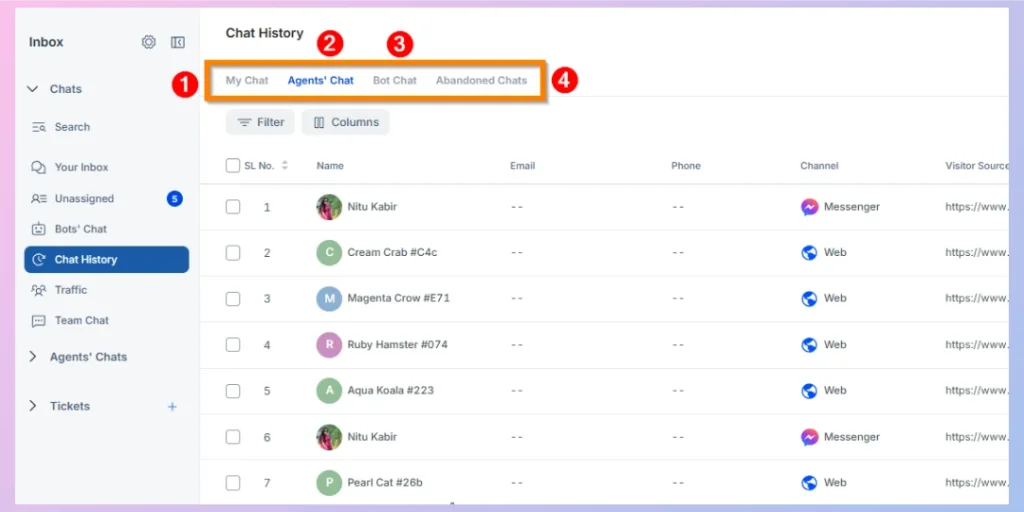
1. My Chat
Shows previous conversations in which you personally interacted with the customer.
This is useful when you want to review your own past conversations, follow up on a previous issue, or understand what you previously discussed with a customer.
Historical chats can be filtered using available customer and conversation information.
2. Agents’ Chat
Shows historical conversations handled by human agents.
Administrators and authorized users can use this area to review previously completed agent conversations across the team.
3. Bot Chat
Contains previous conversations handled by chatbots.
This keeps completed chatbot interactions separate from human-agent chat history, making bot conversation review easier.
4. Abandoned Chats
Contains conversations classified as abandoned because the customer request was not successfully picked up and handled as an active conversation.
Reviewing abandoned conversations can help teams identify missed customer requests and understand where additional agent availability or routing improvements may be needed.
Traffic
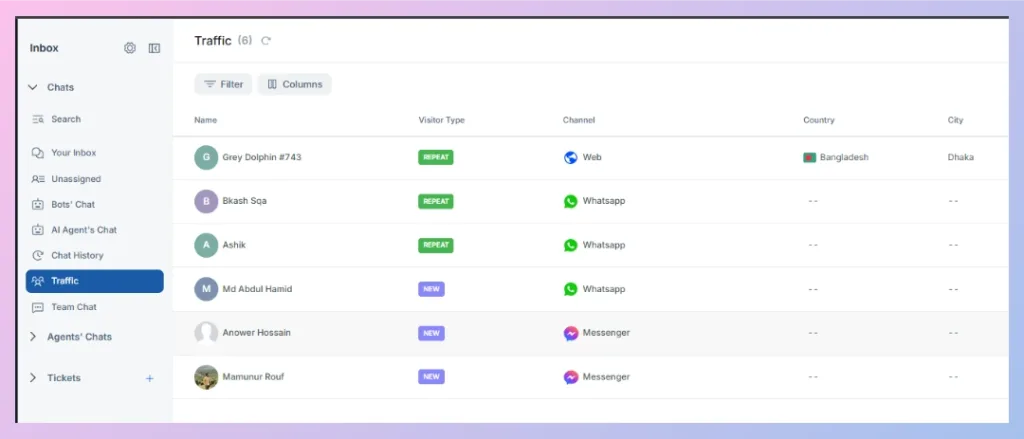
The Traffic section gives agents and administrators visibility into visitors and customer activity across supported channels.
The current Traffic view can display information such as:
- Customer or visitor name
- Visitor Type, such as New or Repeat
- Communication channel
- Country
- City
- Last Visit information
- And many more.
Depending on the visitor’s current state, an action can also be available on the right side.
The Traffic area is therefore useful not only for observing visitor activity but also for proactively engaging customers when appropriate.
Team Chat
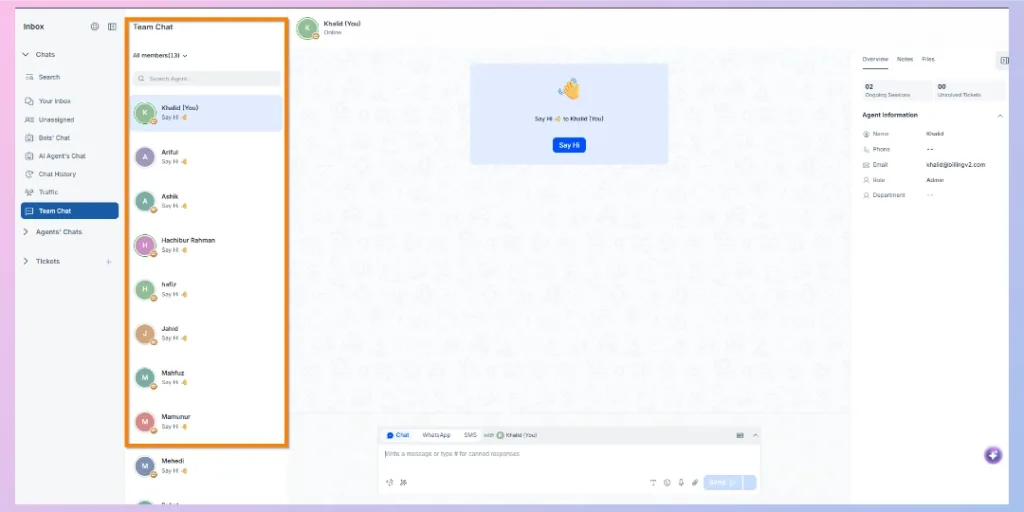
Team Chat provides an internal communication space for your support team.
Agents can communicate with colleagues without leaving REVE Chat, making it easier to ask for help, share updates, and collaborate while handling customer conversations.
REVE Chat describes the feature as a real-time collaboration area for teammates.

 Start free trial