



How to Install REVE Chat in Magento
- October 6, 2026
- 5 mins read
Table of Content
Connect REVE Chat with your Magento 2 store to add live chat and Wize AI Agent capabilities to your website. The integration also syncs your product catalog with REVE Chat, helping you provide faster support and more relevant customer assistance.
The setup has two parts:
- Install the extension: completed by a developer, agency, or hosting provider with Magento server access.
- Connect your REVE Chat account: completed from the Magento Admin panel.
Before You Begin
Make sure you have:
- Magento 2 Open Source or Commerce, version 102.x or 103.x
- PHP 7.4, 8.1, 8.2, or 8.3
- Access to your Magento server or a technical person who can install extensions
- A REVE Chat account, or an email address to create one during setup
Note: You do not need technical access after the extension has been installed.
Part 1: Install the REVE Chat Extension
Before you can connect REVE Chat from the Magento Admin panel, the REVE Chat extension must first be added to your Magento store.
An extension is an add-on that gives Magento additional features. In this case, it allows your store to display REVE Chat and connect your store data with REVE Chat.
♦️Important: This part requires access to your Magento server and technical knowledge. If you do not manage your store’s code or hosting, share this section with your Magento developer, agency, or hosting provider.
Your technical team can install the extension in one of the following ways:
Install Using Composer
Composer is the standard tool developers use to download and manage Magento extensions. This is the recommended installation method.
- Access the Magento server through SSH or the hosting control panel.
- Open the Magento root directory. This is the main folder where your Magento store is installed and where the bin folder is located.
- Run the following commands one at a time:
composer require reve_chat/magento2-integration

php bin/magento module:enable ReveChat_Integration

php bin/magento setup:upgrade
These commands will:
- Download the REVE Chat extension.
- Enable it in Magento.
- Update Magento so it can use the new extension.
Install Manually
Use this method only if Composer is not available on your Magento server.
- Download the REVE Chat Magento extension package.
- Extract the downloaded ZIP file.
- Open your Magento installation folder.
- Copy the extracted extension files to this location:
app/code/ReveChat/Integration/Run the following commands from the Magento root directory:
php bin/magento module:enable ReveChat_Integration

php bin/magento setup:upgrade
If Your Store Uses Production Mode
Magento stores running in production mode need two additional commands after installation. This prepares the extension files for the live website.
php bin/magento setup:di:compile

php bin/magento setup:static-content:deploy -f
If you are unsure whether your store uses production mode, ask your Magento developer or hosting provider.
Refresh the Magento Cache
Run the following command to apply the installation:
php bin/magento cache:flushOnce the extension is installed, continue with Part 2 from the Magento Admin panel.
Part 2: Connect Your REVE Chat Account
After the extension is installed, you can connect your account without using code or server access.
- Log in to your Magento Admin panel
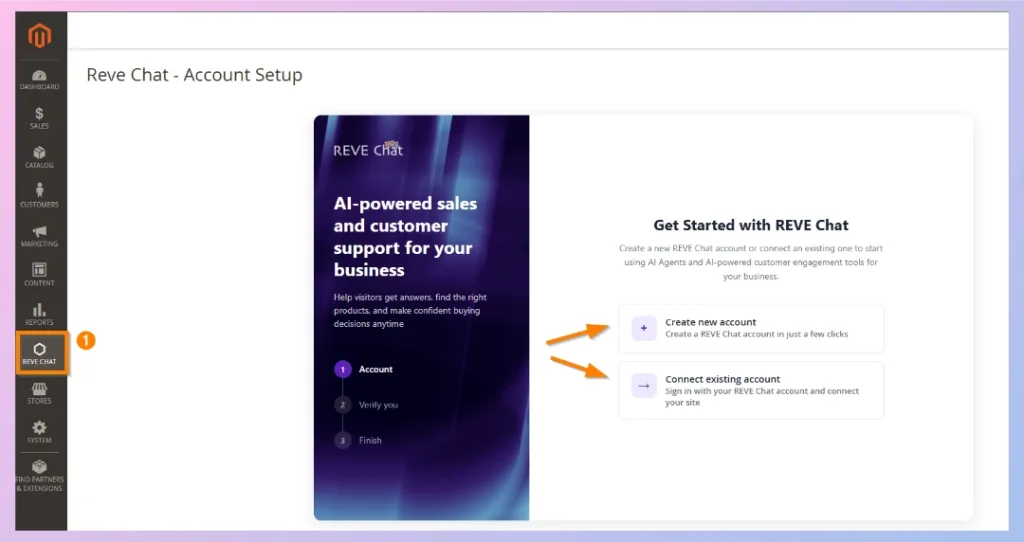
- From the left sidebar, go to REVE Chat → Account Setup.
- Choose one of the following options:
a. Create New Account: Use this if you do not have a REVE Chat account yet. Enter your name, email address, phone number, and password. Then enter the 6-digit verification code sent to your email.
b. Connect Existing Account: Use this if you already have a REVE Chat account. Sign in using your REVE Chat email address and password. - Complete the on-screen steps to connect your account.
After your account is connected, REVE Chat automatically:
- Connects your Magento store to your REVE Chat account.
- Adds the chat widget to your storefront.
- Sets the required Account ID and Widget ID.
- Creates a Magento integration named ReveChat.
- Securely shares the required API access with REVE Chat for product catalog synchronization.
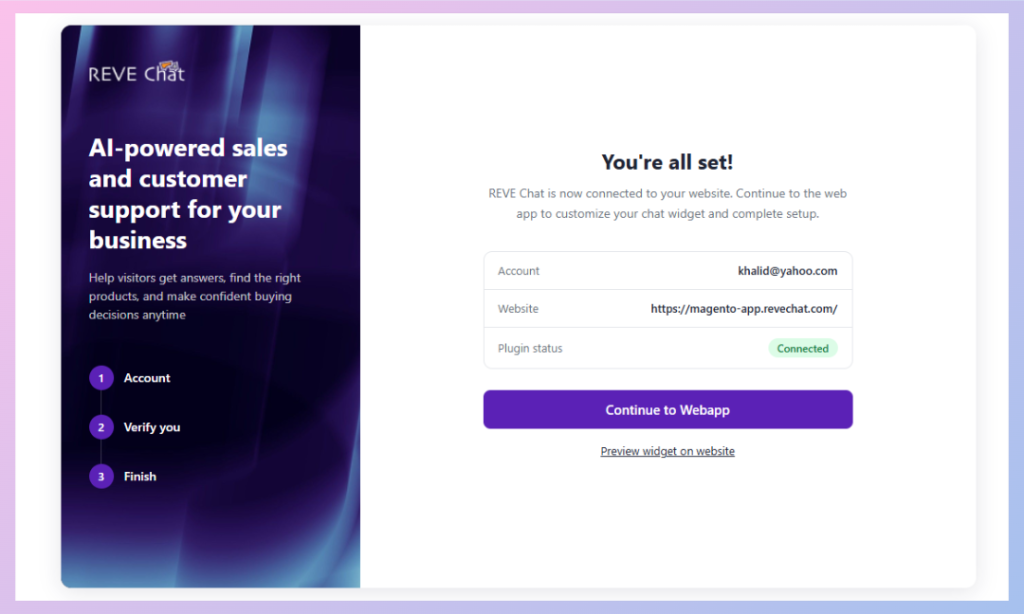
You do not need to manually create, copy, or paste an API token.
Note: If you update your chat widget design, layout, or settings from the REVE Chat dashboard, the changes will automatically appear on your Magento storefront.
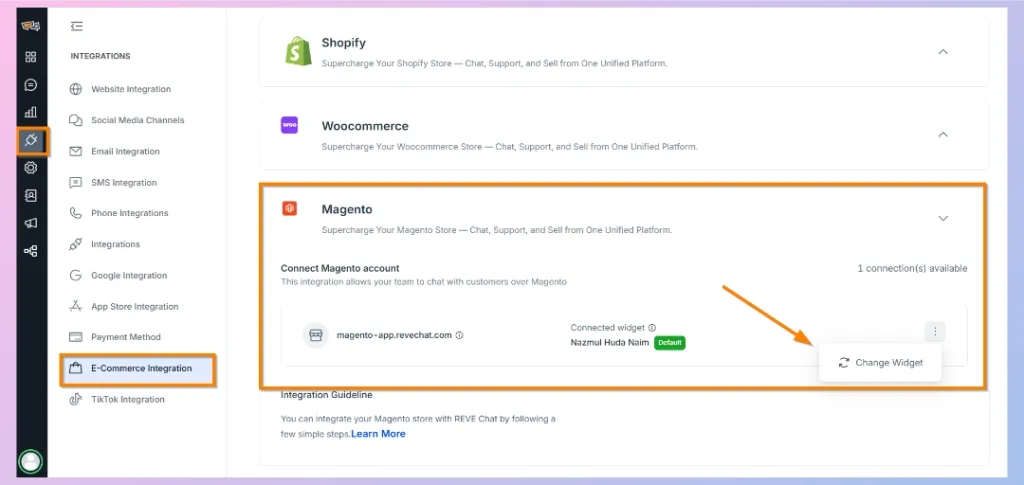
Configure Additional Widget Settings
The chat widget is ready to use immediately after you connect your account. However, you can update additional settings if needed.
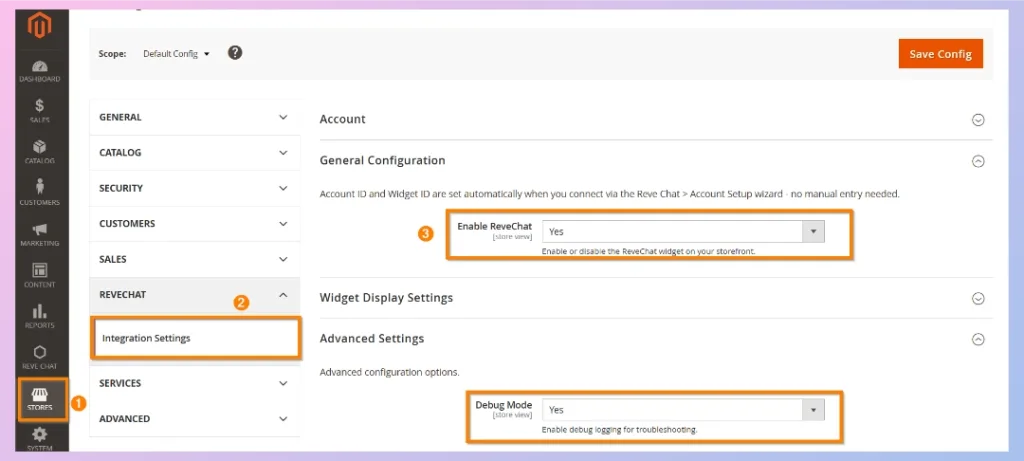
- Go to Stores → Settings → Configuration.
- Select ReveChat → Integration Settings.
- Under General Configuration, enable REVEChat- Yes.
- Also in Advanced Settings, enable Debug Mode- Yes, only if you need technical troubleshooting details.
- Click Save Config.
If Magento asks you to refresh the cache, ask your developer or hosting provider to run:
php bin/magento cache:flush
Note: Debug Mode writes technical logs to var/log/debug.log. It is mainly intended for developers or technical support teams.
Verify the Installation
After connecting your account, check whether:
The widget is working correctly.Open your Magento storefront in a browser.
Check whether the REVE Chat widget bubble appears on the website.
Send a test message through the widget.
Open your REVE Chat dashboard and confirm that the test message appears in your inbox.
If the widget appears and the message reaches your REVE Chat dashboard, the installation is complete.
Troubleshooting
| Issue | Possible Reason | What to Do |
|---|---|---|
| The chat widget does not appear | Your account has not been connected yet, or the extension is disabled | Go to Reve Chat → Account Setup and connect your account. Ask your developer to confirm that the extension is enabled. |
| The connection wizard does not complete | A temporary network or login issue occurred | Review the error message on the screen and try signing in or creating the account again. |
| Your settings do not update on the storefront | Magento cache has not been refreshed | Ask your developer or hosting provider to flush the Magento cache. |
| You need more technical details | Debug Mode is disabled | Enable Debug Mode from Integration Settings, then ask your technical team to check var/log/debug.log. |
Uninstall the REVE Chat Extension
Uninstalling requires Magento server access. Ask your developer, agency, or hosting provider to run:
php bin/magento module:disable ReveChat_Integration
composer remove reve_chat/magento2-integration
php bin/magento setup:upgrade
php bin/magento cache:flush
Important: Removing the extension does not automatically remove the Magento integration created for REVE Chat.
To fully remove REVE Chat API access from Magento:
- Go to System → Extensions → Integrations.
- Find the integration named ReveChat.
- Deactivate or delete the integration.

 Start free trial