



HubSpot
- March 27, 2026
- 2 mins read
Table of Content
Instruction for HubSpot Integration
- Login into REVE chat.
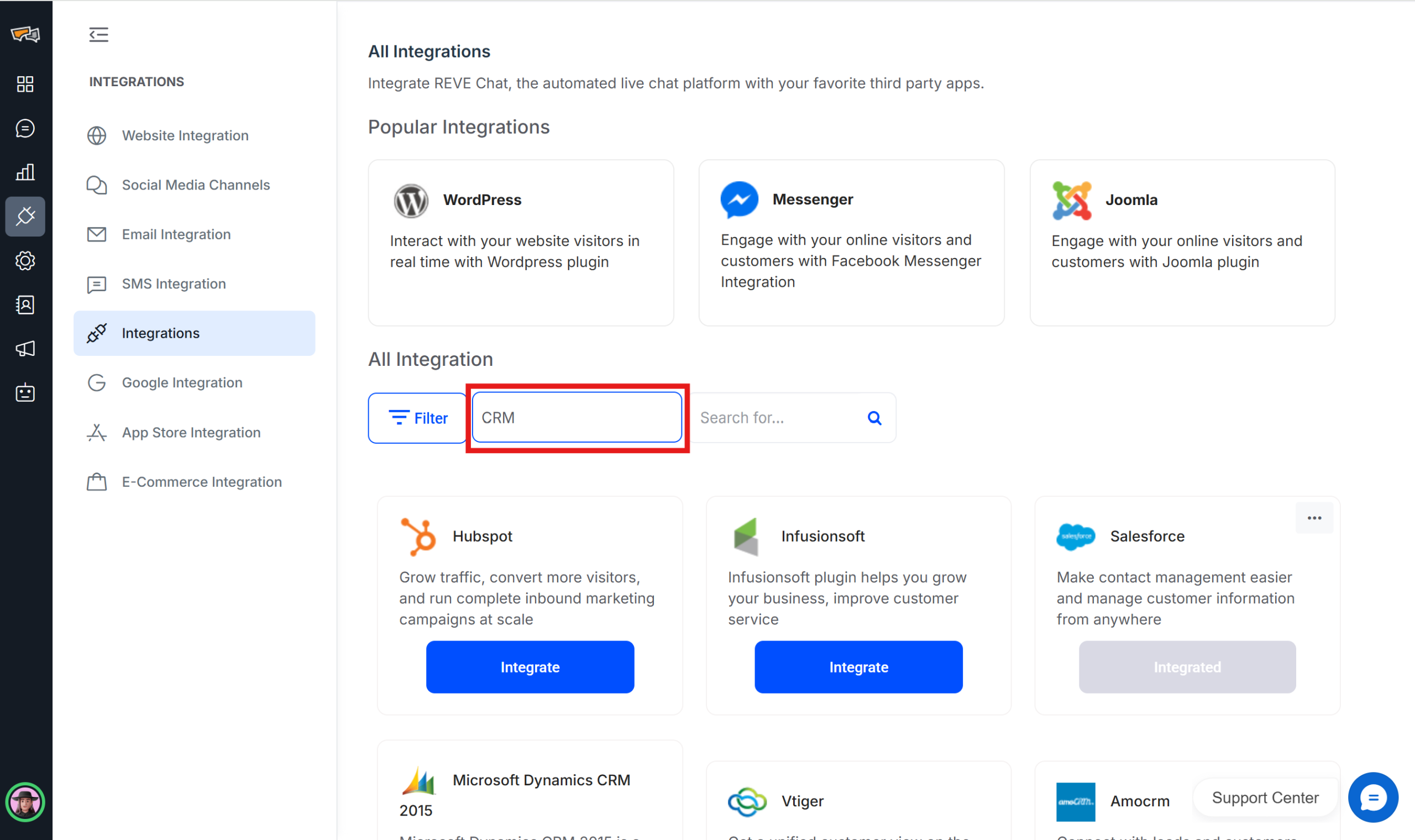
- Navigate to the integration menu(green box) using the left nav bar. Then click the integration tab(blue box) and scroll down till you find HubSpot from the list . You can use the filter option at the top of the page(purple box) to search your preferred application by type or name.
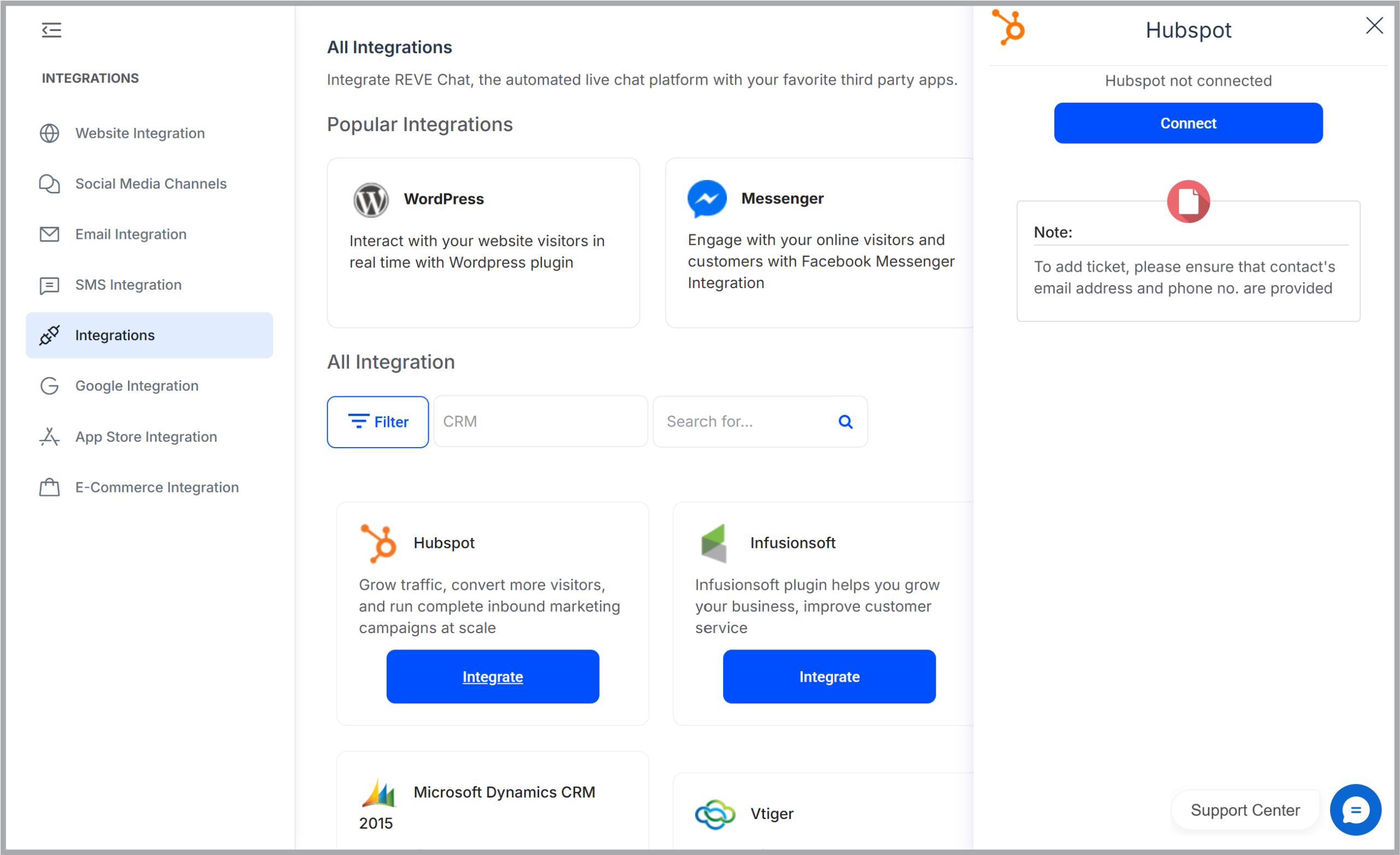
- Click integrate. After clicking the integrate button a new side menu will appear. In that menu you have to click the connect button to start linking your HubSpot account.

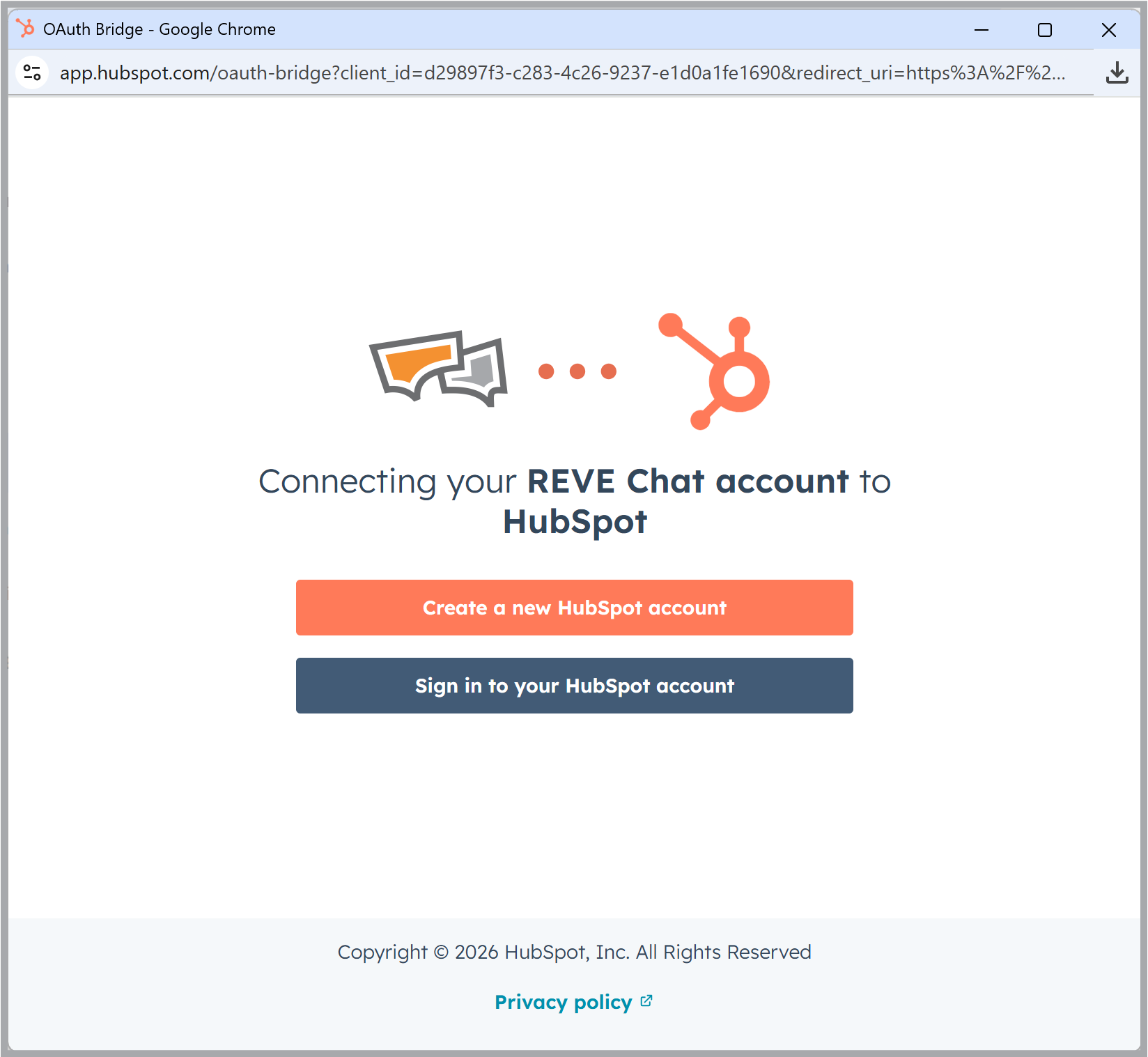
- A new pop-up will appear to connect your desired HubSpot account. Note that you need to be logged-in to your HubSpot account or you would be prompt to login to your HubSpot account.
- After selecting the account, you will need to provide permission to REVE chat to send data to your HubSpot account
- After successful integration, you will see checkbox how you want to create ticket after a successful chat by checking them and clicking “Save”.
Benefits
- Integrating Live chat plugin in HubSpot CRM helps live chat agents in passing customer information to customer database effortlessly.
- Location information of the website visitor can be accessed by customer service agent from REVE Chat dashboard. Agents can use this information to provide exclusive deals to customers.
- An agent can also access the information about customer last purchase and other patterns. They can use this information to provide better offers to your customers hence more average deal value.
- When addressing a new chat request, a customer service agent will be able to access issues raised by the customer. Therefore, an agent will be able to answer the customer before they may even ask.
- People prefer to talk to a person rather than an email. Live chat gives your website a human touch which increases the chances of customer engagement. This also gives you more leads in you Sales funnel.

 Start free trial