



How to Install REVE Chat on Shopify Stores
- January 5, 2026
- 3 mins read
Table of Content
You can install REVE Chat on your Shopify store using the REVE Chat Shopify app. After installation, you can enable the chat widget from your Shopify theme editor and connect it with your REVE Chat account. Once enabled, shoppers can start conversations from your store, and your team can manage chats, support requests, and customer engagement from the REVE Chat dashboard.
Prerequisites
Before installing REVE Chat on Shopify, make sure you have:
- Access to your Shopify admin account
- A REVE Chat account
- Permission to install apps on your Shopify store
- Access to the Shopify theme editor
Step 1: Install the REVE Chat Shopify App
To install REVE Chat on your Shopify store:
- Log in to your Shopify Admin.
- Go to the Shopify App Store.
- Search for REVE Chat AI Agent & Live Chat.
- Open the REVE Chat app page.
- Click Install.
- Review the required permissions and complete the installation.
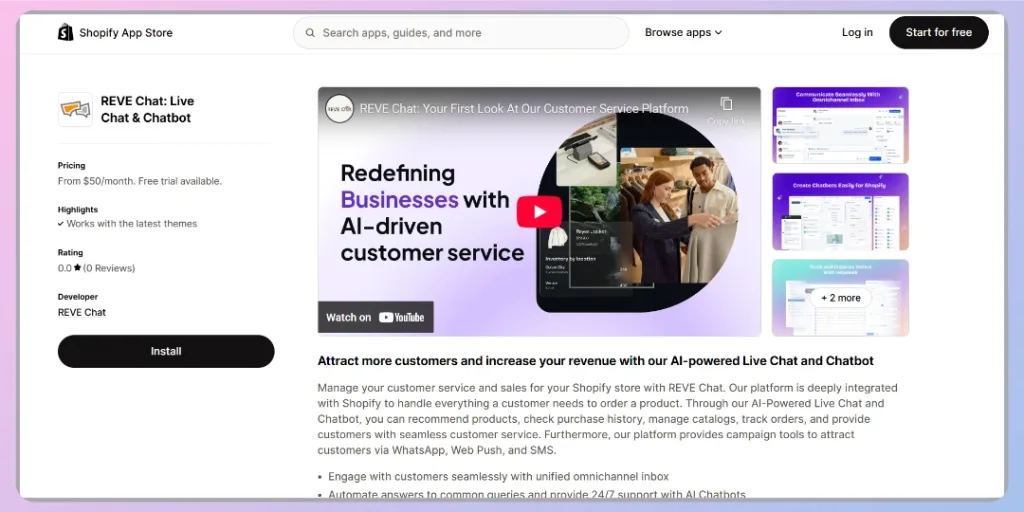
After the app is installed, your Shopify store will be connected with REVE Chat.
Step 2: Add Your Shopify Store in REVE Chat
You can also manage the Shopify connection from the REVE Chat dashboard.
- Log in to your REVE Chat dashboard.
- From the left sidebar, go to Integrations.
- Select E-Commerce Integration.
- Open the Shopify section.
- Click Add account.
- Follow the connection steps to connect your Shopify store.
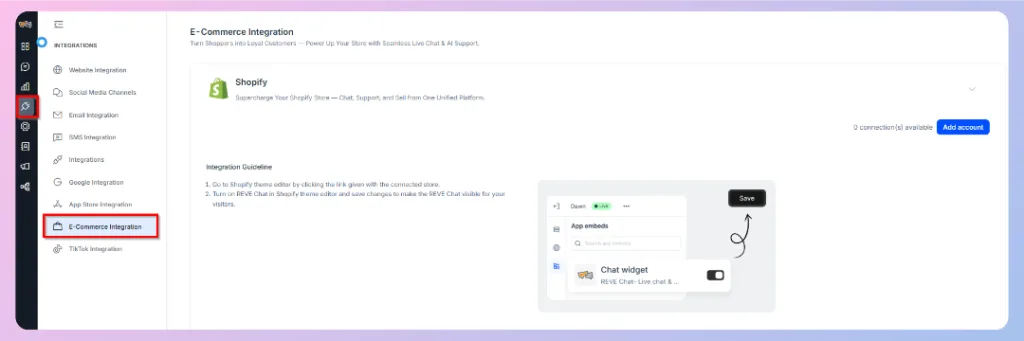
Once the account is connected, your Shopify store will appear under the Shopify integration section.
Step 3: Enable the REVE Chat Widget in Shopify Theme Editor
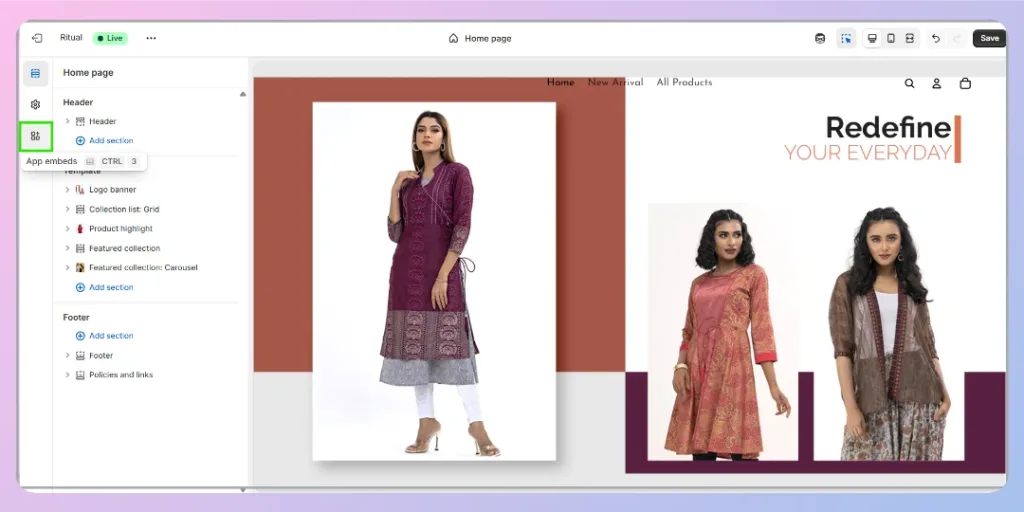
After connecting Shopify with REVE Chat, enable the chat widget from your Shopify theme editor.
- Go to your Shopify theme editor.
- Open the App embeds section.
- Find Chat widget by REVE Chat.
- Turn on the chat widget toggle.
- Click Save.
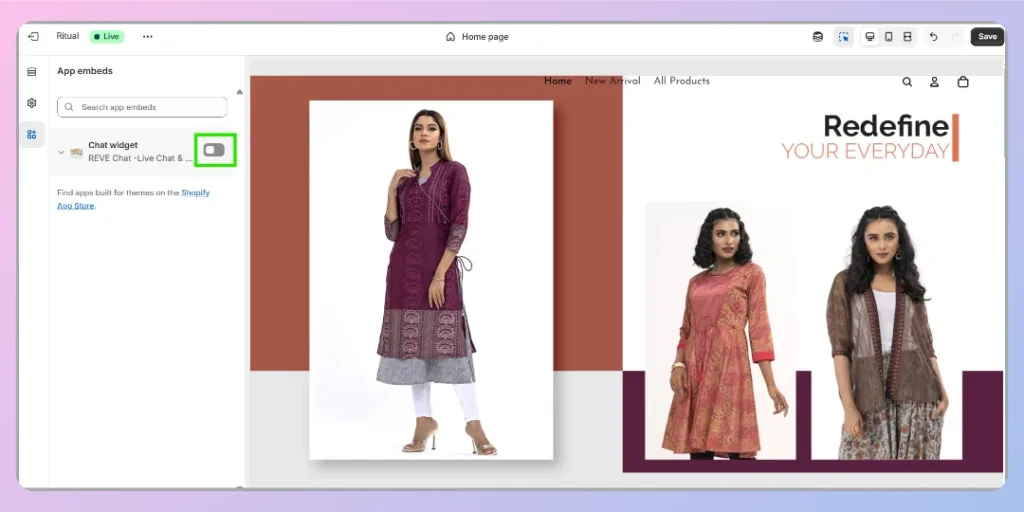
After saving the changes, the REVE Chat widget will become visible to your store visitors.
Verify the Chat Widget on Your Shopify Store
Open your Shopify store in a new browser tab and check whether the REVE Chat widget appears on the storefront.
If the widget is visible, customers can start chatting with your team while browsing products, asking questions, or completing purchases. Incoming conversations will be available inside your REVE Chat dashboard.
Troubleshooting
If the REVE Chat widget does not appear on your Shopify store, check the following:
- Make sure the REVE Chat Shopify app is installed.
- Confirm that your Shopify store is connected from Integrations > E-Commerce Integration > Shopify.
- Make sure the Chat widget app embed is turned on in the Shopify theme editor.
- Click Save after enabling the app embed.
- Clear your browser cache and reload the storefront.
- Check whether you are viewing the correct published theme.
- Make sure your REVE Chat account is active and properly connected.
Next step
After installing REVE Chat on your Shopify store, continue setting up your chat experience by customizing the widget from your REVE Chat dashboard. Explore the related guides to learn how to update the widget appearance, configure welcome messages, set business hours, define routing rules, and enable automation features to better support your shoppers.

 Start free trial