



Inbox Appearance
- September 28, 2025
- 1 mins read
Table of Content
The Inbox Appearance setting lets you customize the background of your REVE Chat inbox. You can select a predefined pattern to create a more personalized workspace for managing customer conversations.
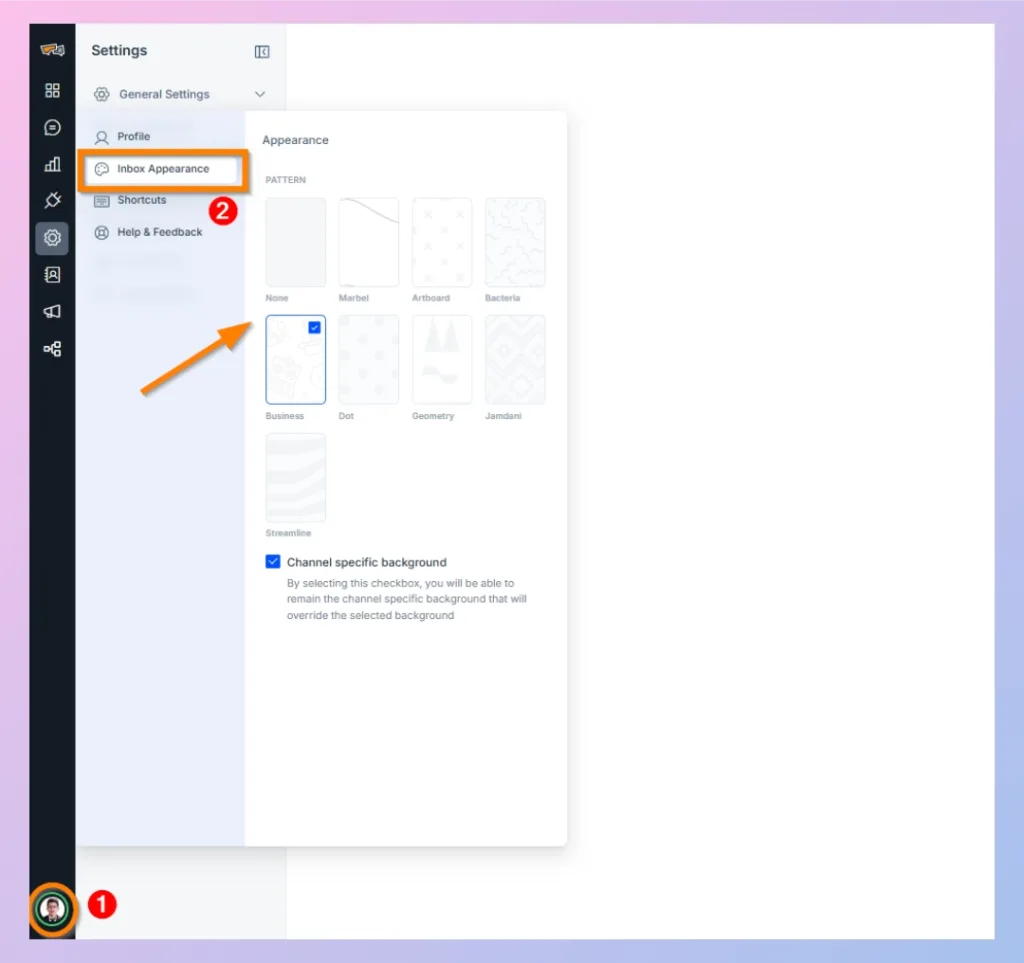
Path: Profile Icon → Settings → General Settings → Inbox Appearance
How to Change the Inbox Appearance
- Click your Profile icon in the bottom-left corner of the REVE Chat dashboard and open Settings.
- Under General Settings, select Inbox Appearance.
- In the Appearance panel, choose your preferred background pattern. Available options include None, Marbel, Artboard, Bacteria, Business, Dot, Geometry, Jamdani, and Streamline.
- The selected pattern will be applied to your inbox background.
Channel-Specific Background
Enable Channel specific background if you want conversations from individual communication channels to keep their own channel-specific backgrounds.
When this option is enabled, the channel-specific background will override the background pattern selected above.

 Start free trial